1 free read left. Create a free account for unlimited reading + AI research.
Create free account
Workshop : How to Implement Video Chat into Unreal Engine
Key insights
6 takeaways- 01Integrating real-time video into Unreal Engine projects is primarily achieved by utilizing the Agora SDK, which provides the framework for managing communication channels.
- 02The Agora Unreal SDK is currently in a beta phase, requiring developers to rely on community documentation and support channels for implementation guidance.
- 03The implementation requires initializing the Agora engine with a unique App ID and creating custom actor blueprints and UI widgets to render local and remote video feeds.
- 04Developers must configure specific callback events to manage connection states and bind video streams to dedicated video holder blueprints within the game environment.
- 05Testing video functionality requires a standalone build rather than the engine editor because the integration relies on direct hardware access to cameras and microphones.
- 06Successful deployment necessitates manual post-build adjustments, including the configuration of system-level privacy permissions and the correct placement of framework files.
Ask AI about this video
Transcript
we're uh we're very lucky now because we've got a uh a chance to dive in depth uh for a little longer for something we've got our diamond sponsor uh agora who are joining us uh here at four o'clock we've got uh uh joel thomas here to lead a workshop um so uh catherine do we have uh him ready to bring to the stage tom joel is going to be speaking about how to implement uh video chat uh in the unreal engine now uh joel can you hear me okay yep i can hear you fine perfect great good to see you thank you for joining us uh wonderful wonderful to have you on board and really grateful for you guys uh sponsoring the event again so what i'm going to do is i'm going to fade into the background myself uh leave
it now i think you're going to be playing some video as well so i think catherine's on how to set that up so uh well over to you welcome okay thank you very much um yeah so hello everybody and welcome um my name is joel from agora and i am here to show you how to implement video chat into the unreal engine and so before we get started i would like to thank the entire pocket gamer connects team uh for for putting on such a great uh event and for allowing me to speak here to you about agora and the unreal engine and for those of you who um don't know too much about agora agora is a leading voice video and live interactive streaming platform helping developers deliver rich in-app experiences including embedded voice and video chat real-time messaging interactive live streaming and real-time messaging and um before we get started i will be hanging out in the chat answering any questions along the way and i'll also be asking polls and i'll also be on the discord channel hashtag powerthegamer so i encourage you all to um feel free
to chat ask any questions anything you need i'm here for you and we also have some links for uh downloads like to the unreal engine so you will need to follow along you will need a working version of the unreal engine i recommend version 4.25 you'll also need a valid agora account and i also encourage you to download our um unreal blueprint sdk from our agora io community github and so those links will be provided if you don't have those links that's perfectly okay i still encourage you to follow along pick up some unreal tips and tricks and uh this video will be posted at a later time and you can follow through on your own time and either build this project or your own project using unreal and agora and so with that let's go ahead and get started and let's see what we are going to be making hello devs and welcome my name is joel from agora and so welcome to the agora's unreal engine quick start
webinar where we will be creating a one-to-one call inside of the third-person template of the unreal engine so before we get started we have let's go ahead and make sure we have the unreal engine downloaded so you go to unrealengine.com go to the top right here there's a button that says download we'll click that and go down and do the creators license it's free and perfect for the situation at hand so click select it'll automatically download the epic games launcher once you have that installed you know open it up and then we're going to go to library up here click library and then go to engine versions click the plus sign and it will cue up another engine like version to download so we want 4.2 3.1 and so go ahead and download and install that and then once we have that taken care of we're going to download the actual unreal project from github and so we will go to agora's community
page and more specifically the agora unreal sdk blueprint and so this is going to be a full project including the agora plug-in for for the unreal quick start and so we can go ahead and click clone or download so you can download a zip folder which is what i've done for this example or you can download um this this project right into your github if you have like github for desktop and so just to give an example of what that looks like um i've downloaded it here so it came in as a zip i double clicked it to open it up or to decompress it and i open it up and then we have the u project right here and so once 4.23 has been downloaded i'm going to double click to open this and then we will be met with a message that says something about missing modules and we're going to go ahead and click um yes would you like to rebuild them
now for agora video call plug-in blueprintable would you like to rebuild them yes i would and so that's going to go ahead and get started once that runs through its full progress the project should open and then we should be good to go and then one last step here um let's see here uh we want to create a profile on an agora's dev page so that we can plug in our own unique app ids to inject the agora sdk into unreal so go to agora page where you can punch in your information and create a profile with agora and that will lastly land you on the agora's console page where actually here's here's what the the opening screen looks like and then we'll create a new project by going to the left sidebar here go to project management and then we'll click create and then we'll just make a new um project name here so we'll say unreal
quick start and then app id is fine um just go ahead and leave that like that click submit it will create a new project and then hello unreal um and then here is the app id that we will be needing to punch it in so if you click this little i here we can grab the id and then um plug it into unreal at a later step i would recommend copy pasting this into like a notes pad or sticky notes or something like that for easy access um but yeah so that's the main three steps we need to download the unreal engine download the project from github and then sign up with agora so that we can all follow along properly and all right thank you very much i would highly recommend you to do this prior to the actual webinar starting the download times for unreal can be a bit lengthy at times and so i just would highly recommend having everything downloaded before we get started and with that being said thank you very much and i will see you in the next
video okay so we get there we had a brief introduction on on following all those different steps we got unreal we got the agora account what that looks like as well as downloading from the github a quick note on the github there's actually a link if you go into the documentation near the top there's a link to download the actual plugin itself that comes in as a zip folder you decompress that and you put that into your plugins folder for unreal um so just a quick heads up there and for those of you yeah for those of you who are following along live and also i've got a quick uh first question for you all which is um what is your experience level of using unreal and so with that let's go ahead and get into the next video and hop into the unreal engine and inside this project we actually have a video called level bp which is a another example of one-to-one calling however we're going to be building ours from scratch so um the first thing i want to do is click
add new here go to add feature or content pack and then click third person i want to add some unreal assets and what not to play around with here so okay so now we have our third person folder third person bp so we have go into maps and click on the example map and so once that loads now we can see we've got our like unreal engine game that we can run around in okay so i'm going to go back into my content folder i already have a folder here called blueprints so i'm going to create inside of the blueprints folder i'm going to create a new folder called i'm just going to say call demo so that way we have all of our assets located in one spot and so first like i mentioned i'm going to build that um we're going to build the channel joining widget so i'm going to click i'm going to right click inside of the folder go to user interface and click widget blueprint and then we're going to call it
channel joiner vp okay and then open that up and so now we have a a um the unreal like widget editor inside of this new tab that we just opened up and so this is the full extent of the widget as you'd see it on screen so i'm going to grab some editable text where i can punch in my channel name and then i'm going to drag in a common button like that i'm going to name my button just name it like join button and then we'll name our text channel text and then inside of our button we're actually going to drag some more text in see it automatically snaps in so we're going to name this text block we're just going to say join there we go and inside of our channel text we're going to include
um some hint text so i'm going to call it channel name so the user will know what to punch in bump up the font size once we compile it there we go and then we're going to center the text out to make this look a little cleaner i'm going to take my channel text box here i'm going to set the anchor to centered 0 out position x position y we'll set the size to 400 set the size wide 100 and then set the alignment to 0.5 and 0.5 so that way it's perfectly in the middle on the screen and then with our join button we'll do the same thing set our position x to zero position oops position y to zero um set the size to let's say 200 and then our size y so let's say 100 and then we're going to 0.5 0.5 again and now we're just gonna um drag it down just a little bit oh come on there we go okay so we'll set our position y to
let's say a hundred cool so we've got our a button to click and we've got our text that we can punch in and so just as one last little um like nice polished detail we're going to add some background blur and so this is just going to make things look a little nicer we're going to expand this to the whole screen we're going to set the blur strength to 80 and then we're going to drag the background blur behind everything else inside the canvas and there we go there's our widget so we'll compile that saves everything's working and then let's go back into our um our project okay so with that we created um our channel joiner widget which is essentially our our access point into an agora unreal engine channel each channel requires a specific string name that you type in and then you join and that's how you and other users are able to
join each other up in the video chat so we've created the widget and next we're going to be creating the agora manager that actually um uh where where we at where we initialize and run this functionality so with that let's go ahead and get into the next section okay so now that we have our channel joiner widget class created we're going to create our agora manager so i'm going to right click i'm going to go to blueprint class and then click actor and then we'll call it agora manager underscore bp so now we double click that to open it up and we go to our event graph and then now we're actually going to do some blueprinting here so we don't need these nodes so let's go ahead and delete those and so a quick word about how unreal um i guess visual scripting works for those of you who have no idea or this is like completely new to you it flows from left to right instead of top to bottom like normal code so for example if i was going to do a print statement i'll do
a drag a pin off from this node here i type in print and then we have our print string node and so yeah we have um we can do hello world and then when we save and compile this and run um the first thing that happens like so the event begin play fires um first thing before the scene starts so once this fires we will print our hello world statement so just with a basic primer out of the way let's go ahead and get started so first of all i want to be able to see the mouse when we play the game that way i can punch in the channel name so i'm going to do get player controller and then drag off of this blue pin here and type in set show mouse cursor so what this will do is allow us to yeah see our mouse when we start the game that way it's not lost when we want to click the button or set our channel so i'm going to check that for true and then next we're going to actually create our channel joiner widget so i'm going
to drag another pin off say create widget and then inside this purple class drop down we can select the class that we created which is channel joiner so click that and then now the actual returned class created we want to do add to viewport so now the ui is on the screen i'm just going to bring this up a bit here and then okay so now we have our channel joiner created um now we're going to do the actual agora sdk scripting so next we want to drag a pin off i'm going to do construct object from class so we're going to be creating a completely new object and so we want to do uh object of type agora so this is basically or this is our agora engine here and so we want to kind of a nifty trick that unreal does so instead of just grabbing the return
value i can right click this pin click promote to variable and now this will pop in here and i can name this agora engine and so now i have a reference to the agora engine that's automatically set um in this note here okay and then uh for our outer we just want to get a reference to self here and then just plug that in okay so now that we have our let's see let's compile okay so now that we actually have our engine um we want to initialize so i'm going to click initialize oh actually let me back up a second here so if i type in initialize you can see um that this is a functionality from agora so let's say if i were to um yeah go any anywhere else so like here we have like some unreal um functions and and variables and everything um but yeah so this is actually like the agora specific uh functionality that
you can find if you want to go search for it you can yeah click this agora drop down here and then go in and find all these different agora events uh here's some callbacks here's some functions um yeah so this is just a quick word on how to navigate the unreal like visual scripting because it can be you know i guess kind of overwhelming if you have no idea where to start okay so we're gonna take the igor engine we're going to initialize click and so here uh you must must plug in your app id that you got from your agora website so i'm going to plug in mine um feel free to plug in yours and uh make sure not to leave that blank so alrighty so once the agora um engine is initialized we are going to um drag off and we're actually we're going to get our engine and then do enable
video okay so with a successful initialization we will enable our video and then we will take our gore engine again and do join channel okay yeah so i guess a quick little like heads up i can get a separate agora engine um getter node here to plug into either one of these or you can just keep the same one and drag it into multiple it doesn't really matter um it's whatever you feel good about and so with our channel id so we're actually going to grab the channel created or the channel punched into our channel name here and so in order to do that we have to back up to our widget and we are going to promote our newly created widget to a new variable and
uh we'll name it i will just say channel joiner okay so yeah here we're actually setting that channel joiner so actually okay let me back all this up here okay so i'm just inserting this node in between there we go okay now that we've set our um channel joiner variable after um creating it we want to set it so now that we have a reference to it so we want to add it to our viewport and then we can get the text inside of this channel joiner and plug it into our channel id so i'm going to grab a get node and so just for for a quick heads up i can click and drag this onto my event graph and i have the choice to either get or set um and so in this case i want to get or i can hold command and then click and
drag and it'll automatically create a get node um and so the way to get the set is for for me i'm using a mac i hold option i believe on pc it's alt i drag open or drag over and then it creates a center node so that's just like a a really quick shortcut that will save you a lot of time i would highly recommend it so we have our channel joiner i want to get our channel text which is our editable text where we are punching in our channel name and then from there i want to do get text which is the actual editable text component and then here you can see this is a this is a kind of a light pink node of type return value text and this is a dark pink node of return value of type string so uh unreal will actually automatically handle the cast from text to string by just dragging this here it'll automatically convert um and that's what this node is doing here so it's kind of a nifty thing
from unreal and uh definitely cool so we're gonna take advantage of that and all right so now we've initialized the engine we've made we've enabled our video and now we've joined our channel and so next we're going to create some callback events for when a local user and a remote user join and so i'm going to grab another instance another getter of the whoops of the agora engine get you and then i'm going to type in assign on join channel success delegate click that okay so what this is doing is this right here is um creating the callback method which will then be called inside of this event here every single time um a new local user is joined so i'm just gonna um here this is actually another cool thing so i'm gonna highlight all this stuff going on right here i'm gonna press the letter c
and it's going to create a comment and i'm just going to say local join so now i can know this is how you comment code inside of unreal's visual scripting so now i can actually grab and drag all these nodes as like one unified piece and so we're not going to do anything yet we're just going to keep this event here and i'm going to come back to it later but we're also going to do the same thing copy this over we're going to do the same thing assign um it's gonna be called a sign come on sorry about the weight sign on user joined delegate and so what this is going to do is fire every time a remote user joins so we have our local user our remote user anytime that stuff fires that any functionality plugged into this red event node here
will fire so i'm going to make another comment i'm going to say remote join and okay so for example if i wanted to do something here we could we can make a print statement and say yeah like you know join channel success but again we'll just leave this for now we're gonna compile this and save it and okay looks like we're good to go so i guess just a quick recap we have created the um the widget that allows us to join to pick our channel name and then to actually join in um we set that we constructed our agora engine we initialized it with our app id we enabled our video join the channel and then now once users start to pop in we can handle that functionality accordingly okay so we just got the initial agora implementation out of the way uh you'll see this pattern across any platform whether it's unity
unreal um you know web we have uh that pattern of of the enable video join channel um yeah it's it's standard uh a standard agora setup and so in our next video we're going to see uh we're actually going to um run the agora excuse me we're going to create widgets that will handle the agora video so the same way we created a widget to make the ui to join the channel we're going to create widgets that hold images where we'll actually be piping the agora video data into the image and use that as our uh player video screens and so with that let's go ahead and get started and for everybody watching i encourage you to check out the chat i'm curious to see what your level of unreal engine experience is and so yeah let's go ahead and get started now that we've created the bones of our agora manager we're going to create those video widgets that pop in whatever a
new user whether they are local or remote join in so next i'm going to create another widget blueprint so right click user interface go down to widget blueprint and we're going to call this we'll say agora video underscore okay and so yeah this will come in as a widget so we want to actually get an image drag it in and let's just go ahead and center it out here so i'm going to set x and y to zero set the size i usually like to set it like 700 by 700 it's pretty big but i mean you can set it to whatever you want uh it's 0.5 and 0.5 for my alignment and that should be good to go so basically we'll just have a floating um image like this where we will be rendering um frame by frame of the agora video to this image so i'm just going to go ahead and name this agora video frame go ahead and compile that
and now we have to actually plug in the functionality in our event graph into uh this widget so i'm going to go ahead and get rid of our pre-construct and our tick so event construct basically it's the same thing as event init but so uh yeah what exactly this is that whenever a node is read like this it's called an event which will fire whenever a certain um whenever it's called or whenever a certain case goes off so for example event construct will happen you know whenever the widget is constructed so we're actually going to create a new event so i'm going to right click type in custom event so we can actually generate our own event and we're going to call this agora video setup okay and then all right so first of all what exactly do we have to do so i'm going to do more um bind events for whenever
a local or remote video frame comes in so first we need an actual agora engine variable so let's go ahead and create a new one for engine and set that to type agora okay and so because this is a custom event we can actually uh include custom parameters to be plugged into so i'm this is actually going to be accessed by our agora manager so for our inputs i'm going to create a agora variable okay and where we can then set our gore engine at as soon as the event is called and then i'm also going to create another input it's going to be a boolean that i named
is local so we can determine if our video frame or we can set if our video frame is local or not and so okay so now we have these two things um so now i'm going to grab the agor engine i'm going to do assign assign on local frame receive delegate okay so now we bind our event so this is gonna play multitudes of time it's gonna it's gonna happen over and over and over and over again because um you know basically our video is built of individual frames and this is fired every time a new frame is received so it's um yeah you know basically it's like uh imagine it being called every single frame so what we're going to do is grab our the image or agora video frame that was um here in our designer panel so we have a reference to it here inside of our variables it's automatically popped in once we created it so i'm going to go
ahead and get this so i have a reference to our image and then i'm going to call set brush from texture and what that is going to do is turn our gore video frames into a texture for this image okay and i actually want to um have a quick check in the middle of this so i'm going to drag off here i'm going to type in if so in unreal it's actually called a branch statement so you can type in branch if you want to but you can also just type in if and it will be is essentially a if else you know if condition is true do this if false do that so we are going to check if um is local is true so i'm actually going to create one more variable we're going to call it is local set that to our red bullion
and then back this up and then we're going to set is local so now now we can just get it really easy and simply it's not going to be a big hassle um set is local there okay let me clean this up a bit okay cool there we go um yeah so generally in unreal you i guess most people try to keep the um the white wires like as straight as possible and to not like cross them you know it's just like a a cleanliness thing you know i mean you can kind of get ocd about it i tried to get too crazy but one quick uh like a cool shortcut is if you double click um on the wire you create what is known as a a reroute node which is basically just like a little blank pin that you can like drag and you know you can send your wires like all over which way to make things like you know just to kind of change the visuals of it so you know now things look can look just a
little cleaner just you know fun tips along the way okay so we have our hello we have our local frame received if is local is equal to true then i want to set my brush from texture now i'm going to do the same thing for uh the remote and so i'm gonna do let's see one second okay i'm gonna drag off here and call this assign on remote frame receive delegate okay so we're gonna bind our event and now this event will be called uh whenever is local grab that click let me get closer here so get our if statement if is local is equal to false then i want to set brush from texture
drag it over uh if local is false okay and then plug this frame into that texture and so again just to kind of just for the sake of cleaning things up let's go ahead and do that drag this down over here like that put you over there pull this down and there we go you know now things just look a little better um okay so we're gonna compile everything works so let me work backwards here so again so on remote frame received so remote is local's false set our brush from texture um local frame received is local is true set our brush from texture okay so we are good to go here we compile we save now um before you a quick note about the widget class you can't just go and drop in a widget just into world space willy nilly so we're actually going to create another blueprint class we'll
make an actor and we're going to call it agora video holder bp and so this is basically just going to be like like an empty transform that we can just drag into the world nice and easy and i'm going to go in here so i'm going to do add component and so i'm going to add a widget to it and we'll say we'll set this to our let's say we'll call it a gore video and then now we have to go over into our details panel into our widget class right here and then click here and we're going to call this agora video bp and so now that big image that we created over here in visual part there we go over here is now showing up right here and so as you can see also this is um clipping this is like an example of the floor plane so we are halfway clipping to the floor and so i'm just going to drag up my agora video just until it rests on the floor like
that so my location is 250 um in the z space of my transform so click compile uh we don't need to do anything else uh any add any code to this we just want to spawn it in and then let our agora video um blueprint handle all the code okay so with that we created our agora widgets as well as the widget holders and next we will be spawning those widget holders into the scene using the callbacks that i had left empty in the previous video and so with that if you have any questions feel free to post them in the chat um and yeah let's go ahead and get started okay so now that we've squared away our agora video holder and the agora video widget we are going to spawn in the agora video holder into the scene using our gore manager and so before we hop in there i'm going to create an empty actor
just drag it in here i'm going to rename it to say spawn point one and then i'm gonna hold option on the mouse with pc it's it's alt i believe and then drag and then just create a new one and it's actually gonna automatically rename it as well so we have spawn point one and spawn point two and so i'm actually going as well you wanna swivel these around 180 degrees because for whatever reason they just um they're your video will point in backwards so yeah just gonna make sure that that's squared away okay so we've got our two spawn points we've got local and remote let's go back to our agora manager and we will create two variables spawn one uh yeah and spawn and so these are going to be of type actor so if if they don't come in with like that blue sphere just search actor here it is object reference and you're good to go i'm also going to make these public so
i'm going to click on the closed eye here to make it open which then exposes these variables to the editor so i'll give an example here so we have spawn one and spawn spawn two one is public two is not we're gonna compile we go back to our agora manager spawn one you can see and there is no spawn to visible yet because we need to make it public okay to make it both public there we go and i'm actually going to pick actor from scenes so you get this neat eyedropper here and you just go and click on the items or the actors that you want and they are now effectively assigned in editor okay so now we have to actually spawn so i'm going to drag off of here and create spawn actor from class there we go it's in okay and so this is going to be of type agora or video holder okay and the spawn
transform is going to be the transform of our spawn point spawn 1 get actor transform there we go and then just drag that in there like that and okay so we will now uh spawn in the actor and then i want to uh so just spawning an end isn't going to be enough because in our gore video we have this custom event that we set up called agora video setup this will not fire on begin play and so we have to specifically access this and call this from inside the manager so once we have we take our spawned actor we're going to so this is the video holder so we need to reference our agora video um here it is we want to get our video from there we get user widget object so this allows us to basically access the the
quote-unquote component the widget component which otherwise would give us a headache if we didn't do this so um so we have the user widget object and then now we can call that function so um or event rather so let's sephora oh okay first we decast it that's right so this is essentially checking if um this user widget object is equal to the type that we want so is this widget and agora video bp if true do something it failed do something else so uh now we have the actual agora video bp component and so now we're going to call the function agora video setup so agora videos there it is setup and yep on successful cast do that now we have to just punch in a reference to agora so i'm going to grab my agora engine plug it in here and set is local to true
because we are um inside of our local join event okay and now we basically just do the same thing for our remote join so we're going to spawn actor from class class is agora video holder bp okay song transform we'll get spawn two get actor transform dope plug that in like that file all right we're all good to go so we're gonna get get agora video video not sure why it's down there like that whatever get user project object cast video we want to set up the tool yep agora video setup
okay okay make sure the wires are good so is local is now set to false and we'll just plug in our gore engine like so and okay compile everything's good so we now have um our events completed so let's hop in here save all selected okay and we should be good to go okay so we are coming up on the home stretch here this is the last video in this video i'll be walking you through the build process from mac if you're following along on a pc i'd encourage you to test an editor and uh we just have a few last steps to tie up and then we will be making our build and testing okay so before we package our project and test it out we have just a couple more steps to go through so i'm going to hop into my agora manager here
so as you can see um in event begin play we are creating our widget the channel joiner and then constructing agora all in one shot so we actually don't have anywhere um in the code so far as to actually remove the channel joiner widget um so when you press the button it's just going to stay on screen so what i want to do is remove this sequence of functionality i want to keep this um this link here everything regarding the channel joiner widget i want to spawn that on begin play however i want to do the initialization of agora and uh subscribe to the callback events when i press the join channel button and so i'm actually going to create a custom event here we're going to call this uh join agora channel and look it up so again um on event begin play we'll be creating the widget
that then provides the button to then press and join the agora channel so file that we're going to hop into our channel joiner okay let me get rid of that here so a neat thing about um unreal is i can actually so in the designer view so that's like the the visual editor i can click the join button i can scroll down inside the details panel scroll down to events and there's a couple buttons between some pre-prescribed events that we can access so i'm going to click the plus for unclicked and it's going to automatically create a new event for that join button inside of my event graph and so once you press that join button i want to get the agora manager so we're going to do get actor of class and then set my search for actor of agora manager then now now that we have that actual
manager we're going to do the call the join agora channel event so now when i press my um my actual button it's going to do all the agora setup and on top of that we also want to remove the widget now that um we're pretty much done with it after setting our tail and joining it so i'm just going to create an extra node here and say remove all widgets it's just going to pop in like that and okay so we are good to go with the manager and now actually one last thing i want to do is um so we have initialized here we construct the engine we enable the video if we don't do this the video feed won't play we have to join the channel but then we're also missing something here i want to um get an instance of the agora engine and then do um what is it oh okay set uh local video let's see
mute i think it's mute local video yeah there we go mute local video stream and so we want to set that to false so just leave that unchecked so what this will do is when we test it say with the agora like one to one web collar we can actually see the video feed coming from the unreal engine so there we go that's good to go i'm gonna compile everything set one final thing before we package this project we want to assign this uh third person map as our default map in the build that we create so to do that we're going to go to settings go to project settings uh on the left hand side go to maps and modes and then our default levels might say video call level bp let's switch that to third person example map which is the map that we downloaded into our content in the very beginning of this demo and you can go ahead and leave the default game mode in the game instance class
those are good to go and then go ahead and close out of this and now let's package this thing up we're going to click save all just to be safe and then now we're going to go through the steps of actually compiling and packaging the project so inside of the third person example map you can find package project for me i'm using a mac um and so just to give you a heads up if you're inside like one of the blueprints you would not be able to find that functionality you have to be inside the actual like level editor view here so i'm going to click file package project select mac and then i'm just going to create a new build so i created a folder inside of my um agora like file tree so i'll just give you an example here we have the agora quick start blueprints approach and i created this builds folder that's empty so i'm going to click open and it's going to build my project for mac so now it is the moment of truth
and just a quick heads up on this um currently you we are not able to um just click play and test the uh agora functionality in the editor we have to uh make a new build to test any changes with agora that's something that we are working on and we'll hopefully have a fix for soon but however right now you can only see the agora video playback in a standalone build itself okay packaging is complete and now i will go to that location so i'm going to pull up jump in here
go to builds mac no editor and this is the last and most crucial and most easily overlooked step um you have to if you're on mac right click on the actual app itself on the app file go to show package contents jump into contents here and then the info.plist file we're going to open that up and then we have to add two new items here uh one for enabling microphone and one for camera permissions so i'm going to type in privacy dash microphone and then it'll auto populate for me like that click the plus again do privacy dash camera there we go and i'm just going to add in like some like a description here i just do cam and mic and then uh save save the plist file close it out okay one final step before we run the demo i'm going to go into my plugins folder source third party
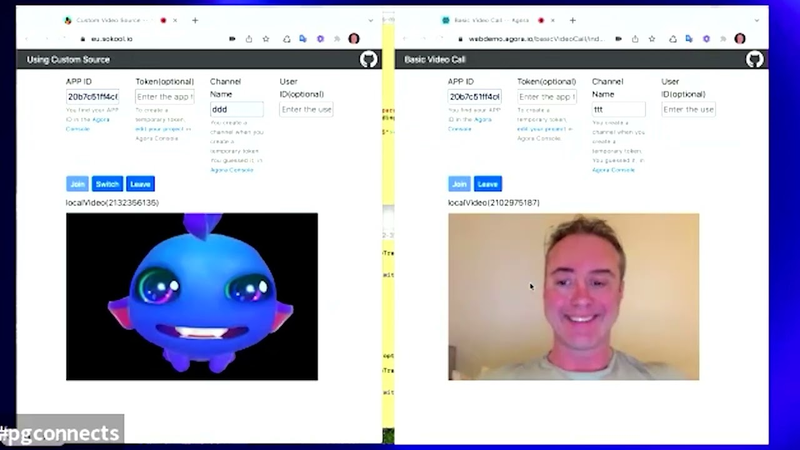
agora mac and then copy the agora rtc kit dot framework folder then navigate back to my build like so from inside the build click show package contents and paste the copied folder into the mac os folder just like that and now we are good to go hop in here double click we're going to open up our newly created standalone app so microphone permission i'm gonna set my channel name to joel it's a great name hello there's the unreal mannequin set the cam permission to true and there we go boom okay so now we have our local video inside of agora that's also it's important to note that maybe if you don't see it immediately it could be that your screen is flipped around so make sure that you
just double check that before you assume it's not working and last i'm going to test here i'm going to join in with a new player and [Music] okay all right everybody so um thank you for i'm going to mute that um thank you for um checking this out i appreciate you taking the time i hope that you learned something from this thank you very much i'm joel from agora and i will see you next time all right everybody that is the extent of the uh tutorial yeah again thank you for watching i hope that this was helpful um if you would like to to reach me you can actually find me on slack at agora we have a dev support channel called agoraio and i will be um i run the the unreal help me channel so if you have any unreal questions or agora questions feel free to reach out um yeah i provide you know support
around the clock and again thank you to the pocketgamer connects team if you have any questions you know feel free to drop them into the chat um otherwise you know thank you very much for watching and i hope that this was helpful thanks joelle that's great really really really in-depth there i'm going to give you a little round of applause you can't hear the audience because of the nature of the virtual the virtual presentation we've got a few minutes there actually so i just wanted to if you if you don't mind just uh ask a couple of questions myself and again yeah if anyone watching does want to drop any questions in they can do that and i might also um joe i'll ask you to revisit the ones that you answered during the talk just so the whole audience or anyone who joined late might get a chance but first of all i just wanted to say you went into a lot of depth there there was a lot of information to take in on screen as you know we're recording all the talks from pocket gaming connects as well but are your um video walkthroughs available online as well can someone go and find them somewhere yes so we have um we have this webinar where on our agora youtube channel so they can they can find this and they
can run through um and get all the information at the the speed that they that they need that's great so they can follow up perfect so on that note let's just revisit the questions that uh while you were talking we had a couple of questions there in the crowd there from steve and also from uh from an anonymous viewer you answered lives so you it was great you could actually do that while um while people were requesting you but for the benefit of those who weren't there maybe we can just uh answer those uh like now as well revisit those so anyone who joined can hear them as well so uh steve asked what was the best place to start for someone with zero experience of unreal and you you asked him briefly there but what would you say to that right so unreal has a lot of um very solid like quick start tutorials on how to get how to to um things like with the player controller like player controls um basic interactions we also have a tutorial like so like this tutorial for example um it's designed for zero experience so if you were to go onto our github and download the the sample project we would have the project and uh all the steps required as if you're a
user with zero experience at all so every single detail is listed out for you and um if you have more experience you know you can jump ahead that's fine but if you are just starting uh with the um the the quick starts are tuned for for that user that's great thank you and um steve i hope that answered your question and anyone else who's joined since and there was another question uh from an anonymous person in the audience which was uh what's the minimum hardware spec you would suggest uh for developing here what was your answer to that right so i i don't have an exact number however yeah the unreal engine is generally regarded as like uh kind of a a program similar to something like maya like like a heavier like a heavier development tool um you know it's generally like long build times like long load times it's it requires above average level of hardware and so yeah for me i would recommend anything that that's related to to gaming um it doesn't necessarily need to have like that that title you know there can be some
uh you know some extra features there that aren't necessary but it it definitely i would not recommend trying on like a sort of basic like laptop for example like that that will um that'll you run into a lot of problems and like the amount of time taken um you might be frustrated um yeah but if that's all you have you know i say go for it but yeah just a recommendation i would say stick to the gaming kind of sector of things yeah absolutely i mean i guess if you're uh you're absolutely right you don't need a lightweight laptop but if you've got a computer capable of running games capable of running unreal then then there should be no trouble getting to grips with the agora software right now actually i can tell you what we've got a a couple of minutes before our next guest joins us so if you've got a second there joel actually i thought of a couple of questions i'd just like to ask you myself actually if that's all right the the the workshop was great and it gives a you know an ins an informative way to get started using the agora tools but i'm just wondering um are you able to give us an example of uh it being out there in the wild uh it
just said you know i don't know whether you're behind any ndas or anything but it'd be great if you could mention a couple of like live case studies but where might be see we see this happening right now sure yeah that's a great question so uh so some examples we have are our bunch and communix they they aren't specifically created with unreal um however um yeah those are some uh really really solid use cases that are actually shown here at pocketgamer um regarding unreal specifically i'm not i honestly don't entirely know if i'm allowed to say okay yeah but but we do have uh so some cool customers that that we're actually currently supporting um yeah i wish i could could tell you more um i'm trying to think of like yeah yeah so we do have customers that are using unreal and actually we should be um able to announce something very soon so i would i would recommend to check out agora's twitter feed as well as if our youtube channel uh because we will post um yeah we'll we'll post the announcements like when they actually go live as well so
yeah stay tuned for that um and also just a quick word the uh the agora unreal sdk is actually currently in beta and we are looking to uh launch in late september right okay okay so we're actually we're we're kind of nearly there we're at a really a really crucial crucial time for that so if people want to get involved and find out more are you sticking around to be contactable through the to match platform or on our discord server what's the best way for someone who's been watching this to grab hold of you and find out a little bit more about your plans for the rest of the month sure uh yeah so i'm on the discord summer server i'm on the uh the hashtag look specifically looking right now at the power of the gamer um channel and yeah me too match is good too um both both are solid ways to contact me that's great yes of course the power of the gamer channel on discord that's the perfect place great great stuff great stuff um well look thank you very much for your time there we've got a i don't think there are any more questions coming in but but you've kind of done a done a very thorough job there of uh of of walking people through there we've found out where we can go next to find
more information and how to contact you so joel i'm going to thank you very much for for being part of it and uh and bringing that uh our diamond sponsors of course as well we're very grateful but but also just it's great to have the time i think to dive into uh uh to a tool and see its eating process so joel thank you very much hopefully we'll have you back at the next one as well and folks do do keep an eye out for joel in the making meeting platform so thank you very much indeed and uh take care you
Summary
Integrating real-time video communication into Unreal Engine projects requires a structured technical workflow centered on the Agora SDK. By leveraging Unreal’s visual scripting system, developers can establish robust communication channels that facilitate both local and remote video feeds. The process begins with the initialization of the Agora engine using a unique App ID, followed by the creation of specialized UI widgets and actor blueprints designed to manage video stream rendering. These components act as the bridge between the SDK’s backend logic and the game’s visual interface, allowing for seamless user interaction and stream management.
The technical implementation relies on configuring callback events to handle connection states and distinguishing between local and remote video streams. Developers must create dedicated video holder blueprints to spawn and bind these feeds within the game environment. This setup is finalized by configuring UI elements to trigger channel joins and ensuring that project settings are correctly aligned for deployment. Because the integration relies on specific hardware access, testing must occur within a standalone build rather than the engine editor, necessitating precise post-build configurations.
Successful deployment requires manual adjustments to system files, such as updating privacy permissions for camera and microphone access and ensuring the necessary framework files are correctly placed within the application directory. While the Agora Unreal SDK currently operates in a beta phase, it provides a comprehensive framework for developers looking to embed interactive video features into their applications. Ongoing support and documentation remain accessible through community channels, providing a roadmap for developers to refine their implementations as the SDK moves toward a full production release.



Comments