1 free read left. Create a free account for unlimited reading + AI research.
Create free account
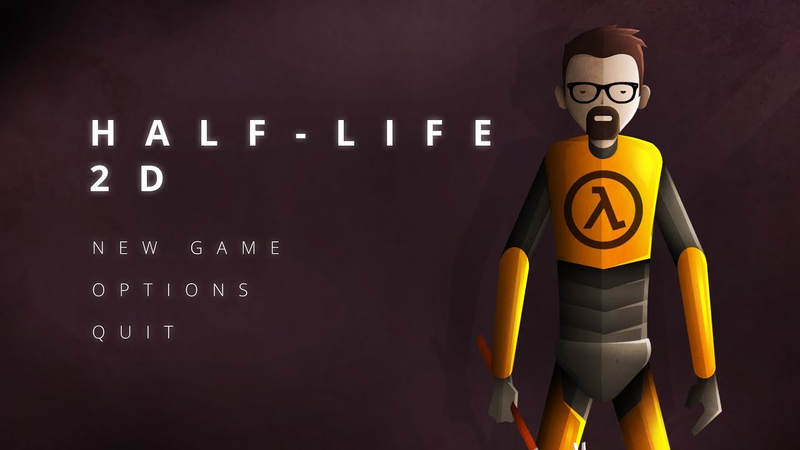
2D Character Design Tutorial (if Half-Life was 2D!)
Key insights
6 takeaways- 01Effective 2D character design prioritizes simplicity and abstract readability, ensuring characters remain recognizable at small scales or low resolutions.
- 02Designers should construct characters using basic geometric shapes, such as rectangles with rounded corners, to maintain visual consistency.
- 03The 'abstract testing' method—zooming out or squinting at the design—is essential to confirm that the character's silhouette remains distinct without relying on excessive detail.
- 04Adapting 3D characters to 2D requires deliberate simplification of complex features like chest plates or facial details to avoid a muddy or cluttered final image.
- 05Limiting the color palette and mirroring limbs are key techniques for achieving visual harmony and production efficiency.
- 06Depth is added to 2D designs by applying consistent highlights and shadows from a single light source using gradient tools and overlay blend modes.
Ask AI about this video
Transcript
Hey how's it going my name is Thomas fresh from the creator of a game called pinstripe I'm also about to finish a game called once upon a coma click the link in the description if you guys want to see those games wishlist them and also support on patreon get a free copy of my game pinstripe okay so today I'm excited because the announcement for half-life Alex came out yesterday well that's not true I'm recording this video like 6 hours before the announcement but I'm gonna pretend that we're celebrating and so what we're gonna do is we're actually going to look into character designs specifically we're gonna focus on Gordon Freeman and I'm gonna show you guys how we can make Gordon Freeman a 2d character and there's a huge difference between 3d characters and 2d characters a lot of you want to make 2d games so this is gonna be a great tutorial for you on how to make a 2d character in Photoshop and make it work for unity come on let's go now before we get started guys I want to introduce you to our sponsor game dev hq.com this is a
really cool website that aims at empowering you with tools and training to become a game developer their pro membership offers a game developer certification track through 2d 2.5 D and 3d Unity authorized courses once you gain your certification you can then build your game using file base a brand new plug-in built into unity 3d that gives you the freedom to create with over a thousand game assets like weapons blades buildings environments robots even complete levels they're instantly available for you to create your game now this company has supported Unity game development online for years and they have brought us an affordable product for all this training the tools assets it's just $9.99 a month or $99 a year of course we have a great deal if you use the code Thomas brush click the link in the description and you can get a annual rate of just 79 bucks you so first I just want to talk about logo
design because it's very similar to 2d design as you can see the unity logo looks great at all sizes the same is true with something like Mickey Mouse the silhouette of Mickey Mouse looks good at all sizes now with a 3d character like Gordon Freeman not so much because it's 3d it's different there's a lot of detail so I'm going to show you how we can make a 2d character using the same kind of principles as logo design so that it looks good at all sizes and that's really important with 2d you want to keep things simple like I'm doing here using very simplistic shapes to ensure that at any screen size especially when the characters running around and he's maybe like a hundred pixels tall that he looks like Gordon Freeman what are some key features about Gordon Freeman that we could focus on with this 2d design so as you can see I'm using very simplistic shapes I tend to use two tools the rectangle tool the rectangle shape tool and I often add a rounded as you can see
a very steep rounded angle so in the in the case of this body here I think it's like 25 to 50 pixels of rounded angles and now I'm going to just sort of taper off add some perspective and then some warping to this body so it started out as a simple rectangle and then an end ended up getting warped to look like a tapered male chest broad shoulders a thinner waist and again right rounded rectangle here with the arms and I'm just copying and pasting them and just changing the colors now an important thing to note about these arms is I'm gonna do one arm first make sure it's perfect make sure I like it and then I'm just gonna flip it and duplicate it and this is also true in 3d design in 3d design there is something called a mirror effect in blender so all you have to do is design one side now I'm not sure there's anything like that in Photoshop but the same rules apply here
now the only difference is on the right arm here we're gonna have his weapon and this could be true in any character you have a weapon of some kind in the right arm so there's a you know one one-to-one mirror effect here there's a little bit a little difference between the right arm and the left arm so as you can see I'm gonna finish the crowbar or the weapon before I actually finish his hand so now that we've got the crowbar done we can finish the hand to make it look like it's grasping the crowbar now let's talk about color really quickly as we move along color is so important in 2d design and I guess in 3d as well you know five six years ago when I was creating characters or illustrations I would just choose colors randomly I wouldn't really have a palette or you know a certain amount of colors that I would use over and over again and this was problematic because if I didn't like a color I'd have to change 20 different
shades of colors to get it to look right in this case you can see I'm choosing basically three colors a little bit other than the crowbar being red there's only three colors here there's some shades of gray but overall everything is sort of being used over and over and over again and again this makes it really simple to get this illustration to look good in the abstract now let's talk about what it means to look good in the abstract what I mean is we want the basic shapes and colors to be perfect as you can see I'm not really adding any detail here I'm getting the basic shapes down you can never fix a bad illustration in the abstract what I mean is if you scroll soom out and look at it and you can't tell what it is and it doesn't really look like a human form or if you squint your eyes or blur your eyes and it doesn't look like a human form it doesn't look like it may be a
male form or a female form or whatever character you're going for there's no way to fix it no matter how much detail you add to your character it's just not gonna fix it so now let's go ahead now that we've got everything looking good in the abstract now we can start adding details a zoomed-out everything looks good so now I can go ahead and start adding details to Freeman's face now again this is 2d so we want to make sure that we we have very little real estate to work with right and so what I want to do is make sure that the basic key features of Gordon Freeman's face work so I'm just gonna steal a Ray Ban sunglasses or eyeglasses silhouette here just because we don't have a lot of time obviously if you guys want to avoid getting sued first don't make Gordon Freeman your character but second don't make rabin sunglasses or don't copy and paste them but in this case just for this video
we're gonna just copy and paste it really quick and then we're gonna add some simple eyes and I like to use just black dots for my eyes that's my sort of go-to look and I'm gonna sort of cut them in half and make him look squinted like he's constantly in emotional turmoil at least that's the way I always think about Gordon Freeman he's a moody scientist alright so let's go ahead and just change the colour of his neck it was gray now the problem is here the gray blended in with his beard and that was not good when we're zooming out because it looks like he has one giant beard that's the thing about 3d versus 2d sometimes you have to change things in the 3d version of Gordon Freeman he has a gray neck piece going all the way up to his face up to his a chin but in 2d it just doesn't work so now we're working on the hair and right now it looks super nerdy it looks like he just combed his hair really smooth and nerdy so what we're gonna do is actually add just a little bit of
detail to the hair to make it look a little bit messy I found that again what especially with hair you want to get the basic shape down first and then you can add these details later alright so things are looking pretty good with Gordon Freeman I'm just gonna zoom in and out here adjust some shapes a little bit and now this is the most important part and I knew that this was gonna be crucial that's why I left a blank gray canvas on his chest to be able to do this portion and I'm gonna guess and check here and and start adding in some shapes to see what kind of details we can add to this without it looking too bad and I say bad because when you zoom out that logo was just too small so we can't really make this chest plate look like the 3d version I'm sure some of you could figure it out but in my case here with the limited time we have we're just gonna make it really big and we're gonna change the
chest plate just a little bit and I'm sure I'm not the only one but going from 3d to 2d again you you really have to make some judgments or judgment calls on what's what stuff you're gonna change and in this case that chest plate I'm gonna change now we're ready to start adding some shading and lighting so I'm gonna add a background image blur it just to make things feel like he's in an environment that really helps when you're creating some shading now this is my favorite part of illustration when you start adding shading to your 2d character everything starts to pop and it looks really professional my go-to weapon of choice not my weapon my tool of choice when doing lighting guys is the gradient tool and all I use is a black to a transparent black so it just fades and that's when I'm adding my shadows and lowlights and then my go-to
weapon or tool of choice for highlights is the same thing except white with an overlay blend mode so as you can see I'm adding just shading to everything that is on top of something else so as you can see for example on his right arm since he's got that orange plate over lapping his bicep I just added some shading below it to make it look like something's on top of it now you can see I'm adding some highlights and those highlights are again just a white gradient and so for example take a look at that little bit I can't I don't know what else to call it but metal underwear I've had it a white highlight towards the top of it because as you can see I've added Sun shafts to the top right hand corner of this image and the reason I did that was to constantly remind myself where the light is coming from there is nothing more important in your lighting than obviously remembering where your lighting is coming from so I've just added some Sun shafts to remind remind me where I'm going to be
adding these highlights and again we're just using an overlay blend mode that makes things look more orange and vibrant as opposed to just a white flat gradient over top so I'm just gonna add some details to the crowbar here make it look a little bit 3d and now it's important to remember that the face is when you're adding lighting to a face you want to be really really careful and in fact I've made some mistakes already here looking back and this this took me about an hour to illustrate so I'm actually talking over it as a time-lapse but I've made some mistakes here with the face you've got to be really really careful with lighting in the face because it when you zoom out when you look at your character from the size that they're going to be it's really interesting to see that the face can easily get muddy and and blend in with itself and it might be hard to see exactly what you're looking at so I've
made a few mistakes here honestly I can't quite put a finger on what the mistakes are but I know one thing when i zoom out the face is a little bit blurry but you know when we're looking up close it's pretty cool shading looks great so I'm just gonna group everything together and actually know what am i doing here oh I'm adding a little bit of shading to that half life logo okay so now that everything is grouped together now I can go ahead and start adding even more highlights and these are very specific highlights to make the thing think to think make the illustration look a lot more illustrative now in the case of go building an actual 2d character that you're going to animate and we're not going to animate this character in this video you would actually add these highlights to each individual element but for me I'm just gonna add it on top of the entire group and on Windows you just hold alt to add a highlight or some lighting effect on top of an entire
group so as you can see I'm just using overlay blend mode to add these small highlights to make things pop and it's weird because when you're illustrating you you tend to think that this is the least important part of your illustration and I'm sure there's a plenty of other things that are important but this is what makes things makes your illustration look really professional adding these highlights these pops of color to your illustration and now I'm just gonna add some shadows here as well some lowlights and use the gradient tool and just add a pulse of low lights to various portions of my character now this is sort of it definitely takes practice because you have to use your mind's eye to figure out where the shadows would be if the Sun was at the top right hand corner where would the shadows be so you can sort of study this if you want and go back and sort of see what I'm doing here it makes sense if he was a 3d character where would the shadows be so I'm just
adding these in really quickly here I'm not being too specific or or I don't care about the detail as much because again he's gonna be a small character we're not really gonna see him up close and if we do see him up close it'll probably be cover art and I'll you know add a whole set of details to the cover art so I'm not gonna worry about this too much so we're gonna finish up these shadows here and I like to add a half shadow so you can see there's sort of a slice down the center where there's a big shadow across the left side of him that makes him look more like he's a low poly art character and now we're gonna add some shadows and this is where at that point at this point I was illustrating him and I was thinking man I should probably just stop because you know this isn't really the point of the video but I really wanted to make him look epic so I'm adding some highlights here and I'm gonna start adding some details like changing the background
color to make him look really cool make him pop in the foreground but this I think this portion of the illustration is actually really important getting an idea of how your character looks best and what I've found and you guys might notice this from a lot of my videos I like to add some texture to my character so there's this website called pixels calm and there's this paper texture I really like to use and overlay it on top of everything and then I'm just gonna add the logo and a menu system again and I say again because I mentioned this in a lot of my videos but it really helps me to get excited about a game by creating a menu system just to get a feeling low saturation with a vibrant pop of color is definitely going to make your character pop so as you can see here I've done a low saturation purple and a vibrant opposite color of orange and
there it is that is our Gordon Freeman in 2d pretty cool right I think in the end he looks all right in 2d I always liked Gordon Freeman he looks great no matter what dimension he's in so that's a great that is a good line I love that I just came up with that that's amazing all right if you guys liked this video please hit subscribe hit the like button notification about leave a comment not trying to answer if I can I love you guys thank you so much for supporting me and always remember you can hang out on patreon and support and get a free copy of pinstripe bye bye [Music]
you
Summary
This tutorial outlines the process of translating a complex 3D character design into a functional 2D format suitable for game development in Unity. The primary thesis emphasizes that 2D character design requires a focus on simplicity and abstract readability, ensuring that a character remains recognizable even when rendered at small scales or low resolutions. By prioritizing basic shapes and a limited color palette, developers can maintain visual consistency across various screen sizes, a principle often applied in professional logo design.
The methodology involves using Photoshop to construct a character—specifically Gordon Freeman—through the layering of simple geometric shapes, such as rectangles with rounded corners. Key steps include establishing a silhouette, mirroring limbs for efficiency, and selecting a restricted color palette to ensure visual harmony. The process highlights the importance of "abstract testing," where the designer periodically zooms out or squints to confirm that the character’s form remains distinct and readable without relying on excessive detail.
Once the foundational shapes are established, the tutorial demonstrates techniques for adding depth through lighting and shading. By utilizing gradient tools with overlay blend modes, the designer creates highlights and shadows consistent with a single, defined light source. The final stages involve adding texture overlays and environmental context to enhance the professional quality of the illustration. The author concludes that while 3D and 2D design share core principles, 2D adaptation requires deliberate judgment calls to simplify complex 3D features, such as chest plates or facial details, to prevent the final image from appearing muddy or cluttered.
Comments