1 free read left. Create a free account for unlimited reading + AI research.
Create free account
Make A Beautiful 2D Game Without DRAWING A THING (PS + Unity Tutorial)
Key insights
6 takeaways- 01Professional-quality 2D environments can be created without manual illustration by using simple vector silhouettes sourced from repositories like Noun Project.
- 02Unity’s PSD Importer allows for the seamless integration of layered PSB files, enabling developers to arrange basic shapes as sprites within the engine.
- 03Visual cohesion is primarily driven by the application of professional color palettes rather than complex asset design.
- 04Environmental depth is achieved by arranging sprites along the Z-axis and applying a custom sprite shader, as standard Unity sprite shaders do not natively support atmospheric fog.
- 05Atmospheric depth and parallax effects are simulated by combining spatial layering with custom fog blending across varying Z-axis positions.
- 06Final visual polish is accomplished through real-time post-processing effects, specifically utilizing bloom, vignetting, and color grading to enhance contrast and saturation.
Ask AI about this video
Transcript
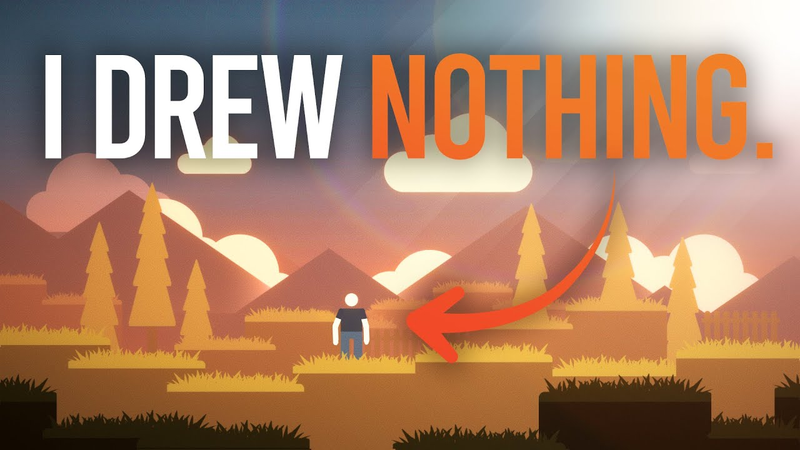
If you suck at 2D art, uh maybe you're a little bit like me, sketching and traditional art really isn't your thing, stick around to the end of this video because I'm pretty sure your mind will be blown at how easy it is to make basically no sketching, no illustration on the computer all of a sudden turn into a beautiful scene. I know it sounds crazy. So, let's jump into my screen really quick here. All right, so we got a what am I saying? We got a Unity project open right now. Very basic, guys. Just some some very simplistic sprites here. They're just white. Um, even the sky is a sprite and they're just layered in different layers here. This is what it looks like. It looks horrible, right? Blue sky, white sprites, and then I've just darkened the foreground ones here. That's all we've got. Let's open up the Photoshop file and see what this looks like. This is all we've got here. This is really all we've got. and it looks about as bad as what you might see in Unity. And by the way, these project files are available to download below. Um, totally free.
Just download them, take a look. So, we've got some very simplistic shapes here. The question is really quick, where did these shapes come from? Um, this is technically illustration, right? Well, actually, I'm using something called Noun Project. Now, Noun Project is really cheap, but you do have to pay for it annually. Um, but you can really find any sort of silhouetted vector shape anywhere and there's plenty of free ones online and there's some links below of some resources you can use. But these are the basic shapes we have. We have a pine tree. We have this sort of faded mountain. So, this is important to note. Just fading out mountains and background objects makes it look like there's fog. And I'll show you in just a second. We've got a very simplistic cloud. Again, I got this from Noun Project, which is just a bunch of different vector art pieces online. We've got a little person here. We've got a just a square here I made and put some grass on it using again noun project and then a fence. Okay, that's all we've got. Now, I've saved this as a
PSB file. That's a Photoshop big file. So, if you go to file, save as large document format PSB. That's especially important. Okay. The reason why is because inside of Unity, as long as you have the PSD importer package installed, it's going to create a basically collapsed object here with all your layers uh laid out as different sprites that you can use. Okay, so this is all one file, but I'm able to drag and create prefabs for all of the different sprites. Okay, but ultimately here we've just created six little sprite prefabs here. That's all we have. And we've done that with this source material here. If you don't see that the PSD importer package is installed, just go to package manager, type in PSD importer, and it will fetch that package for you and show up right over here. There it
is. install it and you're able to basically get all the layers from your Photoshop document just as long as you save it as a PSB, a Photoshop big file. Okay. All right. So, I know this looks terrible. I'm going to show you really fast how to make it not look terrible. The first thing we want to do, the very very first thing we want to do is just go inside of Photoshop and using any swatch palette you find on Adobe Color for example, just bring that into Photoshop. So I have this Photoshop palette here. I found it. I really liked it. Um, bring it into Photoshop and basically stick to this color scheme here. Don't break the rules. stick to this color scheme and like a toddler start coloring in with solid colors. Okay, so this is ultimately what I've got here. I'm going to go back in time. Here is what I've got.
These are the colors that I decided to use. So, it's very simple. Look at this. The only thing that's just slightly complicated is creating a gradient for your sky. Remember guys, the sun is coming up in the morning and down in the evening. So, you're always going to have color, a warm glow, especially in the morning and the evening at the horizon. So, I've just simply added a warm sort of peach color here. That's about it. And just created a gradient for our sky. Okay. Sky, mountain, tree, person. We have this swatch palette. We're not going to need it, so we'll disable it. Clouds, fence, and grass. That's all we've got. Okay. Again, you can download these files below. Feel free to do that. So, if I save this, just wait. It's still going to look bad. Let's bring it into Unity. It's fine. It's not that great. Here are
the two reasons. The two reasons that make any 2D art look glorious. First, it's color. Well, we've got the right colors, but the second is depth. We don't have depth. Because when things move into the distance toward the horizon, what happens? Well, they actually blend into the horizon because of fog, right? There's fog. No matter how clear the day is, you're going to get a little bit of atmospheric fog and things slowly blend into the sky. That's why the horizon always looks like a gradient, right? So, all we got to do now is make sure we turn on the fog. Now, the fog is in the lighting tab here. There's a couple caveats here. The first one is you want to make sure that your objects are cascading backwards higher and higher ZV values. So, we've got this one all the way back at 27. Okay, we can make it even go even further if we wanted to.
That's the first caveat to make this fog work. And the second one is you want to make sure that the sprite default shader actually accounts for fog. So I've just Googled that here and the first Google search. It results the results are from Viking Soul Games on the answers. And it's just a shader that works with the fog. Okay. So let's go ahead and turn on our fog. Let's go to our game tab here. Go to lighting and let's turn on fog. Look at that. So now we have this sort of depth being created as objects go further and further into the distance. Okay. And I could tweak the fog values if I want to make it more intense. And you just want to make sure you match their color with the background here. You could bring the start a little bit higher like this. Make it look a little bit foggier. See? Okay. So that's what we're going to do here. The only objects that don't actually get affected by the
fog are the clouds here. Now, we could definitely make the man or the player here not affected by fog, just if you wanted him to pop or stand out, which is totally reasonable. But in my case, we're just going to keep him, you know, basically engaging with the fog a little bit here. That looks great. Okay, so it's still not perfect. Okay, the next thing we're going to do, and again, all of these things have nothing to do with illustration. Well, not really like traditional what you would think of as illustration. This next thing is just as simple, and that is just turning on some post-processing. Okay, post-processing is when an effect is added to the camera, almost like an Instagram filter. It's happening at real time. So, why don't we go ahead and turn on the post-processing here. Again, link in the description if you want to download these project files. There we go. I mean, look at that. It's pretty amazing um how much post-processing affects how your game looks. So, all we've done here for this post-processing
is uh just added some bloom. And by the way, if you want a full breakdown of how to do post-processing, there's a link in the description. So, there's bloom that's added. That's just adding some vibrant light reflecting off of the highlights like the clouds and the skin of the player. We got a little subtle vignette, just very subtle vignette. And then we've added some color grading. This is important. We've added saturation and contrast and also increased the temperature here. Okay. So, that's about it. Right now, the final cherry on top is well, we've already got parallax happening for us right out of the box because, well, we're using actual three-dimensional layers. So, if we were to move the camera, I've already animated our camera here. Um, usually the camera will actually be coded to follow the player, but in my case, I've just animated it so we can see. I'm going to hit play here. I'm going to show you the final result.
So guys, you don't need to be a genius illustrator. You don't even need to be an illustrator. Let's review. What have we done here? Well, we're looking at very simplistic shapes that started out as white sprites. These were from nounpro.com. Again, links in the description for a variety of um vector art resources and websites. Then we just used Adobe color to pick out a color scheme and we stuck to that color scheme. Now, we made sure that we used some of the contrast or complimentary colors like pink and blue to create that horizon, but everything else is following just a very flat color scheme. Then we brought them into Unity. We've Let's just double check here. Make sure that you understand what I'm saying here. We've pushed them backwards in layers. Okay? So, every single one is on its own little layer here. And just
duplicated those prefabs on each layer. and pushed them back. The reason we're pushing them back into the Z-axis is one, the fog, and two, the parallax effect. Finally, guys, the fog is only going to work if you use the shader. And that shader is actually below the link to this shader here. And that shader allows for fog on sprites. Traditionally, you Unity does not allow for fog with sprites. That's about it, guys. So, you don't need to be a professional illustrator. Get over here. [Music] Hey, thanks for watching. By the way, if you haven't downloaded that free 2D game kit below, click below. It's my treat to you. I used this game kit to make a game for PewDiePie in 14 days. And I actually got to play it with him in front of his audience, which was really cool. This game kit is totally free. It's my treat to you. And you can use it however you want. You can make a commercial game and make a million bucks off this game kit. I don't care. or you could just use it
for a hobby project. It's my treat to you. And by the way, if you haven't clicked like, that would mean a ton to me. Hit subscribe. And also, this is important. Hit that notification bell. Here's why. If you get notified of when I'm live, you can watch me make my next game and let me know in the chat what you think about the game or any ideas you have. And you might just show up. Your chat might just show up in the next video that I upload. All right, I'll talk to you later. Bye.
Summary
This guide outlines a workflow for creating aesthetically pleasing 2D game environments in Unity without requiring traditional illustration or drawing skills. The primary thesis is that visual quality in 2D games is achieved through deliberate color theory, atmospheric depth, and post-processing rather than complex hand-drawn assets. By utilizing simple vector silhouettes and standard engine features, developers can produce professional-looking scenes using minimal artistic resources.
The methodology relies on importing basic vector shapes—sourced from repositories like Noun Project—into Photoshop as a large document format (PSB) file. This allows for the seamless import of layered assets into Unity via the PSD Importer package. Once imported, the environment is constructed by arranging these sprites along the Z-axis to establish depth. The visual transformation is then completed through three technical pillars: applying a cohesive color palette derived from professional swatches, implementing atmospheric fog to simulate distance, and utilizing real-time post-processing effects.
Key technical findings emphasize that standard Unity sprite shaders do not natively support fog, necessitating the use of a custom sprite shader to enable atmospheric blending. By positioning objects at varying depths and applying this shader, developers can create a natural parallax effect that mimics environmental depth. The final polish is achieved through post-processing, specifically by adding bloom, subtle vignetting, and color grading to enhance contrast and saturation. This approach demonstrates that by focusing on lighting, color harmony, and spatial layering, developers can bypass the need for advanced illustration skills to create high-quality, atmospheric 2D game worlds.



Comments