1 free read left. Create a free account for unlimited reading + AI research.
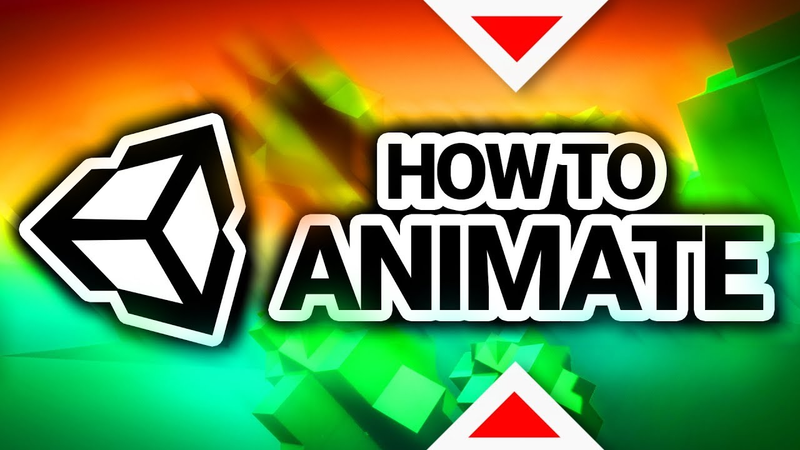
Create free accountHow To Animate In Unity 3D
Key insights
6 takeaways- 01The Animation window records object properties—including position, rotation, and scale—over a timeline to create dynamic, interactive environment elements without heavy reliance on custom code.
- 02To prevent conflicts between animation data and physics components like Rigidbodies, animate a child object relative to an empty parent object rather than animating the parent directly.
- 03Animation curves should be adjusted to achieve precise linear movement for mechanical objects like platforms and elevators.
- 04The Animator window manages state transitions using logic-driven parameters such as triggers, integers, and floats to control when specific animations occur.
- 05The 'Has Exit Time' setting in the Animator window is a critical control for determining the responsiveness and timing of transitions between animation states.
- 06Scripting is required to programmatically bridge the gap between player input or collision events and the activation of specific animation states.
Ask AI about this video
Transcript
in this tutorial you will learn the basics of animation and unity3d how to create moving platforms like this riches that lower down automatically when standing in front of them as well as patrolling enemies and just cool looking stuff like this right here time stamps and a download link for this are in the description this is basically part three of my unity tutorial series for beginners if you haven't seen part 1 & 2 doesn't matter you don't need them if you have seen part 1 & 2 great because this will open up a lot of new creative possibilities for you to play around with let's go animating in unity is fairly easy if you want to animate something just select the object you want to animate then click on window animation & animation then this window here will pop up which you can also put somewhere in your interface you simply click create to create a new animation then it will ask you where you want to save that animation I usually just create a new folder for that and also give your animation a name I'll just call this one cube test then this will show up this timeline you can move to the left and right by holding the middle mouse button in this timeline then you can zoom in
and out with the mouse wheel you can hit play with space so the animation starts playing you see how long it is at the moment it's 1 second long and now if we want to animate this the easiest way to do so is just to hit this little record button right here click and then just wiggle this around a little bit and then you can see here the properties that were recorded by unity are the position of the cube now if you move to a different position of the timeline for example 2 1 seconds and just move the cube over here then now the cube will move from here to here and we have successfully created our first animation of course you can see that it then snaps back to the beginning once the animation stops if you want to make an animation that loops there's a very simple way to do that as well the only thing you need to do in order to create a looping animation is to make sure that the last keyframe is the same as the first keyframe so what you can do here is of course selecting keyframes moving them around if you want to duplicate those we can just hit ctrl-c ctrl-v and will if you accept them you frame over
here well now it moves to the left and then move it moves back now if we have a look at the cube we can see that an any major component was automatically attached to it of course note that you cannot animate this cube when it's not selected for example if I select this cube in the background here there is no animation here you need to select the correct object in order to work on the animation and then whenever you create the first animation for an object there's another thing that is created automatically which is this controller right here if you double click that this window here will open which we can later use to transition between different animations you can see here this is the animation we created cube test that's how I call the animation and of course sometimes you want to transition from one animation to another one that's what this window is all about the animator window is this one and then the animation window is this one down here well let's not worry about that one I just wanted to let you know that this any major exists as well and in fact that any matters in here as
well with the animation here we can see the animation we created if I double click that this timeline opens I can see the animation and if I click this then the animation controller opens and I can see how different animations transition between each other entry just means this is the beginning that is played at the start and you can see that is connected to cube test so that will just be the animation that is played from the start if you want to change the speed of the animation you can do so here in in the animator window for example I can reduce the speed of that animation to 0.25 now it should be played at a lot slower pace once I hit play which is in fact the case if I said that too - then the animation will be a lot a lot faster now here are two big issues I ran into when I started animating stuff in unity first one is when you attach a rigidbody to the object it actually doesn't do anything if the animation is animating
the position of the object then what's happening is that the animation is constantly overwriting the position up here the position coordinates all of that physics stuff falling down etc etc will not work and then the other thing that is really really annoying if you don't know how to deal with it is that you cannot move this cube anymore for example if I want to move this cube at the moment it starts in the center of the screen that's the camera view if I want to move this further to the left so it starts over here yes I can do that but once the animation starts playing so once I hit play let's just hit play it pops back to the center and once again the reason for that is because I animated the position of this object right this animation at the beginning of the frame sets that's that's the position exactly to these coordinates so pretty much no matter where I move this block I can also move it completely into the Nirvana doesn't really matter if I hit play it will still come back to the position where you animated it so how do you deal with those things luckily there
is a solution first of all let me just delete those animations because as you can see it is clearly not the way to do it so the only way you can make that work unfortunately is by creating an empty object you parent and put the cube inside that make sure that the cubed parent is has the scale 1 1 1 make sure that the cube inside the cube parent has the position 0 0 0 so they are both at the same position and now what we can do is we can animate this object in here let's just create a new animation in here and now we can do pretty much the exact same thing we'll hit the record button wiggle this object around a little bit here and at the 30-second mark perhaps I'll move it up a little bit 1 second mark here half a second one second move back down so now it's moving up and down but the difference this time is that this animation is actually happening inside a parent object see so we're overwriting the position inside of the parent object we are overriding the position relative to the parent object but the actual
coordinates of the parent object are not animated so that means we can change the coordinates of that parent object in whatever way we please now once again if you move the cube inside here it will absolutely have no diff make no difference like once we hit play it will go back to where it started but what we can do is we can move this cube parent around now so now I can have one here and F one here here here and they all are animated relative to their parent object which allows me to move them around which is very very nice yeah and that once again probably allows us to do some pretty interesting stuff perhaps will should give these cue parents a little Ike in here so we can see where they are you can just do that by clicking here and then electing one of these little images so now if I accidentally grab one of these cubes I can see that I move the wrong object so the cool thing is now we can go pretty wild with this for example I can duplicate this cube parent and I can put it inside this cube on animated object inside an animated object
and then we can even rotate these objects for example I can rotate that to the side now which will result in an animation that looks like this and what if I rotate this cube parent here by another 90 degree and we'll have an animation that looks like this so with all of the knowledge you have right now I'd really encourage you to play around a little bit and see if you can just build something that looks cool that's a nice nice exercise nice nice praxis for example what I can do with this is duplicating this a couple of times in different rotations just by duplicating this animation a couple of times now we suddenly have something that looks like this which is very nice why don't we duplicate that again and this time rotate it around this axis here hey very cool what if I want this entire object to rotate now what I can do it for this is once again just putting this into a parent object calling this parent object
for example stars let's put all of these cubes inside of our star and then I want to animate the rotation and the scale of this as long as I'm not animating the position by the way I can put the animation directly onto this object if I wanted to animate the position I would once again put this star inside another empty object to make sure that I can still move the object around after the fact but as I don't plan to animate the position I can just do it right here I click create animation here we go I'll click the record button wiggle around the rotation a bit here we go and all the rotations in there maybe it should take about seven seconds to make one full turn so just go to the seven second marker and enter 360-degree for my rotation here I accidentally got the position in here as well start animating the position that's what I didn't want let's remove these properties and then all you're left with is a rotation here you can see the properties that are animated okay and as you can see it's
not really rotating properly around its center which in some cases is what you want in this case it's not really I'll just set the relative position of all of these to zero make sure that your not having this record button selected here whenever you do stuff like that just uncheck that and then I can set this to zero that's not something I want to animate I just wanted to be in the center please and now we can see that it's rotating properly around the center cause all of these objects are actually in the center of this object of course if we grab all of these right move them further away and then let's give the star here a yellow dot so we can see where this of course now if we start rotating this yellow dot and this is inside the yellow dot then of course everything will rotate around the yellow block so that's also kind of a technique you can use to do that if that's what you want but if you don't want that then just make sure everything's centered correctly and now one thing you can see here when we hit play is that it kind of starts off slowly and then also stops
slowly in the end and I don't want that I just want it to be a smooth transition see it kind of stops here and then it starts rotating again the reason for that is these animations are smoothed by default which is nice usually but in some cases you don't want that so if you want to see a little more in detail what's going on here you can actually click on curves down here in your animation window you can switch back and forth between drop sheet and curves and in curves you can just see a little more detail what's happening once again you can zoom in and out with the mouse wheel if you just want to sue mout in the x-axis you hit control and and scroll in and out if you want to scroll only in the y-axis you hit shift and scroll up and down and you can see this is the rotation that I animated and it's a smooth curve ever want to turn that into a straight curve I could just grab these handles and try to smooth it out manually over the easier way is to just right-click on this keyframe and go to both tangents and click linear which will just remove those handles all
together and make sure it's a linear transition instead of a smooth one what's the right click here as well select linear and now we have a very linear straight animation that just gives this a very smooth rotation and yeah it loops it loops perfectly that's exactly what I wanted very very nice and now the fun comes in and we play both of those animations at once right so when we hit play you can see now that both of those animations are playing which looks really cool by the way one little mistake that seems to happen to some people is that they zoom in in the game window here which will obviously make everything very very pixelated in case that happens just zoom out just don't zoom in in the game window here in the scene window here you can zoom in without danger and now of course we can keep playing this game right we can just create a new child object here or a parent object here for example I call that orbit and this orbit all this gives this nice little handles I can see where
this what if we give this orbit multiple stars let's put these stars inside of the orbit as using the coordinates here to align this perfectly the way I want now I can give this orbit and animation as well selecting the orbit going through the animation Minoru clicking create animation this time I want to animate size and rotation one thing to note of course is that if we animate this ice here then yes this will in fact overwrite the size variable meaning that it will not be possible for us to change the size of this later on except for when we put this inside of another object and we can change the size again okay so now it has a little bit of a wobble animation getting smaller and bigger let's stretch that out a bit longer and you have multiple keyframes selected you can just stretch them like this if you want to go exactly to the next keyframe you can use this button here this will jump the pointer directly on top of the next keyframe this won't do the last keyframe this to be very end
and this one to the very beginning of the animation this is quite useful because of course if you want to edit a keyframe you need to be exactly on top of it for example if I go here slightly before the keyframe I change something here then of course there will be an animation between those two keyframes even though they're very close together I'll just make sure that when you change your keyframe you're exactly on top of it that is quite interesting I feel like the initial animation we made should be a little slower so I'll go to our cube animator and just slow that animation down a little bit your cube tests actually go back to 0.25 feel like that will make the animation a bit more chill yeah and now one of the cool things we can do with this as well as for example you can also just animate the camera position exactly the same way just selecting the camera hitting Kretsch animation the hit record with the camera here make sure that the animation and with that keyframe as well and of course this animation is too fast
I'll just zoom out like the entire animation make it a little bit longer now this looks nice and smooth we can see our beautiful animation and action now I just added a custom skybox that is a little more purple yellowish we know how to do that you basically just create a material and then for the material shader you select skybox procedural and then once you have that you can change the skybox color and then in your lighting tab which you can open with window rendering lighting settings here you can select your skybox you can just select your custom skybox there and then I added a cool backlight this fill light here and suddenly we have something that looks like this [Music] hell yeah that looks quite cool that is our first result of the day knowing what you know now you can obviously start utilizing this for gameplay purposes as well for example we can turn this block into an elevator that drives back and
forth between those two locations fade animation now if we hit play you should be able to use that elevator get on there we are it works the only thing you might notice is that this elevator doesn't really have any physical properties meaning it doesn't really accelerate the ball that is the case because this is not a rigid body but there is a way we can make this work in a physical way as well let's just clear everything from our animation in here and now what we can do is we can give this a rigid body and then the axis we want to freeze are the Y and the C axis as the elevators only supposed to move on the x axis right in the rigid body will freeze and C is what I want to freeze and then I also want to freeze the rotation so this elevator doesn't rotate in any weird ways and then we just tell this to interpolate to make it look a little nicer and we already made a script in one of the reefs in one of the recent tutorials that is called add constant velocity pretty much all this group does
is it applies velocity to this object this right here is literally the entire script there's just velocity and in the fixed update we at that velocity to that object and the cool thing is we can also animate those parameters in their object so what we can do is hit record and then at the beginning we set the velocity to 0.1 a bit later we'll set it to minus 0.1 to make the elevator move in the opposite direction and then we'll turn it around make it turn around again to make the animation loop and let's stretch that over the course of let's say 10 seconds and now this elevator should actually work in a way that is physically more correct as you can see not interact in more correct way with us now we get some really momentum from being on here now once you're past that elevator I here want to have a bridge that automatically lowers down when the players in the correct position just like that at the beginning the bridge should be like this
and then once the players in the correct position I wanted to lower down and by the way the way you can make a block tilt like that is once again by putting it into a child object right here right because if you just rotate this right here then it doesn't rotate around the correct position but if you have another object that you offset by a little bit and then you put that bridge into that object then once you start rotating the object here from their coordinates it will rotate from this new pivot here which is always very useful for animating knowing how you can offset pivots like that now for this bridge I will actually create two animations I create one idle animation why would a bridge need an idle animation like that I have no idea maybe it's broken maybe it's it looks like it's broken can't close that is our first animation now if you want to add a second animation to an object because objects can have multiple animations you click here and select create new clip and then you can just
create a new clip for this and this one will be rich lost so basically how will the bridge look like when it's closed this will be a very simple animation because it won't even be an animation I'll just rotate this down here voila so that's it an animation can also just be one keyframe once the bridge is down here I don't really want it to be animated so that will just be a one one keyframe animation now what we can do is we can go into that any major we should now see both of those animation clips that we've created right if bridge idle which is the one that will be played by default we can see that from entry we'll go to rich idle so this animation will play on leaf by default if you want to change the default animation from this to this then what you can do is you can right click on to entry set Machine default State and then you can just direct the arrow to this so now the default state will be closed but in fact we want the default state to be bridge idle and then from bridge idle we want the animation to be able to transition to the closed bridge right to these
trends you can actually apply certain conditions if you want if you don't apply any conditions then after playing this animation once the animation will just continue onwards to this it instantly falls down because the the idle animation is just played once and then it instantly goes to the bridge closed State we can also change the length of that transition here by the way if we want the transition to be a lot longer we can just make it longer here and now the bridge should close down a lot more slowly but we don't really want the bridge to close down right away right we kind of want this animation to be triggered only under specific circumstances and that's why there are certain parameters over here over here you can see there are layers and parameters will not worry about layers you can create a new parameter by clicking the plus year and a parameter is basically a variable that can help you to transition between these states for example in this case we can use a trigger and we can call this trigger lower rich as soon as it is triggered it we can trigger this animation for
example for the conditions we can ask for certain floats integers or also for certain triggers so now this transition from this animation to this animation from rich idle to bridge close will be triggered by this trigger right here lower bridge and there's actually an easy way you can test this just put your animator window over here and then hit play and now we can see that the idle animation of the bridge is playing right we can see it wiggling around here so that idle animation is clearly working and now you can just manually trigger the trigger by clicking on this little trigger icon here and that will lower the bridge and that way you know that it's working just to show you how some of the other parameters look like for example you could also do an integer all this in tests and then as a condition for example you could add that this integer has to be greater less or equal through a certain value for example it has to be greater than 3 in order for this animation to be triggered so you can just code some basic logic in here now if you activate that trigger
Kanzi nothing happens because this integer here is not greater than 3 but if we put that integer on 4 and then activate the trigger that boom or less then we can get over there as you're probably guessing we can also trigger or change these triggers and integers from code so that's what we're gonna do next so we'll make this based on the trigger that is a nicer way to do it for now so how do we set that trigger very good question glad you asked news ripsi script and I called the script bridge and put it onto the bridge object which object has an animator attached to it and it has the bridge script so we can get the animator by writing animator animator and then in the third event we can get the component equals at component animator now we have the animator and I'll let just for the sake of testing let's say if input judge get key down he caught you so once we press Q is that animator dot set trigger you can also use that
float or that integer if you want to use some of these other variables I've shown you but in this case it's a trigger yet trigger and that trigger is called lower bridge function called reset trigger that you can use to set the trigger to falls again but in this case we don't need that in this case we just need to set it to true and then once it's untrue it can stay untrue for all we care so that's a very simple script as you can see and what this should cause is should lower the bridge once we hit cue bridge is playing the idle animation now once I hit cue the bridge will lower down with a bit of delay actually you can get rid of that delay by he checking has exit time here in the animator what this does is it basically waits for the current animation to finish before the transition starts we don't want that we just want the transition to happen right away so I'll uncheck that has exit time and now it should react a bit more instantly once I hit cue yes it instantly lowers
down that is very nice as you can see in professional youtuber fashion I accidentally activated my stream overlay don't worry that will be gone in a sec but also what a great opportunity to pluck my game will you snail if you have a second to spare it would be really great if you could check it out on Steam and hit the wishlist button if you like what you're seeing because I think this is a really unique and crazy platformer something unlike everything you've played before very easy and great way to support this channel and tutorials like this thank you thank you so that is one way you can control that the other ways we could also just put a trigger zone here and then once the ball is inside the trigger zone we could make that rich lower down automatically which is what we'll try to do now so for that I'm afraid I'll have to put this entire bridge into another parent object in order to make that work properly it's called that bridge parent probably the position of the bridge here by clicking the little gear wheel copy component paste component values and then before I drag the bridge and I'll just set the scale to 1 1 1 and rotation
0 0 0 now I can put the bridge in there and now I have a nice bridge parent that I can use and in fact I'll actually put the bridge script onto that and remove it here from the from the actual bridge now of course it will not work anymore because this script right here or this object does not have an animator so what I need to do instead of get component is just get component children and this way we can still get the animator will just get the animator of this child object right here and everything will still work fine yes everything's still working fine excellent cause now what we can do is we can actually put a box Collider in here box Collider will can set that to its trigger we can move that box Collider over here by playing with these variables you can see the collider here in that slight green outline you can make that a bit bigger move it up a little bit if we're live we have a nice trigger zone that we
can use so this player already has the tech player and now I'll just check if something with the tech player enters this trigger zone right here all we need to do in our bridge script is just say on trigger enter and then we'll say if either let's rename that to Collider the collider that entered the trigger if the collider tag is slayer then we'll lower the bridge meaning that now we can remove that from the update I'd probably remove that update function altogether make it a bit more clean so now all the scrip does is once something enters the trigger and the collider that entered the trigger has the tech player then will trigger the animation to lower the bridge also by the way note that there's no animation where the bridge actually closes right it's just here it is closed and here it is wriggling around and then the actual closing animation happens because unity is transitioning smoothly between those two animations blending between those animations arm so that's how this closing happens in the first place you can see this rich jiggling
around here now I've entered the trigger zone and the bridge is lower tones a little hard to see in this direction it's actually duplicate this bridge and put another one here you can get to the other side again here once I'm in front of the bridge it lowers down I can get past it once I'm in front of the bridge it lowers down I can get past it which is very very nice now I'll read it let's also give our ball here a little bit of an animation I'll just start out by animating one of these rings here making the flips from one side to another so now this ball all this a little bit of an animation now you really have to understand that being able to animate stuff opens up so many new creative possibilities for example I can create some patrolling enemies right here I'd really encourage you to try that out by yourself but if you want to see how it's done we can just create a new sphere put that into an empty object called enemy parent and then in there we'll have the enemy because this enemy will move and we want to put this in multiple locations and the level
so that's it's important to put into a parent just make that orange real quick go to the animation tab hit record or create animation now we can make this move from here the other side and then back what you need to do in order to restart the level properly is just on these enemy objects not on these parents on these enemy objects there needs to be a script called for restart level on collision and and will restart the level when we collide with the player this is by the way is one of this groups you wrote in one of the recent tutorials you might not have this but once again it's a very simple script that just looks like this restarts the level once you hit something and that needs to be directly on the enemy so now we have some patrolling enemies that once you collide with them the level restarts so say this is done now this level has elevators bridges that lower down automatically and patrolling enemies like there's just so much creative stuff you can do with this that's absolutely awesome being able to animate stuff in unity is so useful I'd encourage you to
go absolutely wild with this there are so many creative things you can do with this now what about vertical elevators or what about game works that slowly morph and change over time switches that open more closed doors in a different part of the level or what about giant animated crowds of enemies you have to dodge as a player being able to animate opens up a billion different movement patterns you can give to enemies and objects in your level the opportunities are absolutely endless in case you run into any technical difficulties I highly recommend you join our discord server there are a bunch of nice people there who will probably help you out with your problem for more awesome game development content hit the subscribe button and I'll see you in the next one [Music]
Summary
This tutorial provides a comprehensive guide to the fundamentals of animation within the Unity 3D engine, focusing on practical applications such as moving platforms, interactive bridges, and patrolling enemies. The primary thesis is that mastering Unity’s animation system—specifically the Animation and Animator windows—allows developers to create dynamic, interactive game environments with minimal coding.
The core methodology involves using the Animation window to record object properties, such as position, rotation, and scale, over a timeline. A critical technical finding is that animating an object’s position directly can cause conflicts with physics components like Rigidbody or prevent the object from being moved manually in the scene. To resolve this, the tutorial advocates for a parent-child hierarchy: animating a child object relative to an empty parent object allows the developer to move the parent freely in the scene without overriding the animation’s coordinate data.
Key technical insights include the use of the Animator window to manage transitions between animation states. By utilizing parameters such as triggers, integers, and floats, developers can create logic-driven animations, such as a bridge that lowers only when a player enters a specific trigger zone. The tutorial also covers advanced techniques like adjusting animation curves to achieve linear movement, using "Has Exit Time" settings to control transition responsiveness, and utilizing scripts to programmatically trigger animations based on player input or collision events.
Ultimately, the content emphasizes that these animation techniques are foundational for game design, enabling complex mechanics like vertical elevators, morphing geometry, and enemy patrol patterns. By combining these animation tools with basic scripting and physics, developers can significantly expand the creative possibilities of their game levels.







Comments