1 free read left. Create a free account for unlimited reading + AI research.
Create free account
Creating a BOSS (Unity Basics!)
Key insights
6 takeaways- 01Maintain scalability and maintainability by breaking complex boss behaviors into reusable, distinct classes rather than monolithic code structures.
- 02Utilize rigging tools like Spine to establish skeletal structures from Photoshop layers, ensuring a cohesive workflow between illustration and animation.
- 03Use animation events to trigger external functions like particle effects or screen shakes directly from the animation timeline, avoiding the need to hardcode every interaction.
- 04Implement a modular design by separating visual behavior in the Unity Animator tree from the underlying movement and difficulty logic managed by programmers.
- 05Manage boss state transitions using the Unity Animator component, which relies on booleans and triggers to switch between states like idle, attack, and death.
- 06Sync hitboxes and hurtboxes with specific animation frames to dynamically expose vulnerabilities, such as revealing a 'soft spot' only after an attack sequence.
Ask AI about this video
Transcript
Hey guys, how's it going? My name is Thomas Brush. I'm the creator of a game called Pinstripe. Also finishing up a game called Once Upon a Com should be launching hopefully this Halloween. Click the link in the description to wishlist my second commercial release, Once Upon a Com. You can get a launch discount on pretty much every platform you can think of. Um, that's consoles and Steam. And we'll see what happens uh in terms of launch cuz there's a lot of things in the air right now. But if you're interested in my work, click the link in the description. When I was maybe five years old or six years old and I was playing video games, I always wondered how are these programmers putting together these characters, the the player, the enemies, the bosses. How are they animating and coding things? How does everything work together? Because you have a lot of different skill sets, sound, coding, animation, illustration. You have all of these skill sets sort of combined into one entity. How do those things work together? So, I'm going to open up Photoshop and Unity, and we're going to see how they work together and how you can create your own characters. Specifically, we're actually going to
focus on boss design and how I make bosses, because honestly, bosses are as complicated as it gets when it comes to animation, illustration, and code, and how those things work together inside of Unity. So, let's go ahead and get started. [Music] Now, before we get started, guys, I want to talk about our sponsor, Zeus. Zeus is a multiplayer engine for tools like Unity and Unreal, and they are totally free during your development process. They keep track of the boring stuff while you can focus on making awesome games fast. Games like Conan Exile, Scum, Hell Let Loose, and many more rely on Souza's tech stack. Now, their core products are pretty awesome, honestly. The Zoo Supercloud is extremely scalable and can handle anything from a handful of players to tens of thousands of players depending on your unique needs. And its containerbased game server orchestration combines the strengths of
bare metal on demand with the flexibility of all major clouds out there. And they have a platform agnostic relay server solution. And sorry that's a little techy, but basically all that is is it involves um easily solving the most common issues in peer-to-peer matchmaking that drive most gamers crazy. They also have services like authentication, user profiles, inventory, lobby matchmaking, and many more built for scaling to the millions in crossplatform. So all of the complicated stuff about multiplayer, they simplify it for you in Unity and Unreal. So, if you register at Zoos now and name your first environment my name, Thomas Brush, you're going to get a 10% discount. That's pretty cool. Honestly, Zeus is pretty awesome. Take a look at the link in the description and see if Zoos is for you. Thanks, Zeus. All right, so I'm just going to go through the basics here. Um, all of my enemies start out in Photoshop, uh, obviously, or yeah, I guess you could start out in any other, uh, illustration
software, but in this case, I'm starting out in Photoshop. And I have all of my layers here, um, named appropriately, and there's all sorts of things that are um, just sort of created so that I can animate it each individual piece. So everything is named appropriately and there's different types of pieces. So there's a face piece, but there's also a face piece that's more broken like this one. So you can sort of see a robot underneath. And there's various phases that you can go through. Now, some things are actually white, and these are things that I want to be able to change the color of, and that I'm going to use over and over again. So if I wanted 20 legs um sort of coming down the side of this creature here, um some of them would be connected to this portion here. here. And I don't know if you can see on my screen um or on your screen, but this is sort of a light blue. So, I'd want to change the color over here to be more of a light blue. So, that's why I made it white. It's much easier to color something or tint something uh in Unity
when it's white. So, what I'll do here is I'll export every single layer. So, I'll just highlight every single layer and then export. Do a quick export. And what it does is it generates all of my PGs in separate PGs. But, I've got a little atlas here of all the different PGs that are created. um from this boss character or you can export it using Photoshop to Spine, which what that will do is that'll actually export everything appropriately so that when you import all of these files, all of these PGs into Spine, it's going to lay out your character just as you have him um with all of the positions um properly set. Um and you can also do this in Unity using Unity's Photoshop um importer. And if you save this file as a PSB, not a PSD, you can achieve a similar um sort of effect of all of your PGs being arranged properly inside of Unity. But for this example, I'm going to open it in Spine. You could use Spine or Unity to rig your
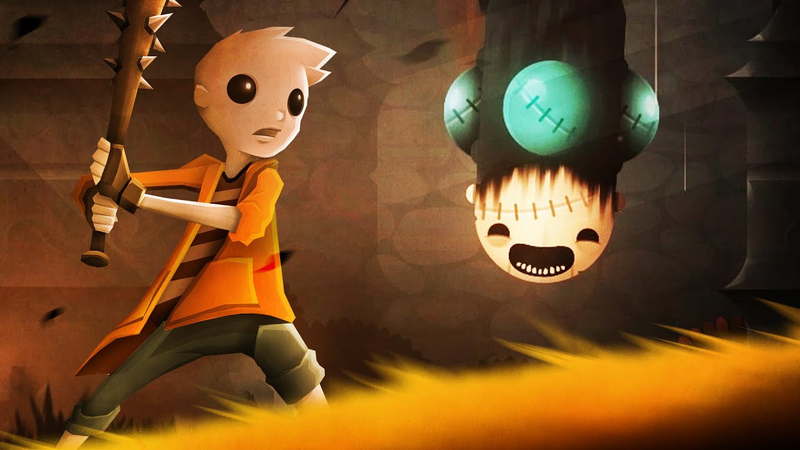
characters, but we're going to use Spine. So, when I import everything, my character is laid out, and then I add all the bones um to my character. And I have a separate tutorial for how you can rig up your character in Spine. And I also have a tutorial on how you can rig up your characters in Unity. But basically, my character is all rigged up now. And I have all these different animations here. I have attack preparation, attack release, attack stick, attack strike, awake, awake, loop, die, die, loop, eat, hurt, sing, sleep. There's all these different animations, and I can show you um really quickly what they each look like. So, there's sort of a um sticking in the ground effect. There's attack preparation. He's just about to attack there. Um, there's attack release hurt. That's after you hit him in the head a couple times. Um, there's a die sequence where he pieces of his body slowly explode. There's a die loop here where he's freaking out and that lasts for like 3 seconds before the die animation actually plays. So, there's all these
different animations that I've created inside of Spine. Now, what's really cool about Spine and also Unity is you can put things called events. So, if you look down on this section here, I have all these different events that are playing. Um, and these right here are in charge of emitting certain particles. So, there's like a spit particle, there's a blood particle, and there's like a vomit particle. And what these do are these are just strings that are passed into Unity's mechanimator. Unity is going to read that string, and I'm going to tell Unity what to do when it does read that string. So, in this case, I'm going to emit a particle with a script every time these events fire. There's also a shake event here. And what that does is it it fires a screen shake. Now, all these are just basic strings. They're not actually scripts. You have to actually write the scripts in Unity. All this does is it sort of tells it's a marker and it tells Unity when it's going to fire a certain function. So, that's sort of how everything works inside of Spine. There's PGs that are rigged up, animated
into different animations, and events are also passed into Unity. I will export from Spine into Unity using the proper settings here. And again, if you guys want to see an uh tutorial on how to animate in Spine, you can take a look at that or you can watch my tutorial on how to animate in Unity. Now, here is the entire scene in Unity. Don't get overwhelmed. Um, I have to tell myself that every day when I'm working, but things can get really chaotic really fast. Um, but I know this looks really complicated. Trust me, if I had just opened this project and this is what I saw, I would be very overwhelmed as well. But this is just what happened over two years of work on this level. Um, so let's just focus in on the boss, Snake Head. That's his name, Snake Head. At least that's what we originally called him. and his name changed uh to a different name. I don't want to spoil the game for you, but here is our actual spine animation. Now, you notice that
all of the animations are now inside of the animator component. So, we have all these animations here. Now, the benefit of working with Unity's rigging tool as opposed to rigging in Spine and then exporting to Unity. The benefit of working in Unity is you can actually hit play and you'll see the animations play. But in this case, since we exported our rig from Spine, we can't actually see the animations. So, that's definitely a drawback. But, this is just me opening up my current project before Unity's rigging system was actually created. So, in this case, we are using Spine. So, we have all of our animations here and you can see that our events now are converted into Unity events and we can mark the function here of what they are. So, in this case, this one's called emit particles 3. Well, the good thing is is that actually corresponds to a function that is written inside of our boss class. So, if we open up our
boss class here, these events actually correspond with a script. Now, it's not our generic snake boss class. It's actually a reusable class called boss animator functions. And what these boss animator functions actually do, we have certain functions that we can use over and over and over again, regardless of what uh enemy type we're on. And so in this case, we're actually on top of the boss, and it's called boss animator functions, but it's actually animator functions that we use on pretty much every enemy in this game. You can see we have certain um terrible scripting here. You know, play sound five, play sound six, play sound 7. It goes down the list. We can do about 17 sounds. Now, I'm not going to get too much in the weeds here, but trust me, I know that this is terrible code. Um, but we had to do it this way because we had to pass specific strings from spine. So if the string was called quote play sound 10,
it would need to correspond very specifically to this function here. And then I could define what that audio clip was. So I could define it in Unity right here, right there. So audio clip 10 is the spit sound. And so it's going to play um when this animation actually gets to this position in the timeline. So that's generally how we're we're creating certain sound effects that play in specific animation events. Now let's jump into our animator window, which this just basically shows the animator component that is attached to our snake head that is attached to our enemy or our boss. Now, I know it's really overwhelming. Um, so just bear with me as I try and explain what's going on here. And this is actually the most efficient way I found, especially when working with a team, to create enemies and bosses. See, I I like a certain visual and a certain animation and a certain sound u for all of my enemies.
So, I like to be in control of that. That said, I'm not touching any of the code. So, it's important for me to have a certain level of control um without writing any code at all. And that's why your mechanim animator is so valuable because you can tell Unity which animations to play based on certain variables. So I can I can create all of these variables or in this case they're called parameters. They're basically just booleans and triggers and uh integers. These here will determine what happens and when it happens. So, all I got to do is ri uh all I got to do is set up this animation tree based on the various animations that were exported from Spine. So, I just sort of drag all of these animations into animator and then I basically create these conditions. Again, no scripting here. I create these conditions that tell Snake what to do and when to do it. So, as you can see, it comes in and we're sleeping. So the moment you enter this scene, you see the
snake sleeping. And he's only going to wake up when I click this transition here when sleeping is set to false. So my developer can actually go, okay, sleeping is false when you, let's say, bring a certain amount of coins to the snake or you bring a key to the snake. Sleeping is set to false. Well, what happens? The awake animation plays. This animation is not looping. So, it's going to im immediately do the awake animation and jump straight to the awake loop, which is him sort of breathing. This condition says if we're done talking, if we're no longer talking to the snake, so we gave him a key, we're talking to him, then talking is set to false, he's going to get mad and he's going to eat you or attempt to eat you. And then he's going to begin his boss sequence. So, he's going to sway and then he's going to strike and then he's going to spit. He's going to attack prep, attack stick, all these different animations based on various conditions that I'm setting over
here and assigning to these conditions here. And those again are all basically controlled by a script or a class. In this case, it would be a snake boss class. I hope that it makes sense how these um various pieces work together, but I what I haven't explained yet is how the snake actually moves around. We can have animations um all day long, but if there's no movement of the snake, it's not a really difficult enemy or boss. So, in this case, the snake actually is basically just moving on a track above the screen. So, we don't actually have to see his legs sort of crawling around on the top of the camera. All we need to do is just move him around. So, I basically told Eric, the developer of this game, I said, "Hey, I want him to move along the horizontal axis." and his boss class, his snake boss class here. It checks for what phase you're in. So, there's five phases for each boss. Um, it sheds your it slowly so that it
slowly reveals a sort of mechanical robotic interior. Uh, it also controls the horizontal position when the attacks occur, how frequent the attacks occur. So, he did a brilliant job of creating all of these various functions um and conditions that will set the parameters for our animator. And I know guys, I know how complicated this looks. It looks really complicated, but you've got to understand that when you're creating a game, uh it's anyone is going to look at code and think it's complicated if they haven't actually been involved in it. But when you start the code and you're creating the code, you can create this code over the period of maybe eight hours in a day and you're gonna feel like a genius at the end of it. And trust me, I'm definitely not as much of a genius as the coder of this game, Eric. Um, I'm more of the art director in in this game, but I do understand how code is slowly put together, especially in my previous
game, Pinstripe. It definitely looks more complicated at the end, especially if you've never seen the code or didn't create the code. So, don't get too overwhelmed here. Now, movement. Hope that makes sense. It's controlled by a class. But the final thing is, how do I know when the player is actually getting hit? How do I know when the player is hitting the snake? Um, well, the way that we do that is basically we have hit boxes and these hit back and these hit boxes are actually deactivated currently, but if I turn them on, you can see I have an attack one hit. So, this is basically going to enable as the an as the boss perhaps slams his head into the ground. If you're in that vicinity, you will get hurt. Um, there's also soft spots here. And what a soft spot is is it's basically this area here. And all that is is if if the player hits this, then
the snake will get hurt. But all of these are deactivated and only activated based on certain animations. So if you remember, we did all of our animations in Spine, but the cool thing is is even though we did them in Spine, we can actually jump into Unity and do some additional animation in this timeline. So for example, when his head is stuck in the ground after he tries to pound the ground, if his head is stuck in the ground, what will happen is I will simply enable the soft spot. Enable it so that it's active while his head is stuck in the ground. And then after he pulls his head out of the ground, I will disable it. And that will mean that the player can't actually hit him anymore. And the same applies for any hit boxes or hurt boxes that will hurt the player. You deactivate and activate them based on um which animations are playing. So, I know that was a little complicated and I hope that it made sense to you.
This was really a bird's eye view for you to understand how these things work together. It's going to take practice. It's going to take a lot of effort and maybe some blood, sweat, and tears for you guys to figure out exactly how you can get this to work for you. Trust me, you will figure it out. Once you do it once or twice, it starts to make sense more and more. So, keep working hard. You guys can do it. If you guys like this video, please leave a comment, leave a like and subscribe, and hit the bell notification icon and support on Patreon and wish list blah blah blah. Sorry. So, do all those things. Um, that would really mean a lot to me. If you guys want your name in the credits of the next video, uh, click the link in the description, head on over to Patreon. Talk to you guys later. Bye. [Music]
We're good. Yeah, I think we're good.
Summary
The process of designing complex boss characters in Unity requires a multi-disciplinary approach that integrates illustration, animation, and programming. The primary objective is to create a cohesive entity where visual assets, movement logic, and hit detection systems function in harmony. This workflow typically begins in illustration software like Photoshop, where character components are exported as individual layers or atlases. These assets are then imported into rigging tools such as Spine to establish skeletal structures and define a range of animations, including attack sequences, idle states, and death cycles.
Key technical findings emphasize the importance of animation events and state machines. By embedding specific strings or markers within the animation timeline, developers can trigger external functions in Unity, such as particle emissions, screen shakes, or sound effects, without hardcoding every interaction. The Unity Animator component serves as the central hub, utilizing parameters like booleans and triggers to manage transitions between animation states based on gameplay conditions. This allows for a modular design where an art director can control visual behavior through the animator tree while a programmer manages the underlying logic, such as movement patterns and phase-based difficulty scaling.
Effective boss design also relies on the strategic use of hitboxes and hurtboxes. These collision areas are dynamically activated and deactivated in sync with specific animation frames—for instance, exposing a "soft spot" only when a boss is vulnerable after an attack. While the integration of these systems can appear overwhelming, the methodology relies on breaking down complex behaviors into manageable, reusable classes. By maintaining a clean separation between the animation timeline and the game’s core logic, developers can create sophisticated, interactive boss encounters that remain scalable and maintainable throughout the production cycle.


Comments