1 free read left. Create a free account for unlimited reading + AI research.
Create free account
Unity Animation Rigging Tutorial (Super Easy In Just 10 Minutes!)
Key insights
6 takeaways- 01Assets must be prepared in Adobe Photoshop by segmenting single-layer images into individual limbs and body parts, filling gaps to ensure visual continuity during movement.
- 02Saving segmented assets as Large Document Format (PSB) files is required to preserve the necessary layer structure when importing into the Unity engine.
- 03Unity’s auto-geometry and automatic weight-painting features generate the character mesh and bind it to the bone hierarchy, reducing the need for manual technical labor.
- 04Developers can refine joint influence and mesh deformation by using a weight brush to manually adjust the influence of specific bones on the character’s geometry.
- 05Unity’s 2D Animation package enables the transformation of static images into fully articulated, bone-driven characters using a streamlined skeletal rigging workflow.
- 06Skeletal movements are recorded directly within Unity’s animation window, allowing for rapid iteration and the creation of professional-grade 2D character animations.
Ask AI about this video
Transcript
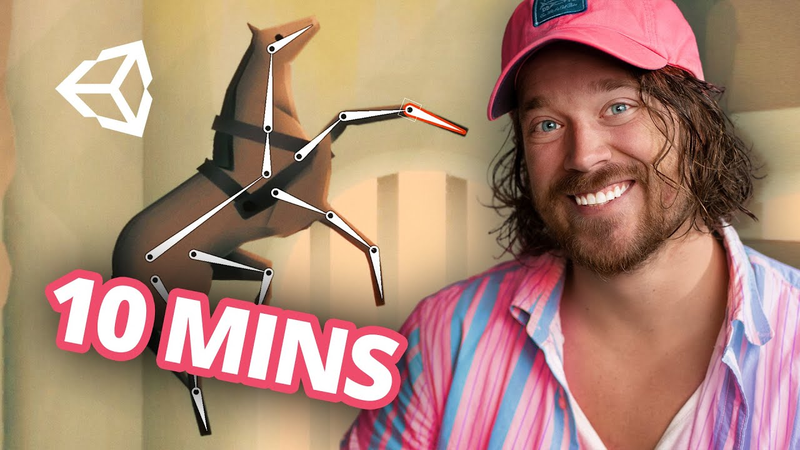
hey guys how's it going my name is thomas brush and i make indie games for a living i wanted to show you really quick how you can animate pretty much anything uh in photoshop actually cut it up into pieces in photoshop any flat image it doesn't matter what it is and then you could take it into unity and quickly animate it for your indie game in particular your 2d indie game so let's jump into unity or actually photoshop and i'll show you how we get started here before we do that i do want to let you know you can download my free 2d game kit below it's totally free use it however you want you can use that game kit with the techniques we're about to learn in this video all right so let's go ahead and jump into photoshop here and as you can see i've got this little horsey i'm working on a little horse here and this is actually for um a skyrim remake i'm making for 2d but anyway so what i do is i just cut things up and this is one big flat image so there's no layers here it's just a horse right so you could really pull any google image you wanted and animate it so i'm going to show you how we're going
to do that what i do is i first cut out the limbs and so i'll start with sort of a circular pattern cutting out the limbs here so i'm going to copy that i'm not going to delete it though i'm going to paste it disable that layer and then i'm going to go ahead and actually cut in the opposite direction so it's kind of like convex and then concave i'm going to cut off this leg here so that what we're left with is a nice smooth body that we can use i know this is weird just hold on okay i'm also going to clean up this little tail here and again this is just for you know if you if you don't have any layers and you just download any google image this is what i would do here okay i'm going to fill in that so now we have i'm going to merge those together actually yep okay and so now i have this tail i'm going to copy that and then paste it so now i have a tail i can use i've also got remember this leg that i
can use as well so we have a leg we have a tail and what i'm going to do with this leg is i'm going to go ahead and create a mask here and i'm going to just drop down the size of my paintbrush i'm just going to fade out the edges here and this will definitely come in handy when we're animating in unity all right i'm going to disable that disable that we have this little leg back here so i'm actually going to cut it out just like this i'm going to paste it and then i'm going to just fill in where i think that leg's going to go okay i'm going to use the eyedropper tool with the eye shortcut just press i on your keyboard and then i'm going to fill it in just like this i'm gonna make sure it's behind the little horsey body there there we go and we're gonna do the same thing with the head and these two front legs here okay let's start with the head
what i'm gonna do again i'm gonna start with a rounded sort of cut here so something like this like that and pull it up just a little bit so we're not getting the little straps there and i'm going to smooth it out a little bit and again i'm going to copy it paste it so now i have this head here i'm going to disable it so i can't see it and then i'm going to cut in the opposite direction right so cut like this so that i'm really cutting the head off smoothly i know that sounds weird all right we cut the head off smoothly let's move over just a little bit here there we go and then when we put the head on here we have this head and then all i'm going to do i'm just going to fade smoothly right here okay anytime you have a limb in 2d um it really helps to have it sort of faded right just like that and we just put it right up where is it
i think it's right here yep right about there okay we could probably fade in this piece here all right now let's do the same thing with the front leg here so this leg is sort of going to move let's see here probably like this so i'm going to cut the leg out first that i'm going to copy i copy it but i'm not going to delete it and then what i do is cut in the opposite direction where his body is going to be all right i delete that and then i paste this okay so there is his front leg and then i just fade it out just like this nothing too fancy here guys there we go back leg same sort of thing i'm actually going to cut out i'm just actually just going to cut kind of like we did with the other back leg this one right here i'm actually just going to cut this
boom paste it but i'm actually just going to pull up just so we have some some room to work with for that leg and then fade it out just a little bit like this and then pull it behind the horse's body okay all right so there we go right the only thing we really have a problem with here is we need some some of these limbs to be able to bend we can actually do that in unity we don't need to do it in photoshop all right let's rasterize all of our layers really quick um so i'm just going to actually rasterize this one um this one as well i'm converting it to a smart object and then i'm rasterizing it because for some reason that's the only way i'm able to do this right now basically i'm just applying these masks and making them permanent okay all right so let's name things really quickly here this is going to be uh i'm just gonna call it leg one right leg one this is going to be our tail it's not capitalizing there we go tail
is going to be our head this is going to be our this is like three this is our body this is our leg two and then this is leg four right i believe that's what that is correct okay i'm going to go ahead and save this out as a psb file not a psd file a psb file and that's a large document format i'm just going to save it and save it in my global folder here i'm going to call this horse and i'm going to open up my unity project and again this is a project i'm working on for skyrim remake which i'm not going to show you exactly what i'm working on just yet because that's going to be a separate video but i'm going to type in horse here and you can see now we have this horse can't see it because my ugly little mug is in the way there we go so we have this horse here and what i'm going to do is i want to make sure that when i go to my package manager our photoshop importer is well it's
imported it's a package and so it's actually included in the 2d animation package so just make sure you type in 2d animation and then uh click import i have the opportunity to update but i'm not going to update it right now okay so let's go to our horse here go to sprite editor and you can see all of our sprites have been cut out all of our layers have been cut out some of them are looking a little weird this one i'm going to clean up there we go and they're all named properly so i'm good to go i'm going to click up here and go to skimming editor okay make sure i hit apply here might take a little bit there we go and the first thing i want to do is create a bone all right so i'm going to create a bone here i'm not sure what the industry standard is for bones for horses but i'm just going to do something like this okay and then i'm going to right click and then i'm going to select this bone the root and this allows me see how there's sort of a faint blue line there that allows me to create a new bone that's attached
to it but it's also moved a little bit away from it which is totally fine all right i'm going to click here and then i think there's three joints in a horse's leg i have no idea i'm going to select here and do the same over here and then i'm going to select this here and do the exact same here one two three and then one more over here one two three good okay the next thing i want to do is without selecting anything nothing is selected i'm going to go to auto geometry there's just a few buttons to be on we want to click here to be ready to go with the animation i'm going to click generate for all visible if it doesn't say that you need to make sure you double click outside of the frame here and deselect everything okay i'm going to click generate for all visible the subdivision this will make sense in a second i'm going to keep it at six all right i'm not gonna worry about any of this stuff here i'm gonna keep it default and i'm going to include weights i know this is confusing but the
two that you're going to worry about is subdividing and i want it at six i want it pretty low poly it's going to create a mesh for us kind of like you would with a 3d game and then there's also this weights tick here i'm going to click that and make sure it automatically applies the weights generate for all visible there we go and now we have our horsey i don't know why i said it like that we have a little horsey ready to animate so we can pull his head back like this see and then we also have our legs able to move okay so really quickly here what we want to do is just make sure some things are properly weighted you can see overall it did a pretty good job this is pretty awesome what unity does the automatic weights are great but they're not perfect for certain things so what i like to do is make a really strange movement something like that okay and try and get it working properly some of these weights are a little screwy so we're going to click on weight brush
this is the only other thing we're going to click on the weight brush here and what you do here is you select the bone and then you double click the sprite that you want to edit okay so do i want this bone to influence the stomach like that not really so i'm going to sort of paint by clicking on the red bone it's basically like picking a swatch and then as i paint you can see that the green bone no longer has influence not that much over the stomach okay this takes a little bit of practice let's do it again all right so let's see here do i want this green bone affecting the knee like that that's a little strange isn't it so let's double click there we go and let's select this green and paint a little bit here you can see now it's slowly moving up and if we wanted to go faster you can just increase the hardness down here
and now you can see that our bones or our mesh is moving a little bit more properly if that's a word a little bit more properly i'm gonna pull this down here that looks pretty good i'm not going to have this animation moving too much or this horse's legs i'm going to have it moving too much so overall pretty good here the only thing i want to fix here is the chest up there that's a little strange see how it's influencing the chest i'm going to double click on the chest hold on there we go and i'm going to make sure that the chest is only influenced by this yellow here so i'm just going to really pull down or decrease the amount of influence the green leg has see how it's slowly turning yellow as i paint just clicking and hold and holding and brushing and painting okay all right pretty good there we don't really need
that to influence that so what i'm going to do is select the yellow and just continue to paint just a little bit more there we go and one more you can see it's this little piece here all right so now our legs move properly let's hit apply okay that applied properly and what i'm going to do is well i want to make sure that i hide the graphics because i don't want you to see what i'm working on with this skyrim remake but here we go you can see a little bit here but if i pull in this now horse this animated horse it's weighted it's ready to go i can pull this in this is a psb this is a photoshop big document but it's also now a prefab that's weighted and also includes bones so it's like this ultra mega efficient and effective photoshop file inside of unity it's pretty cool so i'm going to drag that in there we go let's double click
there's a hwasi i'm sorry i shouldn't say it like that there's our horsey i'm going to turn off the lighting and you can see now we can actually animate this horse inside it looks really cool actually it looks like something you'd see in like an old i don't know aztec painting or something that's really cool so we can create an animation right so let's go ahead and go to our animations folder i'm just going to type horse how about horsey run okay and i'm going to click the record button down here let's move my beautiful face back over here and i'm going to go ahead select our horsey oh no where's our animation it went away looks like it didn't save the animation i'm going to go ahead and just create another animation called horse animation there we go click record and now i can animate my legs however i like see how quick this was it's really amazing what you
can do with unity and also just a photoshop big document and you could do this with anything if i wanted to i don't know for some reason ronald mcdonald popped in my head immediately if i wanted to animate a png of ronald mcdonald's face i could use the same techniques here cut up various pieces from his face and fill in the gaps right like we did with the horse in particular with his tail and then just bring it into photoshop into unity as a psb file create the bones create the weights and you're good to go so you can see here now we have a running horse but that's how you animate in photoshop and unity if you guys like this video and if you want to take these concepts and put them into a 2d game download my free 2d game kit below it's totally free you can use it however you want it's my treat to you seriously i've used this game kit to make a game for pewdiepie in 14 days so it's totally free it's my treat to you i'm also going to send you some other free tools and also a couple
coupons if you want to take a look at my programs that i offer as well but feel free to use this tutorial however you like good luck on your journey in game dev i'll see you later
Summary
This tutorial outlines a streamlined workflow for creating 2D skeletal animations in Unity using assets prepared in Adobe Photoshop. The primary objective is to demonstrate how to transform a static, flat image into a fully articulated, riggable game object, enabling developers to animate complex 2D characters efficiently without requiring advanced artistic or technical skills.
The process begins in Photoshop, where a single-layer image is segmented into individual limbs and body parts. To ensure smooth movement, the artist cuts these components using convex and concave patterns and fills the underlying gaps to maintain visual continuity. These layers are then saved as a Large Document Format (PSB) file, which preserves the layer structure when imported into Unity. Within Unity, the 2D Animation package is utilized to define a bone hierarchy and generate a low-poly mesh. The software’s auto-geometry and automatic weight-painting features are employed to bind the mesh to the bones, with manual adjustments made via a weight brush to refine the influence of specific joints on the character’s geometry.
This methodology is applicable to any 2D sprite, regardless of its original source. By converting static images into weighted, bone-driven prefabs, developers can achieve fluid, professional-grade animations within the Unity engine. The workflow emphasizes speed and accessibility, allowing for the rapid iteration of character movement. The tutorial concludes by demonstrating how to record these skeletal movements directly within Unity’s animation window, providing a practical, end-to-end solution for indie game developers looking to enhance their 2D projects with skeletal rigging.




Comments