1 free read left. Create a free account for unlimited reading + AI research.
Create free account
Prototyping Your Game With A Gamepad (Adobe XD Tutorial)!
Key insights
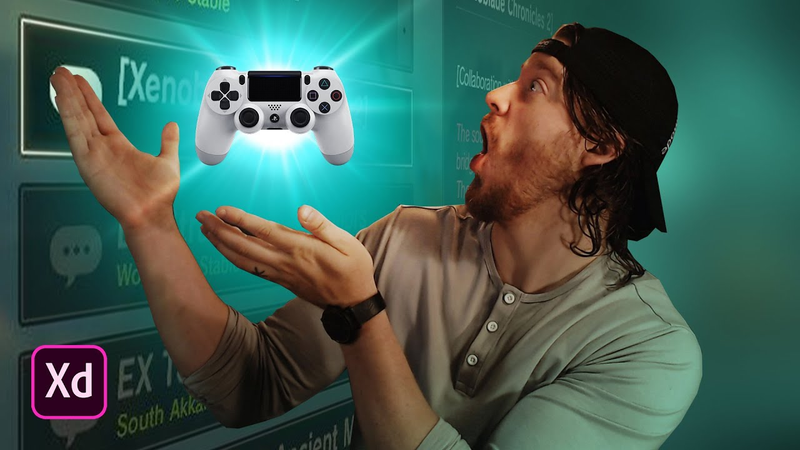
6 takeaways- 01Adobe XD allows developers to map physical controller inputs, such as D-pad directions and action buttons, directly to menu navigation triggers for real-world UX testing.
- 02Prototyping in Adobe XD serves as a bridge between creative design and technical implementation, preventing wasted production time by visualizing game flows before writing code.
- 03Using 1920x1080 artboards in Adobe XD ensures prototypes align with the standard display resolutions of major gaming platforms, including Steam, Nintendo Switch, PlayStation, and Xbox.
- 04The platform supports the import of standard image assets like PNGs and JPEGs and includes built-in visual effects such as background blurs to create high-fidelity prototypes.
- 05The software’s auto-animation feature creates fluid transitions by automatically interpolating changes in scaling, opacity, and position between identical object groups on different artboards.
- 06Integrated sharing tools within Adobe XD facilitate team collaboration, allowing stakeholders to review designs and record demonstrations to maintain alignment throughout the production cycle.
Ask AI about this video
Transcript
let's imagine for a second that spock and picasso want to start a game studio together they want to create an amazing game what's their biggest problem going to be it's probably going to be miscommunication why because they're both two polar opposite personality types you have a developer someone who's rational who thinks like an architect and then you have another person who's creative thinks abstractly cares about mood or story or how things feel these two individuals probably aren't gonna be able to communicate effectively to one another they might get in arguments they might scrap content they might ultimately double or triple their development time because they just spent too much time arguing or or being confused with one another about what the game should be now this is especially true with things like menu systems using controllers and game pads in a menu system and ultimately something like Adobe XD is really going to help smooth out the path of creating games especially between Spock or aka coders
and developers and programmers and art directors UX designers and graphic designers Adobe XD helps you do that and I want to show you how [Music] how's it going guys my name is Thomas brush from the creator of a game called pinstripe and I'm also working on a game called once upon a coma which we'll be launching this year and I've been making games for about 10 years and I wish I would have known about something like Adobe XD because I always would just start coding something or start making something and then two weeks down the road I would scrap it because I didn't know exactly what I wanted prototyping is crucial if you want to be a game developer so let's take a look at Adobe XD talk about all the cool features it offers talk about how it offers gamepad integration which is really cool so you can use a ps4 or an Xbox one controller so let's open up the hood take a look and I want to show you
all about Adobe XD alright guys so this is Adobe XD really beautiful clean piece of software really simple easy to learn and let's just start by zooming in so let's press ctrl + or command + if you're on a Mac we can zoom in to take a look at our various artboards here hold space click and drag and you can just sort of a nice bird's-eye view of all of your artboards here and all in our board is is it's just a bunch of different graphics at a certain screen size so we've chosen 1920 by 1080 that's just the typical screen size you'd want to use for a Nintendo switch or Xbox or ps4 or steam and we can drag around and look at all these 1920 by 1080 artboards here so let's go ahead and hit the preview icon here and we could take a look and see what we've created so you can see some really cool transitions just happened and we can use our gamepad which is a dual shock ps4 controller or
we could use an Xbox one controller if we wanted to so we could just press on the d-pad or the joystick to go left or right we can also select new game and choose our game files just like a typical adventure game really cool and then finally we can press B and go back to our main menu so really quick I want to cover how we're actually putting these artboards together so if you notice we have two tabs here we have a design tab and then we have a prototype tab the design tab is where we're going to be putting our artwork together and the way that we bring artwork into Adobe XD is simply dragging and dropping PNG images JPEGs or whatever and you can also just create just simple shapes and have cool effects you can even do a cool blur effect like we've done up here selecting background blur so as you can see here we have various PNG s that we're using for this project if we wanted to we could drag in this little circle thumbnail here and put it up in the left hand corner here if we wanted to but everything you see inside of each one of these artboards is
either a PNG a jpg a shape or some live text and then we've grouped some of those together so each one of these buttons is a group of a shape and then some text now the coolest thing about Adobe XD is that if you have an identical duplicate group or object on an individual artboard and you have that on this another artboard any change you make to the properties of that shape or object is actually going to automatically animate in transition when you go from artboard to artboard so if we move from this artboard to this artboard in the preview mode you'll notice that new game will scale down to the size here and the options button will scale up and transition to blue so we take a look at this first home screen here it's actually not completely empty if we take a look at it it actually contains all of the grouped objects that are from this frame here it even contains the title but the titles
opacity is set to 0% so this entire panel is actually just going to shift up to the location here all because they're identical objects to this artboard here so if we select all of these artboards you'll notice there's not a single transition and we don't we're not really telling Adobe XD where to go and what to do right now so all of that it's going to happen is we're going to go from this artboard to this artboard after three seconds so what you do is you simply select your artboard and this little blue arrow is going to appear and if you click and drag that blue arrow to a destination and release its going to reveal all of the various transitions and properties you want to select so in this case we don't want it to be tapped we want to go to this art board if we actually select a button on the gamepad so we can go down and select Kies and gamepad now the coolest thing about Adobe XD is you don't actually have to type in any strings for key codes or anything like that all you need
to do is plug in your ps4 controller or your Xbox one controller and then press the button so in this case I know I want to use the d-pad so I could press right on the d-pad and it's gonna automatically fill in that string so that is going to take us from this artboard to this artboard when we press the d-pad you'll notice we have some various properties here as well we can choose we know we want to use a auto animate action so you notice it defaults to ease out so I know that I want it to be easy in and out I want it to be smooth when it's easing in and out and I want it to last pretty quick so let's do point 1 seconds let's apply that logic to the rest of the artboards again press the gamepad button you want and that kick in our case it's d-pad right we'll select this artboard drag press d-pad right so as you can see we can actually go to the right and select the various buttons and X D is actually Auto
generating the animations needed to create those cool different States for our buttons what you will notice is we can't actually press left no matter how hard I press left on the ps4 controller it's not gonna move us left so we need to actually set that up so the way that we do that is let's just start in this far right artboard and make our way left we select the artboard and we're just gonna drag and go to this artboard here and then we'll just press our gamepad key left it's gonna fill it in for us I'm going to use that logic for the rest of our artboards here so now we should be able to go left and right for our buttons perfect now what would we do if we wanted to select this new game button and take us to the choose game art board all you need to do is actually just select the grouped button click the arrow click and drag
the arrow to the artboard and as you can see same logic applies here only in this case instead of pressing an actual directional button you just press the cross button on your ps4 controller or the a button on your Xbox one controller and it just fills in for you all of our easing is set correctly but we want the duration to be about two seconds let's go ahead and hit play and see if that works so we can select all of our buttons and if we press the cross button on new game transitions slowly to choose game pretty cool so let's start on this blank artboard here again it has all of our various objects but they're hidden outside of the field of view you'll notice that this home button icon is selected and that simply means that when we hit the preview button this is the first frame that's going to be shown if we wanted to we could select this artboard here and set it to be the home
artboard but for now I know I want this to be our home artboard and I want to show you exactly how we've set a transition to occur between the blank stay here to this full screen image here so to show you how this is done I want to start with this artboard here so let's select the artboard title and you can see right now there's a transition occurring from this artboard to this artboard if we select this level arrow you can see exactly what's happening there's a trigger which is time and it has a delay of three seconds and it's going to auto animate which we discussed earlier it's going to cause all of the objects that are duplicates on this artboard and this artboard to change their properties and fade in fade out or move up and down and then we also can choose what the easing effect is in this case it's going to be balanced it's gonna be one second so that's what causes it to wait one two three seconds and bounce into place and that logic is
used across the board all of these artboards use that same logic so if we select this artboard here you can see all kinds of transitions occurring from this new game button taking us to the choose game artboard you can see that it takes us to the options button selected here and if we select this one it's gonna take us here and then it's gonna take us backwards so there's all kinds of transitions and effects that we're selecting using that same line of logic I just showed you so that is pretty much all there is to it with Adobe XD there's lots of cool effects you can choose from there's also some cool art tools that you can use to create your various prototypes once you're done creating your prototype and you feel confident that it communicates exactly what you need your menus or your UI or your game to be simply click the share button here and there's lots of options to actually share this project with your team you can invite to edit you can also share for review if you have a need to send it to a developer or
you need to send it to your boss or you can even just record a video and send that to your team as well so what do you guys think do you think Adobe XD would help Picasso and who has a Spock would it help Picasso and Spock communicate it probably would and I know for certain that if I would have used Adobe XD in my previous projects miscommunication some arguments and just a lot of wasted time would have been avoided thank you guys so much for watching if Adobe XD looks like something you're interested in click the link below and also please feel free to leave a comment and I'll try and answer as best as I can hit the like button and also subscribe that would really mean a lot thanks guys talk to you later bye you [Music]
Summary
Effective game development requires seamless collaboration between technical developers and creative designers to prevent miscommunication and wasted production time. Prototyping serves as a critical bridge in this process, allowing teams to visualize user interfaces and game flows before committing to expensive, time-consuming coding. Adobe XD is presented as a professional solution for this purpose, offering a streamlined environment to design, animate, and test interactive game menus.
The software facilitates the creation of high-fidelity prototypes using standard 1920x1080 artboards, which align with common gaming platforms like Steam, Nintendo Switch, PlayStation, and Xbox. Key features include the ability to import assets such as PNGs and JPEGs, apply visual effects like background blurs, and utilize auto-animation. By maintaining identical object groups across different artboards, the software automatically handles transitions, scaling, and opacity changes, allowing for fluid, professional-grade motion design without manual frame-by-frame coding.
A primary advantage of this workflow is its native support for gamepad integration. Users can map physical controller inputs—such as D-pad directions or action buttons—directly to navigation triggers within the prototype. By simply pressing a button on a connected PlayStation or Xbox controller, the software captures the input, enabling developers to test menu navigation and user experience in a real-world context. Once a prototype is finalized, the platform provides integrated sharing tools that allow teams to collaborate, review designs, or record demonstrations for stakeholders. This approach minimizes development friction, ensuring that both technical and creative team members remain aligned throughout the production cycle.















Comments