1 free read left. Create a free account for unlimited reading + AI research.
Create free account
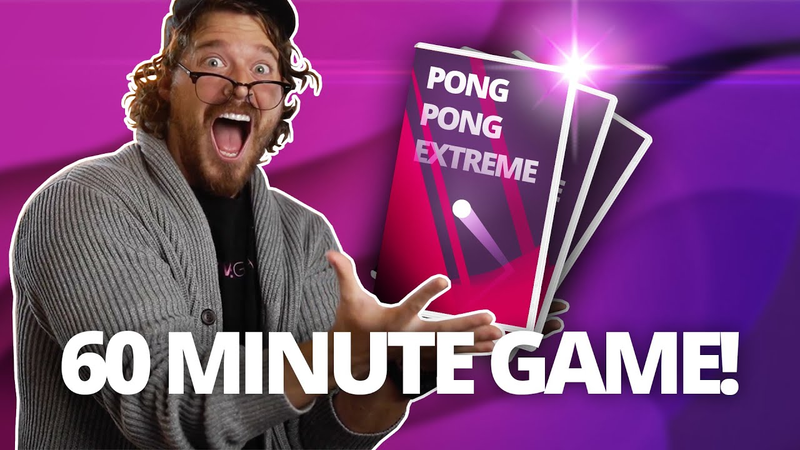
I MADE & RELEASED a game in 60 minutes
Key insights
6 takeaways- 01Technical implementation should focus on foundational systems like raycasting for input control and kinematic physics for immediate gameplay feedback.
- 02Modular design allows for the sequential integration of essential features, such as ball movement, score tracking, and audio feedback, to maintain development speed.
- 03Complex 3D environments, such as ravine terrains, can be realized quickly by utilizing Unity’s engine capabilities to bridge 2D and 3D elements.
- 04Visual polish can be rapidly elevated using post-processing effects like bloom, grain, and vignettes, alongside particle effects and randomized pitch for sound design.
- 05The development cycle concludes by implementing automated reset sequences for boundary collisions and configuring specific export settings for a deployable build on platforms like itch.io.
- 06Rapid game development is achievable within a 60-minute timeframe by prioritizing core mechanics and iterative refinement over complex feature sets.
Ask AI about this video
Transcript
Hey guys, how's it going? My name is Thomas Brush and I make indie games for a living. Today we're going to jump inside of Unity and we're going to make a Pong game. This is going to be a cool Pong game because it's going to be a mix between 3D and 2D. All right guys, I've already imported a [music] uh shader called Tuni Colors Pro. Um, and I've also gone ahead and just [music] created some very simple shapes that I'm going to be using for this game. Okay, the first thing I want to do is create a paddle that follows [music] along the bottom of the screen or the top of the screen. Okay, so I'm going to go ahead and create a new C# script. I'm going to call this [music] player. I'm going to make sure it's in the root here. Come on, time's a ticking. Time's a ticking. I'm going to double click on that and open up Visual Studio here. All right, let's go ahead and figure out a way to make it track with um the bottom or the top of the frame. Well, I'm actually going to use ray casting to do that. So, the first thing I want to do is actually have the player rotate
and follow the mouse while also drawing a raycast. [music] So, let's jump into our browser here and let's go ahead and Google search. Let's type in sprite mouse. Uh, actually, let's do sprite rotate with mouse. How's that? Ah, there we go. Okay, looks like we got a C# script here. Great. That should do just fine for us. Let's just paste that in here. And I know I'm going to use two cameras. So, I'm actually going to create a new public camera. And I'm going to call this 2D camera for now. Uh, actually camera 2D that should do just fine. Let's copy that and let's just paste that here just just in case or just because we know that in the future we're going to be using two cameras. So, this is going to make our player rotate with the mouse. Okay, let's go ahead and test that out. Let's go into Unity here. Let's create a new player. Actually,
let's just go ahead and Yeah, let's just drag in. How about just this square particle here? Let's make sure or actually let's just drag in the paddle here and just use it. So this is our paddle and I'm going to go ahead and create a new empty child. Actually, let's move the child above it and then move the paddle into the child here or into what the heck am I talking about? Okay, let's call this player here. And this just going to be called graphic for now. This is just for us to make sure that the rotation is occurring. Let's shift it over just a little bit here. And then go ahead and drag our player script in. And also just drag that camera in. And this is going to be our 2D camera. And hey, let's go ahead and make sure that it's not [music] set to perspective, but orthographic. And let's hit play here. Okay, good. It's rotating with the mouse. Perfect. Let's go ahead and draw a raycast out of [music] the player here. So, let's go to uh Google here and type in draw raycast [music] 2D and see if we could find anything. Well, let's
just go to Unity's documentation here. And actually, let's go ahead and type in raycast hit 2D. That's what we want. And by the way, if you guys are wondering why I'm actually searching on the documentation, that's because I am a and I never ever remember scripts and I've been making games for 10 years and I still do this. Okay, so let's go ahead and let's take this here, copy it, and go into Visual Studio here. There we go. And I know for certain, let's see here, I want it to come out of this object. And I also want it to go to the right. Transform. And I also want it to go at 20 units. And then I also want it to be a layer mask. Let's do layer mask. Let's call it layer mask floor. And I will explain this in just a second here, guys. Let's go ahead and create that layer mask. Public layer mask. What a layer mask is going to allow us to do is
have this raycast only check for the floor and the ceiling. Okay. [music] And also I want to be able to debug that raycast as well. So let's type in debug raycast 2D. There we go. And yep, right there. Let's just put this right below. Okay, so it's going to be right here. debug.draw rate and it's [clears throat] going to be transform.position transform.right. And the weird thing about debug is you have to put the length right here, not here. It's weird. I don't know. Um, that looks good. And also, I know that I'm going to be doing another one as well. Actually, let's not do that just yet. Let's just save that out. And now the ray will be cast from the right of the player here. And I know that I don't need this graphic anymore. That was just there to make sure we're rotating. Let's go ahead and hit play and make sure we're drawing array. Awesome. We're drawing array. So, what is this ray for? This ray is going to allow us to check and see if we're hitting what we're going to be calling the frame here. So, here's the frame. We
can scale it down here to you can see right there. So, this frame is just a sprite that I created in Photoshop, but I'm going to use a polygon collider, and it's going to go ahead and create a collider around this frame. And then, we don't need the sprite render anymore. So, now we have this frame that can check and see if [music] we're actually hitting the frame with the raycast. Well, I don't want to explain too much here because the time is a tick. Um, but I'm going to just check for ceilings and floors. Okay, so something like that. Okay, now let's go ahead and make sure that it's debug.logging for us in the console. Okay, it is not. Why is that? Because we haven't set the layer mask. Okay, so let's go ahead and set the layer mask floor to uh I have two layer masks here. I have a floor and then a walls. So, let's do floor. And then this is going to be called frame uh frame floor. Okay. And let's sh make sure we set that layer to floor. Okay. So now good. Okay. It's hitting the floor. That's perfect. And why don't we just go
ahead and create another raycast for the walls. Okay. So this going to be layer mask walls. Okay. And this going to be called called hit walls. And this is going to be called hit floor just for clarity here. And make sure we change this to hit.f floor or hit floor. I mean change [music] the name here. And then same here as well. Hit um walls. There we go. Okay. And let's make sure we create that layer mask here up here. Copy that. Paste it. Guys, if you don't declare your variables, um you can't use them, right? So, let's jump back into Unity here and make sure we set Looks like we have an error here. Hit walls does not exist. Yes, it does. It absolutely does. It's right there. What is going on? Oh, looks like I spelled it wrong. Forgot capital W. That's okay. Let's jump back into Unity here. And what we're going to do is go to our player here. And we're going to make sure we set layer mask walls to walls. Save that out. And then create
another one. Copy and paste it. And we're going to scale it down to about here. And then there we go. And this is going to be called frame walls. What does this mean, guys? It means that the [music] player can ray cast and check the walls and the ceilings, but it's going to be independent. I'm going to tell you why in just a sec. Let's hit play here and double check. There we go. Good. All right, it works. Let's go ahead and create a paddle. Okay, so there's our paddle. We're going to drag this down to the bottom of the screen just like this. It's going to be called paddle floor. And then we're going to create another one that's going to be called paddle walls. Okay, this is going to be 90°. And I'm going to move it over to about right here. And I'm going to disable this just for now. Okay. Let's just worry about the paddle for our floor. Okay. This paddle needs to follow the floor and the ceiling depending on where my mouse is. Okay. So, here's what we're going to do. Well, my brain my brain's about to fart. I can't I can't think. Okay. Here's what
we're going to do. If um hitf floor. is smaller than zero. Well, let's go ahead and set the the uh paddle floor. Is that what it's called? Paddle floor. Yep. [music] Paddle floor. Let's go ahead and create a new game object really quick. Game or public game object. Paddle floor. And then let's go ahead and create a paddle wall as well. There we go. Save it out. Okay. So, if paddle floor or if the point is smaller than zero, then we want it to be snapped to the bottom. So, paddlefloor.transform transform.position equals new vector 3 and this is going to be hitf floor.point.x um that's fine and then I know let's see here if I it's going to be okay 4.8 or so yeah4.8 I was just looking at the transform values there, guys. Um, that's
fine. Looks like we have an issue here. Hit floor [music] point. Ah, yes. Okay. Else, we're just going to have it snap to the ceiling. Okay, there we go. And positive 4.8. Save that out and make sure that it works. Have we identified what the paddle floor is? We have not. There it is. And also paddle walls. Let's drag that over there as well, just because. And then let's hit play here and make sure that it's actually dragging along the bottom and the top. Perfect. Look at that. It's snapping. See that? Now, let's go ahead and do it with the walls. Okay. So, copy this. I know this is ugly code, but hey, it works. We've got very little time here. So, this is going to be hit walls. If the collider is not null and the hit walls point.x is smaller than zero, we're going to flip these. Okay, this is going to be something like let's see here. Let's go ahead and go to our walls paddle here. here. Um, and let's see here. Yeah, it looks like it's going to
be something like 7.85. Okay, so there we go. And then paste. There we go. There we go. Look at that. Look at that. That looks awesome. Okay, so let's just copy this and then paste it. And then it's going to be positive. Okay, so what did I just do here, guys? I basically created a snake. Well, that doesn't work. Why doesn't it work? We've got ourselves a problem, Houston. Oh no, we've got ourselves a problem. We're going to use our brains here. Everything's going to be okay. Ah, yes. Hit walls. Got to make sure we put that there. Okay, save that out. And this is going to be paddle walls. Anytime you're copying and pasting stuff, guys, you can definitely Ah, it's paddle walls. Anytime you're
copying and pasting and rushing, [laughter] you're definitely going to get confused by your words, guys. Once I get this little snake created, oh man, it's going to be so much fun. Okay, it's looks like it still doesn't work. Why is that? Um, let's see here. Let's make sure everything is set up properly. Ah, yes. Paddle frame walls. We need to set the layer mask. That's what we did. Okay, awesome. The snake works. Okay, so we need to move over our frame walls a little bit. So, scale that over just a little bit. Okay. No, that's not the problem. That's not the problem. What's the problem? The problem is that this little friend here, we got the wrong number. So, it needs to be something like 8.83. Ah, yes. So, let's dogative 8.83. [music] Obviously, guys, you would do this in a little bit more strategic way, but because the clock is ticking, we're [music] going to just type that in and hit play. Okie dokie. Oh, look at that snake. M. That's a beautiful snake. Look at that. So, you can see what's going on over here, guys. It's a little bit different
than what's going on on my screen. It looks like it's a snake, huh? That's really, really cool. So, let's go ahead and shift the paddle floor number just a little bit down. There we go. Um, let's [snorts] do five. I think that's fine. Five. And I think that looks good. Okay, what's next? Let's create the ball. Let's go ahead and drag our ball into the scene here. I don't like how big that is. Let's do 04. There we go. Save that out. And then guys, this ball, it definitely needs a polygon collider on it. And hey, just for safety, uh, let's add that rigid body 2D. Set it to kinematic, guys. Save that out. And for the paddle, floor and walls, we're going to create a polygon collider. And it's going to just simply add a collider in the shape of the paddle. And then also, let's just set it to is trigger is true. And then we're also going to just give it a rigid body 2D. But make sure you set it to
kinematic or else it'll fall. Right. Save that out. Hit play. Okay. So, it looks like the snake is a little bit too snug at the top there. So, I'm going to fix that. It's going to be -4.9. Okay. Sorry. I know I'm being really precise here. Okay. That's annoying, but whatever. Okay, that looks good. So, why did I just create the polygon colliders? Well, because we want our ball to move. So, let's go ahead and create a new C script. We're going to call this ball. This ball is going to move and it's going to be able to hit the paddles, right? So, let's go ahead and jump over to Brave here and go to on collision trigger 2D Unity. Make sure you type in 2D. There we go. That looks great. I'm going to copy this right here. Take that. Jump back into our Visual Studio here. And so far, let's just double check here. Um, I know this is going to work. So, let's go ahead and just type in [music] I'm fine with it telling us what the actual object's name
is when it actually triggers into it. But, we're going to go ahead and type in if call.game object.name equals whatever the paddle is. Let's see here. What's the paddle's name? It's paddle floor. Guys, if it hits the floor, what do we want to happen? We want the velocity to adjust. Well, there is no velocity yet, so I need to do that really quick. So, if the paddle is floor or if the collision object is floor, if it's the wall, let's see here. Double check. Is that the name? Walls. That's what it's called. Paddle walls. Man, I need to be better with my syntax or my naming conventions. Okay, so we've got our collision set up, but nothing's happening. Why? Because the ball isn't actually moving. So, let's do transform.position dot or plus equals new vector 2. Or let's do a let's do a three. New vector 3. And we're going to do speed.x. x and then speed.y. We're going to multiply times a time. delta time. We're going to multiply that times
a speed multiplier. And we're going to go up to the top here and we're going to go ahead and create a new or a public vector 2. And this is going to be speed. And then we're also going to create a public float speed multiplier. This is going to increase as we play the game. Right. Let's make set that to a default of one. Looking good. Looking good. We've got an issue here. What is it? operator and can't be applied. Ah, Thomas. There we go. So far so good. Let's jump back into Unity here and we're gonna double check and make sure that Come on. Come on. Come on. Come on. Come on. Clock is ticking. What's going on? Okay, we're going to make sure that we set our ball script onto the actual ball here. Looking good. Looking good. And [music] it looks like our speed, we can set it to 0.5 and then 0.5. That means it will start at an angle. Let's hit play and make sure it's working. There it goes. Looks good. So, let's go ahead and set the speed multiplier.
Sorry, I got the hiccup. Speed multiplier to three. And that way we can double check here. Come on. Come on. Come on. Okay, nothing happened. That's okay. So, let's just double check here. I obviously want to remove our debug.log here. So, I don't want that. Okay, that was actually [music] causing some problems. Now, let's go back to our ball here. And I hope this works. Man, I really, really hope this works. Let's go ahead and hit play again and make sure we're getting a debug.log. If we're getting a debug.log, our collision works. If it works, then we can actually start reversing the speed of the ball. Come on. Come on. Come on. Come on. Good. Okay. Hit the paddle floor. What do we want to happen when it hits the paddle floor? We definitely want the speed to flip. Which speed? The Y speed. Not the X speed, the Y speed. See that? Oh, that looks great. And then what we're going to do is do the same with the Come on. Come on. Come on. X. There we go. How are we doing on time? How are we doing on time? Okay. Um, jump
back into Unity here and let's make sure it works. I'm going to set the speed to something a little bit higher. So, five. Just so we don't waste time testing here. Oh, yeah. Oh, yeah. That looks good. Okay. What do we want to happen when it hits? Right. What do we want to happen when it hits? Well, I know that I want to play a sound, right? So, let's go ahead and create a new void um hit effect. This is going to be just a quick function. We're going to create audio source.play oneshot is going to be hit sound. [music] Okay. Now, I kind of want the audio that needs to be actually declared up here. So, let's go ahead and create a public audio source. What this is going to do is allow us to choose an audio source in the inspector that we can play through. Okay. So, let's make this lowercase a audio source. Play hit sound. What is the hit sound? I don't know. Let's go ahead and create a new audio clip. Clip. Hit sound. Great. So, now we can
play a hit sound. What's going on? Stop, guys. I hit something I shouldn't have hit. This is going to change my whole recording here. Cracker jacks. Whatever. Okay, let's keep going. Um, oh, come on. I don't want to see this stuff. One more. Okay, good. Okay, so it's going to play a hit sound. Well, let's go ahead and set the audio sources pitch to be random. So, audio source pitch equals random.range hm8f and then 1.3F. That'll be fun. Okay, so now we have a hit sound. That's kind of cool. Um, why don't we go ahead and just take a look at my downloads folder and grab some sounds because I downloaded these before the uh the actual recording here. So, that's great. Let's jump into our actual project folder here. And I'm going to paste those in. Replace. Replace. Actually, looks like I already had them. Okay, let's go back
into Unity here and see. Actually, wrong one. reveal in Finder. We're going to paste these in. There we go. Okay, now we've got them in our actual project folder. So, let's go ahead and go to our ball here and add an audio source to the ball. I'm running out of steam. My brain is starting to fart. There we go. And then also, [laughter] let's add let's go ahead and drag that uh sound effect. So, that's the percussion hit. That's kind of cool. So, let's drag that to our hit sound here. Hit save here and go ahead and looks like the sound is not playing. Why is that? Let's double check here. Go back to our Visual Studio here. Ah, because we didn't actually declare or call the function, right? So, hit effect. That's [music] great. And one here as well. And that should do just fine. and minimize Streamlabs. Go back to Unity
here and hit play. Come on. Come on. Let's make sure this works. Crap. Parameter names. Okay. I don't think I identified where the audio source was. I did not. Drag the audio source. Thomas, you are running out of time. So, go ahead and hit play here. Working. [music] Great. Okay, let's go ahead and let's see here. Let's create a counter. So, we're going to go ahead and go to our uh we're going to create a new UI element. We're going to create a new text element. [music] And this is going to be called our score. Okay. And let's go ahead and make sure we're using the right font. [music] I really want to use Let's see here. What font do I want to use? I downloaded one earlier today that I really liked. Let's see here. Um, it's called lemon milk. Let's do a bold
type. Let's drag that into our Unity here. Good. Okay. And let's go ahead and drag lemon milk over here. Perfect. There we go. And let's make it pretty big here. Not going to be able to see it. We're going to set overflow and overflow. There we go. And then let's zero this text out. I want it to be in the center. Okay. This is going to be cool. I promise. Center that out. Zero it out. There we go. Hit play. Okay, there is our score. And let's go ahead and create a new animation for our score. Um, I think it's fine to add it to the canvas. So, let's go ahead and create a new animation in the canvas. Got a phone call. One sec, guys. Hey, what's up? Uh, yes, I did. Yep. the great. Oh, no. Okay.
Oh, I'm sorry, honey. Good. All right. Well, that's good. Okay. Okay. Cool. I got a lot. Great. Okay, sounds good. Sounds good. Love you, too. Bye. Sorry, guys. Okay, we're going to go 08. So, what we're going to do here, guys, is we're creating a bounce effect for our text. So, that when you actually collect or hit a ball, you get a nice cool bounce effect. Not collect, but you hit the ball. So, that's a little bit big.
Let's see here. So, let's start it at one. Actually, starts at one. It pulses up to 1.3, 1.3, and then pulses down to 08, and then upr. So, that's what happens when you collect. Okay. All right. But the cool thing is is it's going to start out at nothing. Okay. So, you can't see it, but the moment you start playing, you'll see it on screen. Okay. Now, we're going to go to our animator here, and we're going to click on our canvas. All right. Looks like we have our animation here. So, what we're going to do is go ahead and drag down here, and we're going to create a new empty state. And this just going to be the layer default. And then we're going to make a transition to score animation. And then back. And what we're going to do is jump into our parameters here. We're going to create a new trigger. And we're going to call this effect. I don't know. [laughter] We're going to create effect. There we go. No exit time, meaning we want it to immediately go to the animation.
And uh we do want an exit time going back to that new state, but we don't want it to loop, right? And then do we want an interruption source? Yes, we do. We want the interruption source to be the next state. And then we also want it to go into itself just to be careful here. So, we're going to do effect here, exit time, uh, no exit time, and then zero transition duration. That way, it can play this animation. Okay, so here's what's cool. If we go to our ball script here, remember this hit effect, all we got to do is type in um text animator dot set trigger, and then it's effect double quotes here. Good. Okay, we don't have a text animator, right? So, here's what we're going to do. Public animator text animator. And then we also want to do a public text, right? Uh, and it's going to be called text. Looks like we have a red line here. Let's click on the potential fix fixes. Ah, looks like we need to include the name space for our UI. Sounds good. Sounds
good. Okay. What is going on here? What am I doing? I totally forgot what I was doing. Oh, okay. Cool. And then we also what we want to also what we want to do is uh we need a reference to the player, right? The reason we need a reference to the player is because we want to be able to increase the player's total hits. So public integer [music] total hits by default. That's going to be zero. So let's iterate that. So what we're going to do is go to player equals gameobject.find player. Uh that's capital. No, it's not. Yes, it is. uh get component player. Right, there we go. So now we have a reference to the player. Is that capitalized? Tell me it's capitalized. It's capitalized. Okay. Now we go to player dot total hits plus equals 1. Now what do we do? We say text dot text equals total hits
dot two string. Is that how you do it? Total hits does not exist. Ah, Thomas player dottotal hits to string. Hey now. Okay, that looks like it should work. Let's go ahead and enter into the game. Let's hit play. Come on. Here we go. Ah, we got an unassigned reference exception. Yes, that's because we need to tell the canvas what the score is and also what the score's animator is. Hang on. There you go. There we go. Uh, and then also let's just set what the player is. I know that I actually referenced that, but [music] that's fine. Go ahead and hit play here. And come on. Yeah, it works great. And it looks really, really good. Honestly, I'm kind of impressed with myself. [music] I'm pretty sure you're impressed, too, aren't you? Okay, so it looks great. Everything's awesome. Hey, why don't we make this look a little bit cooler? Okay, so what I'm
going to do is I'm going to create a second camera. This is going to be called the 3D camera. And let's go ahead and create a 3D terrain. So, this is going to be fun, guys. Here we go. We're going to create a new 3D terrain so that we're [music] flying through this terrain as we play the game. That's always really cool, isn't it? So, let's go to 3D object and we're going to create a new terrain. Oh, there it is. And we're just going to shift it over like this. And now, what we need to do is we need to tell the camera what not to look at. Okay. uh the 3D cam or the 2D camera. We want it to be uh we want it to clear. I think that's how what we're going to do here. Let's see if [laughter] There's our 3D camera. What's going on? Something's wrong here. Let's double check and see where our terrain is. For some reason, the 3D camera cannot see the terrain. Okay, there it is. Ah, it needs to be perspective. Good. And there's our
terrain. Okay, guys. Okay, so we have our terrain here. Now, what we can do is go ahead and let's add in a cool terrain color. So, let's go ahead and create a new material. This is going to be called terrain. And I want this to be a tune. So, let's go to H. That's cool, I guess. I don't know. And add the terrain color to that. I don't know if this is going to work, but let's just go ahead and check. Um, we're going to drag that terrain color to the material here. There it is. It doesn't look great. I'm going to turn this directional light off, I think. No, let's just make it white. That's why we're getting that weird color. Okay. And then I want the background color of my 3D camera. I want it to be like a sort of purplish. Ooh, that's kind of cool. There we go. Awesome. And then, guys, we're going to go to lighting tab and we're going to add some fog. There we go. And the fog is going to be that purple color. Just like that. And let's go ahead and set the density to [snorts]
0.04 or 003. That's good. And then what we're going to do, guys, is let's just create a bunch of terrain. Okay. So, let's go ahead and just add a ton of it. So, [laughter] sorry. And then let's go ahead and create uh let's see here. Let's go to all of these here. And we got to move the T. Man, there's no fast way to do this. Unity is, you know, sometimes Unity is not great to be honest. Okay, keep going, Thomas. Keep going. There we go. Okay. [snorts] Um, so that looks good. So, now we have this terrain, right? So, what we can do is just sort of create some cool uh I guess some cool effects. Let's just uh let's turn on the lighting. There we go. And then just raise up this terrain. I can hardly see it. Can't really see it. Let's turn off the fog really quick.
Yeah, there we go. Okay, there we go. I don't really like the material cuz I can't really see what's going on. Let's see if we can change that material to be something a little bit better. Let's go to the inspector here. And right now, I think what I want to do is just standard for now. Just let's just do standard for now. Okay. So, there is this beautiful terrain here. And I'm just going to increase the opacity and just bring up some really cool mountains here. Just keep drawing these mountains here. Okay. Awesome. So, we're drawing our mountains. Let's go pretty high. And I'm going to sort of have it looking looking like we're traveling through this really big ravine. There we go. Look at that. That looks really cool. Okay. Unity is getting
slow. Got to love Unity on a Mac. All right. So, there's our terrain. Let's Let's do a little a few more shapes here and there to make it look kind of cool. man. Okay, good. We've got some mountains here and there. It's kind of cool. Let's try and make it a little bit more unique here. There we go. And then we're going to animate the camera down the ravine. Right. So, let's go ahead and go to our 3D camera and I'll show you how we're going to merge these guys. And we're just going to create a new animation that's going to be called camera move. And then hit the record button. And also, let's turn on that uh let's be sure we turn on that fog. Yeah, that's a little
There we go. So, the fog is turned on. Right now, let's move this camera. So, I'm because I want it to loop. I'm going to sort of start really high with the camera. So, about here. And then after about twoish seconds, I'm going to come down to about here. And then I'm going to go to I think a minute is fine, honestly. We're going to go to the bottom of the ravine here. See that? Look at that. Okay. And then we're just going to go up up and out, right? So that it can loop seamlessly. All right. There we go. Let's speed it up just a little bit. That looks awesome. What about towards the end here? Yeah, I think that we probably need to put it to about right here and then start going up.
Not really. Um, something like that. And then this. Yeah, he's a little too far. There we go. Awesome. Okay, so that's just going to loop, right? Um, so there's our 3D camera and then let's see if we can get that terrain looking kind of tunish really quick. So let's go back to our Tuni Colors Pro exam and we're just going to go to our example. Actually, let's go a legacy here. Let's try [music] desktop. That looks kind of cool. Yeah, I kind of like that. Uh, hey, let's go ahead and make it blend between the two. Okay. So, we have a 3D camera here, and I want it to be. Let's see here. What's going on? Let's go to our 2D camera here. 2D camera. Wait, what's going [music] on? Okay, we got some issues here. Here's
our 3D camera, and then here's our 2D camera. Why is it doing that? Okay, the ball needs to be on a new layer and that's going to be called 2D. That's the layer. Okay, so the ball is going to be on something called 2D. The canvas is going to be something called 2D as well. I think that's fine. Yeah. Um, and then the paddle for the floor and the walls are going to be on something called 2D as well. That means in our 2D camera we can go nothing. There we go. 2D. Thomas, you did it. Let's hit play. [music] [bell] This is awesome. Okay, it looks great. Hey, let's add some particle effects to make it look like we're really moving fast. And oh, let's fix this uh terrain really quick. Back in time to where we
were. Uh, that's fine. It's not the coolest. I think we could probably go ahead and now change the fog to 0 2 or nah. 06. There we go. Okay. Or 00. Yeah, 006. All right. Let's add some particle effects, guys. Um, create a 3D object. It's going to be our effects particle system here. And I'm going to put this inside my 3D camera. Let's zero out its position. There it is. Okay. Ah, yes. And then rotate it towards the camera like that. Oh, Thomas, that looks cool. And then we're also going to change the shape to uh sphere. Yeah. Change the radius to be pretty big. And I want the lifetime to be something like I think 5 seconds is kind of fine actually. Um,
yeah, that's fine. And then color over lifetime is going to go down. And then start it up high, too. There we go. There we go. Awesome. Okay. And by the way, we need to set the simulation space to world. And then probably need to move it up like this. And I'm going to set the radius to be pretty big actually. There we go. And let's set the I think actually 10 seconds is probably good for the lifetime and the duration. Um, and then let's just crank up that emission to like 150. There we go. And I don't like that color. So, let's do a color of like red. There we go. All right. Let's hit play and see how it looks. It's like snow, huh? That's pretty cool.
[music] So, yeah, we need to we need uh to change the lifetime to five. I think that's what we need to do. And then we just need to move it forward. Yeah, I [music] think that's what we need to do. Let's try that out. What was happening was it was hitting the max amount and then you couldn't see it anymore. All right, that looks great. Sweet. And I think the the fog is a little intense to be honest. There we go. Save that out. And then one more thing about the particle system, guys. Um, I want it to be a little bit smaller. So, particles can be something like There we go. 3. There we go. So, pretty
small. And I guess we can increase the size of it a little bit here. And then let's do one more. And this is going to be like fog. Okay. So, these are going to be like 10 by 30. Yeah. And then it's gonna be closer to the camera like this. There we go. Actually, let's do like 80. And then decrease. There we go. This is just going to give us that feeling of flying through something, guys. See that? Awesome. There we go. Looks good. Let's make sure the game actually works, though. [music] Awesome. Let's change that terrain color a little bit. Let's jump into Unity here. And I'm going to tweak this just a bit to be a little bit more pink. It kind of looks like blood red. I don't really like it.
I want it to kind of look like vapor wave. Save that out. And then jump back into Unity here. That looks a little bit better. Although, I think it's the directional light that's the problem. That looks a lot better. I like that a lot. Okay, really quick, guys. To make it look really cool, all you got to do is create cubes. Create game object, 3D object, cube. And what you do is you scale it up like mad, like this. Uh, I think you rotate 45, 45, and 45. Yep, there we go. And then you're going to create a new empty game object. Drag it inside of it. Zero out its position. Everything looks good. That way, what you can do is scale this down, but [music] crank it up really tall so it looks like these spires, right? We don't want box colliders, and
[music] we want terrain. Yes, there we go. I think that'll do it. Cool. Okay, so we have these cool spires. For some reason, there's no shadows. I don't know why, but I don't think I have time to figure it out. So, we have these Yeah, the shadows are showing up. Okay, so we have these crazy cool tall spires that we can place all the way down here. So, I'm just going to keep going just to give some uh I don't know, feeling of movement. There we go. And we're running out of time, guys. So, what I'm going to do is take these and just keep dragging them in like this. Okay, so far so good. And then I'm going to drag all of these along like so. Okay, let's try this out and see how it looks.
Very cool. Yeah. I wonder if I could uh I don't think I need to speed it up. I think it looks kind of cool. Okay, that looks great. Now, let's go ahead and create the death sequence really quick. Um so, what we're going to do is we're going to say we're going to go to our ball here. Let's try and do this fast, guys. We're running out of time here. I'm running out of time. Um we're going to say if transform.position.x x is smaller than uh it's going to be let's see here -9 or and then we're just going to copy this okay if transformed I'm running out of time uh this is greater than positive 9 if the y position is smaller than -5 or the y position is greater than
five. Okay. Then what we're going to do is we're going to initiate die. Okay. Die is initiated. Hey, wait. What's going on here? Okay, initiate die. If we get to any of those positions, die doesn't exist. Let's create it really quick. Die. All we're going to do is we're going to set our transform.position position dot uh it's going to be a new vector 2 it's not new it's just a vector 2.0 um vector 3.0 zero is fine. And then the player total hits is going to be set to zero. We're going to set the text here. We're going to set the audio source dot play oneshot die sound doesn't exist. Go up to the top here.
Die sound. Good. Hey, we also need a audio source for the game music. Um, that's going to be called game music. And we're going to stop that. And it doesn't exist yet, guys. Game music. Stop. And then we're going to say game [music] music.play. Okay. Good, good, good, good, good. Everything's good. Hey, here's what we're going to do. We're going to go ahead and do this. Text equals Oops. That is great. Okay, try it out again. Go back into Unity here. Let's add that music in. Um, what's our music source? Uh, I think this is cool. Yeah, that's cool. We're going to drag that in. We're going to create a new game object with an audio source.
This is called game music. Okay. Drag that into Come on, Thomas. There it is. Okay. Uh, play and awake is good. Loop is good. So, that's our game music. Um, let's see here. Oh, we need to go to our ball and we need to go to our game [music] music here. Um, or we need to drag in what our game music is. There it is. I think we're good. Did we just finish the game? audio. [music] [music] Okay. Good. Good. Okay. I'll show you how to do the image effects. So, let's go to our camera. And this is always really cool. Uh what you can do, I think you need to go to profile. Let's see here. [music] Um,
let's create a new profile. New post-processing profile. I don't care what it's called. And then what we're going to do is we're going to add a um, vignette [music] to it is fine for now. Uh, intensity. Increase that. And also, I think I need to go to our 3D camera [music] here. And then I need to go ahead and add in a profile or image effect or post-processing. layer. Okay. And we're going to go ahead and add that layer in. It is our No, there's no trigger. Hold on one sec. Here. Post-processing volume. There it is. And just drag the profile. Good. And it's global. I believe that'll do it.
Sometimes it doesn't work. Sometimes it just doesn't work, guys. There it is. Okay. Awesome. It looks great. It tells me not to do that, but I don't care. Um, there's a little warning here. All right. So, there is our vignette. want to add a bloom. I I love adding bloom to things. Um, so let's add a bloom effect. Whoa. Some reason it's not working here. There we go. But we'll bring the threshold down. See that? Look at that. That's awesome. [music] And let's see. Maybe add another one. Uh, I love adding some grain. I'm a big fan of grain.
There we go. Pretty sweet. And hey, let's add a cool trail effect to the ball, too. Now, we're just in the sort of adding cool effects, you know? Um, and it really really is what makes the game pop, you know. Decrease the um, alpha. There we go. And I think what we can do, do I have a trail particle? I do not have a trail particle yet. Let's create one. Trail. Let's call this trail. And let's just add the particle image to it. And let's go to mobile particles. Additive is fine. And then let's go back to our ball here. There's our trail renderer. And now we can add that trail to the material. Let's hit play and see how it
looks. Here we go. Hit play. Man, I wish that the 2D camera had those effects on it. I wonder if we can do that. Let's go ahead and add a pro postprocessing volume and post-processing layer to our 2D camera. Good. Let's drag in the profile and then also the layer. And we're going to do everything. There we go. I think we could turn that off now in the camera. [music] The 3D No, the 3D camera needed it. It needs it. So, I'm not sure. Okay, that kind of works. I don't know why it worked, but it worked. [gasps]
So, we're just going to we're going to keep going. So, let's turn that bloom is a little intense, isn't it? So, let's drop that down a little bit. And then also remember guys, go back to our ball here and we're just going to change the opacity of the alpha of the trail. Hit play. [music] That's great. I want to know the one thing, one of the things you can do, guys, is add in, one of the things you can really do to add in a lot of intensity to your game is just add in that white flash. And so here we have uh let's see here. This needs to be a sprite. [music] A white flash when you collect things is one of the most the oldest ways of making your game look absolutely awesome. So, we're just going to bring that in. We're going to set native.
There it is. Zero it out. Okay, look. Watch this. Uh yeah, the score animation honestly. Um it's just going to be a quick flash as well. So we're going to go like this. I was thinking we needed to create a new animation, but we just do this and then drop it down. Look. See? It's just a quick flash. Let's make it a little bit brighter. Okay. Something like that. Let's hit play. Need to set it to zero by default. There we go. Save it out. Man, I haven't saved the project yet, but I don't think I have. Okay, that'll go ahead and build settings. I'm going to build it to Mac currently. I'll also build a PC for you guys after this [music] video. Um, let's call this Pong. Pong Extreme. Is
that a cool name? Save it out. And that'll export it out for us. And why don't we just go ahead and upload this to it.io. Does this count? I don't know if this counts toward my total time. This is not fair. What in the world? Come on. This is not fair. Why are you taking forever? All this hard work and you're going to take forever. Come on. Okay. Pong Pong Extreme was exported. Let's go to player settings and make sure something was right.
Oh, come on. Oh, [sighs] we're going to set this to 1920 x 1080. I'm not going to export it though yet. I think I'm going to do that after this video. But let's go ahead and actually, you know what? Let's export it now. That's fine. I I needed to set the um the proper resolution 1920 x 1080. Let's go ahead and jump to it.io, guys. It's OO. We're going to create a new project. Upload a new project. Pong Pong Extreme. Pong Pong Extreme. It's good. Um, Extreme Pong for the not so faint of heart. Good. Downloadable. Z. Uh, donate. That's fine. upload our game file. We're gonna do Mac, but but like I said, guys, we're gonna do PC as well. Um I'm gonna do that after this
video just so I can say I got it up. [laughter] Um let's see here. That's doing great. Use your mouse to move the [music] paddle all around the edges. Woo! That's the new unique feature. I don't know if that's ever been done before. I think it has. Um, it's an adventure game or no, it's just a puzzle game or arcade or whatever. Don't care about any of that. Oh my goodness. Okay, we need a cover image. Uh, 650 x 500. Okay. Watch this, guys. You're going to love it. 650 by 500. And we're going to take that pink color. Going to be very simplistic. And I'm going to create a cool name. Pong. Pong Extreme. I hope that's not taken. I didn't check.
Zero it out. Come on, Tom. What are you doing? Pong Pong Extreme. That's kind of cool looking. It looks super simplistic and clean. I like it. Um, there we go. And we're going to do that purplish color. There we go. And then, hey, let's go ahead and use noun project and create. If it'll load, let's type in pong. See what we get. That's what I thought. I don't care. We're just going to do something something simple. I might change this later, but I'm just trying not to break the rules here. There is our logo, guys.
My hand hurts. Save. We're just going to save this to the desktop. Pong Pong Extreme. Come on, Thomas. Come on. Come on. Come on. Come on. Come on. Come on. Come on. Upload cover. Do I really need Yeah, I don't need screenshots. There it is. Save and view page. There it is, guys. Up and running. Wait, hold on. Draft. Public. Save. View page. There it is. And That's it. We just made a game in an hour. Was that an hour? I think it was an hour. WE DID IT. WOO! [screaming] OH MAN, that was really fun. I might do this again. Whoa. by
Summary
Rapid game development is achievable through a disciplined workflow that prioritizes core mechanics and iterative refinement within a strict one-hour timeframe. By utilizing Unity’s engine capabilities, developers can successfully bridge 2D and 3D elements to create functional, visually engaging experiences. The process centers on efficient implementation, starting with foundational systems such as raycasting for input control and kinematic physics for collision detection, which allow for immediate gameplay feedback.
The technical execution relies on modular design, where essential features like ball movement, score tracking, and audio feedback are integrated sequentially. To maximize impact under time constraints, developers can leverage post-processing effects—including bloom, grain, and vignettes—to elevate the aesthetic quality of the environment. The addition of particle effects, animated camera movements, and randomized pitch for sound design further enhances the player experience, transforming a basic prototype into a polished, cohesive product.
Finalizing a project within this compressed schedule requires a streamlined approach to environment design and UI implementation. By incorporating automated reset sequences for boundary collisions and configuring specific export settings for high-definition output, the development cycle concludes with a deployable build. This methodology demonstrates that even complex visual environments, such as 3D ravine terrains, can be effectively realized when the focus remains on essential mechanics and rapid asset integration, ultimately enabling the successful release of a playable game on platforms like itch.io in under sixty minutes.

Comments