1 free read left. Create a free account for unlimited reading + AI research.
Create free account
How I make my STEAM INDIE GAMES (Basic Overview)!
Key insights
6 takeaways- 01Prioritize functional, shippable gameplay over maintaining a perfectly organized editor environment to meet Steam marketplace demands.
- 02Implement robust, reusable systems like persistent Game Master prefabs and centralized animation-driven UI navigation to streamline development.
- 03Decouple character graphics from physics-based capsule colliders to ensure fluid movement while using tools like Spine or native 2D animation packages for visual quality.
- 04Simulate depth and immersion by using orthographic cameras combined with custom scripts that shift background layers based on Z-positioning for parallax effects.
- 05Utilize modular prefabs and Photoshop files within the Unity engine to facilitate rapid, real-time iterations without sacrificing technical stability.
- 06Optimize performance for diverse hardware by using gizmos to visualize trigger zones and dynamically enabling or disabling screen boxes based on camera position to reduce processing overhead.
Ask AI about this video
Transcript
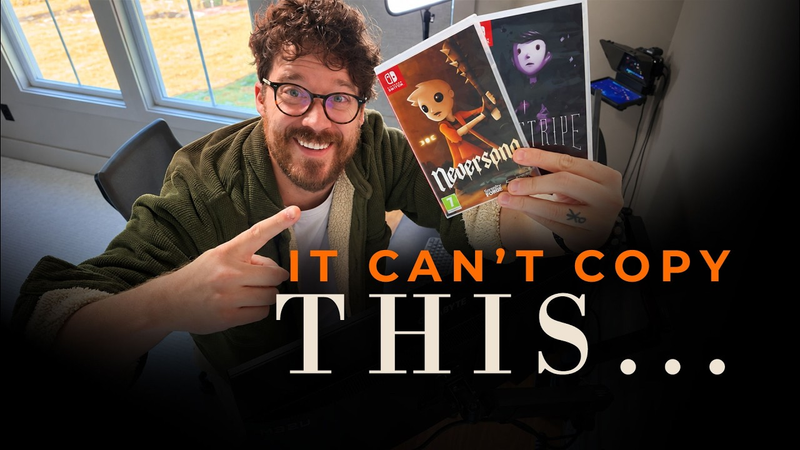
hey hey this video is brought to you by Squarespace thanks Squarespace yay Hey Wow hi my name is Thomas brush I'm the creator of this game this game is called never song I also made a game called pinstripe both of these games are pretty much available on every platform this games coming out May 20th and I'm terrified coming out May 20th on Steam and there is a link right now in the description if you guys can just click that link in wish list it would really mean a lot to me I'm at like seventeen eighteen thousand wish lists right now and my goal is to have thirty thousand wish lists in a week and a half so if you guys could click that link it would really mean a lot to me so I'm really proud of this game right I think it's beautiful I really like it I worked hard Eric and I eric is the coder of this game I did the illustration music story animation that kind of stuff and Eric did the code we're really proud of this game we think it's a highly polished game it's beautiful and it's shippable right it's ready to go and we can sell it to
an audience and that audience will likely be happy with the final product however I was to actually open up this game in unity editor I think you guys would be surprised how much of a house of cards it feels like can feel messy at times it can feel overwhelming and it can feel maybe like it's not shippable but what matters is play mode not edit mode if the game is working on your device you're good to go so I want to show you guys underneath the hood what this game looks like give you an idea of the basics of a shippable game that's important to note this is not a tutorial I'm not gonna show you the scripts and how the idiosyncrasies of every little technical script works and how you can do it I think there's plenty of links in the description or various tutorials related to each aspect that I'm gonna show you but it is an overview so that you guys can feel comfortable knowing
what the basics of a 2-d game are and how you can put things together so let's jump inside a unity get started okay guys before we get started this video is brought to you by Squarespace believe it or not I've been squarespace as a sponsor for so long mainly because Squarespace is awesome I've been using Squarespace for I think six years both my websites Thomas brush comm and at most games comm where I host my games in my portfolio my resume all that cool stuff is hosted on Squarespace it was created with Squarespace Squarespace is cool because you can look amazing you can have custom designs and pretty much do anything you need to do for your business or your own personal brand all with Squarespace and you don't have to know how to code so if you guys are interested in creating a website with Squarespace click the link below Squarespace comm slash Thomas brush and use the promo code thomas brush for 10%
off yay yay I love Squarespace I really do thank Squarespace all right so first off this is the main menu system as you can see it's sort of blank by default but if you look in the actual hierarchy here there is a ton of stuff going on first off there's a game master which has pretty much everything in the game that is reused so we've got plenty of prefabs we've got global sounds we've got the icons for various devices with Xbox Playstation PC switch some scene info and some other stuff as well there's a fade loader there's input handlers there's all sorts of stuff in this game master prefab which this prefab is going to be persistent meaning if I load from the title screen it's going to stay with us no matter where we go no matter what scene we go to this game master will be
there this game master is a prefab because if I open up or load inside of a new scene right away let's say I load a game file or I die and we need to load again this game master is gonna be available in any scene we go to so I just wanted to clear that up that we have the game master right away inside of a title screen scene we've also got a canvas here and it's gonna include all of this stuff here like vignette overlays texture overlays this is all included inside of a game master so this is gonna follow us wherever we go including the saving icon loading icon so we have that and we also have the main character now this is specific to the title screen here and that's going to include all of our different options and our main menu and Confirmation overlays so if we activate the main menu here you can see that there is the
actual title here with the three start option we collapse this down you can see there's a start game there's a quit there's an options and then there's also a panel content which includes the logo and then these little sort of very faint black top and bottom panels now everything is handled actually with the animator and this is something that I preferred as the creative director of the game and the illustrator and the animator of the game I wanted to be able to animate everything in and out and have my coder Eric basically code all of the different triggers that send messages to the actual animations so as you can see here if we click on the animation tab here we have animation information for this specific start game so if I hit play you can see that that's the selected it see right here it says selected and then we
also have up here that's what happens when it appears when you select down and you actually press the start game and see how everything is animated and so I have control over how it looks now you can see all this yellow information here basically what this means is there's certain bits of animated data that aren't present in this specific button and that's because some buttons are a little bit different than other buttons but I want every animation for example the down animation I want that to be applicable to all buttons in the game more than just the start game button so there's certain things that are just missing here but that's okay it's not an error it's just a warning from unity but that means we can apply it to all sorts of buttons so as you can see there's just all these different buttons here and they have the same kind of animations on them so once we actually select a button it's going to play that
animation and then it's gonna fire a script and that script is going to perhaps take us to the choose game screen here so it will fade out this screen using an animation and then it will take us to the choose game again the same kind of mentality is used for these buttons they use the same animation as the main menu buttons but certain things aren't applicable for this specific animation but it still works just fine clicking are they down animation and then disappear animation if you click on the animator tab which this is the hierarchy you can see that I've tried to keep it as clean as I possibly can there's all sorts of transitions and parameters associated with each button and these parameters are set to true or false based on Eric's code so there's a whole code base that I'm not gonna get into behind this animation system now a
lot of you are probably thinking Thomas this is very complicated I'll say this it's complicated at the end when you're done creating it you're like wow that is kind of complicated but while you're making it it's definitely not as overwhelming as when I'm looking at it now quite honestly I don't even know what a lot of this stuff is but I made it and I put it together now there's also plenty of ways that you can make it simpler obviously you know do some YouTube tutorials to take a look at some very much simpler ways to make menu systems this is the way I prefer to do it so that I have complete control over the animations I think there's a lot of different ways to make menu systems so don't just take my word for it take a look at various YouTube tutorials and see what's best for you and here's what the menu system looks like once it's all put together you can see all the different animation states are being kicked I guess by the code if we go to
the options menu same kind of buttons show up but in this case you can actually use left and right to change the game volume you can press back and then you can go to the start game menu and again the same kind of buttons with the same animations it's just they look a little bit different that's okay the animation system is gonna handle it just fine it's just gonna ignore certain elements that aren't present in this button or in the previous button and animate them with the animation window that's the title screen the thing for me that takes the longest is player movement it just takes a long time not necessarily from a code perspective but for it from a game feel perspective it's really hard to make things feel perfect with movement especially with 2d games because you have a camera that sort of
pulled back pretty far so you've got a tiny little character think of your character almost like a logo the principles of a logo are it should look great up close but it should look really good from far away as well it should be recognizable and you should be able to pull it off in black and white as well so if I made this character which his name is Pete if I made him just a silhouette people should be able to recognize that character just from his silhouette and that's really difficult to do especially when you're moving his bones and animating him but the way that this basically works is the developer the coder of this game again I'm the illustrator art director composer storyteller writer and Eric is the coder of this game he actually built a proprietary physic system for this game he actually didn't use unities physics system out of the box heap he built his own but I think the core principles apply so what I would do for you guys
and what I would recommend and I even recommend this for myself if I'm not working with a coder that's a smart as Eric what I tend to do is I like to use brackets tutorial so you can use a link in the description or I have a tutorial myself or putting together a character controller and that should be really straightforward to put together the actual capsule that moves the character so let me explain exactly what I mean by capsule most games use a capsule controller now in this case the capsule controller is sort of written with code but most games what they will do is they will put a capsule controller so let's just put one in here for now capsule controller or a capsule Collider and this Collider has smooth edges around the actual character and this is really what's interacting with the world and the reason you have smooth edges is so that I can sort of smoothly go up hills and those corners sorry those corners don't
actually collide with the ground and get stuck in the grass for example so that those smooth areas around the capsule allow it to smoothly traverse up and down hills and maybe over some ledges some small almost stepped ledges the actual graphic itself has nothing to do with collision and usually it's parented to the collider sometimes it's not parents do to the collider and the collider actually tells the graphic where to be in the scene so you have the collider and then you also have the graphic now the graphic is what I use is something called spine and a lot of you know this about me I like I love to use spine 2d and it's definitely worth your investment however unity is really stepping up their game and they've created a animation system where you can animate a rigged 2d character inside of unity as well and you can install there
are 2d animation tools in the 2d animation package if you just go to the packages window and just make sure that all packages is selected you can install 2d animation and it pretty much does what spine does I prefer having using spine because I can sort of manage all my animations in a totally separate program and I don't I guess I don't feel as cluttered when I'm inside of unity but both are gonna work great so I'm gonna open up spine and I'm gonna show you guys exactly what my character animation looks like and all the various state so here we are inside of spine and if you guys want to take a look at a really detailed breakdown of how I use spine there's also a tutorial in links in the description but I want to give you an overview of what's going on inside of spine so inside of spine we have all these various PNG images associated with each bone or our character Pete here I put this all together inside a
Photoshop named all the layers and then there's actually a script inside of Photoshop that you can use called Photoshop to spine layers and you can export every single one of these PNG layers and it's gonna tell spine where to place the PNG s so that your character is laid out appropriately inside of spine so it's a pretty seamless process going from Photoshop to spine so once I'm done illustrating my character in Photoshop I bring him into spine and then I just draw his bones out so I can actually select all of the various bones here if I wanted to so this is the bat and the skateboard bone so I can rotate those if I want I can rotate his head as well even some bones like this one here are tiny this is his eyes I can actually scale his eyes to make them blink even the subtle details and these are especially important believe it or not like hair for example can rotate bees as well and make it sort
of blow in the wind just a little bit if we go to our actual animation here you'll notice that the running animation looks really weird when you go frame by frame there's a lot of idiosyncrasies about it but just look bad like that for example and even that frame looks a bit odd but when you hit play and zoom out this is the most important thing when you zoom out it all makes sense to your eyes and that's the really important point I want to I wanted to point out is that animating your characters it's not about making it look good each frame it's about making it look good to the player when they're engaged with the game and that means when the camera zoomed out when they're looking at all the other things in the scene when they're hacking slashing all the characters you want them to actually understand what they're looking at and this is probably how small the
characters actually so what I do when I'm animating my characters is i zoom out to get the full effect and then I test it inside of unity jump back into spine jump back into unity back and forth back and forth to make sure everything looks perfect I think this looks pretty good and there's also some footstep animation events that are firing and all these are are strings that are sent to unity and they basically tell unity that a string occurred in this case it's called footstep and then we can say if the string equals footstep then play the sound footstep and we can all do that with code inside of unity but am I going to get into the nitty-gritty there so that's the run animation but as you can see we have a ton of animations over here we have a die animation nothing crazy there we have a dance animation we have attacking we have attack down attack up we have
the jump animation this is the one I think that is probably the most difficult to do excuse me this is the most difficult to do in the weirdest animation by far this is the animation I spend the most time going back and forth to unity because a lot of the animation is actually handled by the physic system if I jump the character is gonna pop into the air and do an arc and then pop back down so this is the point where he is still on the ground and it we really squash him down to make it look like he's sort of like a spring and then we pop him up and then this right here is when he's at the top of the arc and then this weddings on his way down as you can see it doesn't look great it really doesn't look great at all inside of spine but when we're inside of unity you can see that it really feels bouncy and almost like he's a rag doll inside of the physic system but it's all with this just kind of
junky looking animation or jumping so that's how player movement is handled obviously there's a lot of nitty-gritty details in the code jumping between various animations and there's actually a link in the description if you want to see the nitty-gritty details of how to do that now when it comes to the actual world art you'll notice that there is a parallaxing going on and for those of you who don't know a parallax effect is basically the foreground elements like this tree here they actually move much faster relative to the camera than say the clouds far in the distance and this is just how perspective works now believe it or not our camera is not actually a prospective camera if we zoom out goto orthographic view in the scene and then go to our camera you'll see it's actually an orthographic
camera and what an orthographic camera is is there's no perspective so you wouldn't use an orthographic camera let's say in a 3d game like a first-person shooter or even a third-person shooter you wouldn't use an orthographic camera you might use an orthographic camera in a 3d game you might use an orthographic camera in a game for example like untitled goose game but that gives it a highly stylized feel almost like a 2-d game and this looks really good with cel-shaded art but in the case of a 2-d game it's really easy to layout your scenes when you have an orthographic camera for example if I exit play mode here you can see that every scene is laid out exactly how I want it I actually rotate it you can see that I really want to have a lot of control when I'm creating the game because there's a lot of layers to work with here so if I'm actually looking at the camera or looking at the scene from front view in orthographic mode
everything is exactly as I want it to be nothing's jutting out there's a few things like these prefabs for the trees here but everything else is pretty much cleanly in line with this red screen box which is a class that Eric created in it displays a red line where our camera boundaries are for this particular screen now if I'm in play mode though you'll notice that again there's a perspective occurring with the layers in this scene amra again it's orthographic so this perspective isn't real right it's just not real the camera when it moves everything should move at the same speed but you'll notice that it feels like the scene is made up of various cardboard layers as the cameras moving let me show you what's actually happening if we go to our scene view here and put it right next to our play mode look what's
happening to the background being shifted based on its Z position without getting a too detailed here with a perspective camera things in the distance are actually much smaller and they move a lot slower so if this was a perspective camera the background for example the sky he would actually be smaller than the camera and there would be a lot of empty space around the sky with the north of graphic camera everything is scaled properly we're just gonna position it using a for loop based on the various Z positions so the further back away from the camera and object is the more it's gonna actually move it's gonna move a lot more and it's gonna cause an inverse sort of trick in your head the things in the background are gonna move pretty quickly but they're also gonna be following the camera whereas the things in the foreground like the trees are actually gonna move a lot slower relative to the camera but it's gonna make it look like it's moving faster in the actual game
view man that's confusing so this is one of those things that Erik put together that I was really proud of he did a really good job it gave me a lot of control over what I want the scene to look like but when we're in play mode it feels 3d so I really really like how it turned out now you can use a lot of different tricks like this with custom code you can also use a perspective camera if you really want perspective cameras are challenging though with 2d games there's a lot of idiosyncratic issues that occur in 2d games with perspective cameras but if you guys want to take a look there's plenty of tutorials in the description and there's also something called cinema sheen which is a plugin that you can use inside of unity and you can install that from the package manager and cinema sheen is a basically a great tool to create cameras and you don't have to do a lot of custom scripts now regarding the various layers associated with this particular scene again you can see it
looks like it's you know a lot of layers a lot to manage a lot to illustrate however it's important to remember that a lot of this is being reused so the trees here are individual prefabs the grass in the foreground those are all prefabs the trees in the background those are prefabs there's just a few elements of this particular scene that are custom even the background that's all a bunch of layers that are reused for every single screen box is what we call these red things these are screen boxes every time we go to a new screen box there's a lot of stuff that's being reused as prefabs but let's open up let's say for example the sky so if I go to my levels folder here you'll see I have one called red wind which is all of the art associated with red wind field and then I actually have be here out of red Winfield called background
and right here is red wind BG so if I double-click on this this is actually a PSD and it includes all of my layers or my background so this is kind of like a 4k image times three in with our times two in width so it's seven thousand six hundred eighty pixels by 2160 so we can get a pretty good idea of how crispy this image is and how I guess resolute is that a word how high of a resolution this actually is by just zooming in you can see there's some pixelation there you never really need to worry about going to high resolution for your game the only worry you should have about going to high resolution for your 2-d game is it's gonna slow down your process of creating the game because you're gonna have a huge file in this case this is a lot of layers for something that is 4k so just keep that in mind you don't really need to worry about it slowing down your game or the
players because inside of unity you can actually just change the actual resolution in the dialog box here or in the in the inspector you can change it from 8,192 if even 32 if you wanted to for the max size and you could also use crunch compression rich which is really cool I can crank up the crunch compression and bring this to like 100 kilobytes if I wanted to and it would look okay but back to photoshop you'll notice that I have all my layers here and my cloud layers my sky layer I have all these different layers here I even have layering for the windmill whoops I even have layering for the windmill blades and the windmill building itself so you can see I have a lot of control over how things look inside a Photoshop I can get the colors perfect and get that beautiful depth and I even have some effects inside of this
so this is a more gloomy gray cloud effect that sort of overlays on top of the scene halfway through the game when a storm rolls in I can just disable that for most of the game except the second half of the game when when the storm rolls in I even have a little castle back here and that's its own layer these are all named appropriately over here once they're named appropriately I will just right-click on all of the layers here and then go to export quick PNG and I'm gonna export that and it's gonna export into the layers folder of this so you can see here and that's just going to export all my PNG s into my backgrounds folder so I have all of my various PNG s here and I just drag those into the scene and I'll be sure to save the background as its own prefab so that I can just drag it into every single screen box and we'll be good to go from there again all my layers are P and G's but they're all handled by a Photoshop file
and I Ellis trait that Photoshop file I want to make some tweaks to that Photoshop file I'll I will change it in the actual file and then export all the PNG s again now there's certain things that you guys don't need to export as a PNG every single time you can just save the PSD and use the PSD inside of unity and unity will automatically convert it from a PSD to a PNG and that includes things like this big tree here let's see here that includes things like this tree here for example if I wanted to actually just use the PSD file I can do that because I don't have a ton of different layers that I've got to edit the same is true for example this ground element here if I wanted this ground element to be just a Photoshop file that I could edit and it change let's say I wanted to change this stone here to be green I could just go into the Photoshop file change the stone to green hit save and then it will update inside of unity obviously it's up to you guys whether you want to use PNG
s or PSD s but there's benefits to both PSD and PNG s in my experience I tend to use PSD s a lot more than PNG s so that's how I'm handling artwork and all of these different layers and the camera movement to give it that beautiful parallax feel inside of never song hello hello hey guys sorry PSA here I want to give a shout out to a subscriber huge fan I wanted to give a shout out to cubby cubby this is a shout out for you come on get excited all right let's get back to the video now really quick I want to sort of go through just what all of these blue circles are and yellow circles and the red boxes these are all just GUI elements or gizmos that are being printed to the screen not in the actual game view but in the editor view now I'm not gonna get into the nitty-gritty of how this is done there's plenty of
tutorials on YouTube about how you can set up various gizmos to help your development but basically this is actually a really great way especially in 2d games to allow for various triggers this is actually a dialogue trigger so basically it's going to check for the actual distance from this position to the player position if the player position or the total I guess distance between the two if it's smaller than the actual radius then the trigger will occur and that's a dialogue trigger and you can see those are used all over the place in the game you can also use you know a sphere Collider if you wanted to and just check if the player triggers into that or you sort of save a lot of space and memory by just reading a simple dialogue trigger zone which tests the distance from the player to an actual interactive zone or a trigger zone there's also transition triggers which will just test if the player is inside of this yellow sphere checking the
distance between the actual location of the sphere and its radius if the player is in that zone it's going to fire a transition to another scene but those are the two triggers that we use a lot inside of never song there's also audio triggers as well that we use so if the player enters a certain areas let's say a big circle probably this big and you can't actually see these triggers but they're there in the actual game they're about this big inside of the scene the player gets into that area or radius it's going to switch out the music so there's all sorts of gizmos that are shown in this game there's even gizmo that generates what the string is going to look like for various swing ABAB jex so gizmos are a really easy way gizmos are a really effective way to I guess not lose your sanity while creating your
game you want to have an idea of where everything is in your scene where the zones are and the trigger zones are for each of your interactable objects the last thing I want to talk about and again guys I'm not getting into the nitty-gritty code details here I'm kind of giving you an idea of the basics of how this thing is put together it could feel really complicated and it could feel like there's a lot of stuff being loaded for each scene now again you know we've got persistent game objects like this game master prefab the player prefab let's ignore those two for a second and just focus on the actual level itself this is the full level for the field so it's basically let's see one two three four five six seven eight or kay screen boxes a lot of this content is static or it is being reused so for example the backgrounds I have 1 2 3 4 5 6 7 8 ok we hold on
I've got eight prefab backgrounds that are pretty much all identical to one another that are in each screen box I have a ton of prefabs for trees and foreground trees and background trees so there's plenty of stuff that's being reused in this scene but it's still a lot to load I think if we went a little bit bigger than this it would take a while for this scene to load because again it's 4k graphics and it's a lot of content so if we collapse down all of the various screen box you can just see how much content is really in this scene it can get overwhelming and it can get pretty stressful but this is definitely true for a lot of the scenes and levels in never song you can definitely get a sense of panic on certain levels so obviously this is not as complex is a lot of 2d games out there but if this is I guess complex enough for me
so this is the forest scene and we've got a lot more going on here than the field level we've got 1 2 3 4 5 6 7 8 9 10 11 12 4k screen boxes again plenty of stuff is being reused like the trees the vines the enemies but you can still get a sense there's a lot of storybook custom handcrafted illustrations in each one of these screen boxes so when the field is loaded we remove or disable all of the screen boxes for the forest and then once we exit the forest we will load up the field I guess technically we could put the field right next to the forest and have everything loaded all at once but depending on the device you're using especially if you're using like an iPhone the RAM available isn't very high it's it's great or the technology that is available today I mean in the past you definitely didn't have a lot of RAM to work with and basically what that Ram
is is its memory allowing for us to have a ton of content loaded at once so when we actually load into the forest this is about all we want to load for something like mobile all of these screen boxes will disabled except for the one that the camera and the player are positioned at so if the character is located right here the camera is going to pop into place and snap into the boundaries of this red box here everything else is going to disable and as the character moves from left to right towards this screen box the camera is going to snap into the boundaries of this box and everything is going to disabled so we're disabling all of these green boxes to ensure that the game doesn't catch fire you want everything to be running as smoothly as possible everything outside of the camera bounds in video games if you look at old n64 games and see what's occurring on the outside of the camera you'll be surprised that a lot of it is unloading and loading based on where the camera is
actually pointed the same is true for never spawn so as you can see the camera is going to snap into position here apparently I don't have my sword let's give myself my sword really quick hold on as sword sword sharpened as garland myself everything and it go back to play mode here and let's kill this enemy here and then let's swing on these vines and then as you can see the cameras gonna stop I can't it's not really moving or following the player because it's hit that red boundary and so here is what it actually looks like in scene view the camera is right here all the other scenes are disabled except for this one here you can even see the vignette I have a little vignette game object here I can select it that's what it looks like it's actually gonna sort of lurk back into position but look what it looks like without the vignette there's without the vignette and let it live back into position here and there
is ya loli moving into position and so even the vignette it's gonna snap into place when we get to this scene here so here is this new scene again now everything in this scene was enabled everything was disabled on the outside this actually has to stay here so certain things are going to remain active I can't exactly remember why this tree needs to be active but I think it has a memory of some kind it's got to remember the position of an elevator so it stays active at all time I'm not sure exactly what it is but most things are disabled completely and there's even the UI elements here that are actually in a totally different world position but there's a little overlay that's occurring as well I don't know if you can see that texture but again can look really messy and really confusing when you're loading all these
different scenes into your game so it's really important to stay organized and remember that even games that are ready for release like never song ready for release on every platform imaginable can really look messy and confusing and I guess towards the end of development of a game I think it's probably true for most developers they're ready to get rid of the game they're ready to be done because there's just a ton of content in your scene and in your game that honestly I haven't opened up this unity file in a long time and actually worked with it and looking back at it it's a lot and it's definitely stressful so don't feel like you're not normal if your scenes feel messy or or cluttered obviously do your best to stay organized so you know everything is pretty organized here it just looks like it's not because there's a lot of colors there's a lot of different words and
there's just a lot of parented objects but we're we're as organized I think as we possibly can with this project and it still feels very confused so that's what it looks like inside of never song it can be pretty embarrassing at times to show you guys that because you know it's it's a lot of seemingly messy content I feel like I've been as organized as I can but I'm not perfect and there's plenty of things I would do differently but again it's important to note we have a shippable product a product that players will enjoy and that is what matters hope you guys enjoyed this video please subscribe the bell icon to get notified of all my videos and livestreams leave a comment and most importantly guys please remember to wishlist never song click the link in the description and it would really mean a lot to me I'm trying to hit 30 thousand wish list by May 20th I'll talk to you guys later bye [Music]
Summary
Successful independent game development on Steam prioritizes functional, shippable gameplay over the pursuit of a pristine or perfectly organized editor environment. The core development philosophy centers on creating robust, reusable systems, such as persistent Game Master prefabs for global asset management and centralized animation-driven UI navigation. By decoupling character graphics from physics-based capsule colliders, developers can ensure fluid movement, utilizing specialized rigging tools like Spine or native 2D animation packages to achieve high-quality results that prioritize the player’s visual experience over individual frame perfection.
Technical execution relies on integrating 2D assets into a 3D-capable workflow to enhance immersion. The use of orthographic cameras paired with custom scripts that shift background layers based on Z-positioning effectively simulates depth through parallax. This workflow leverages Photoshop files and modular prefabs, which facilitate efficient asset management and allow for rapid, real-time iterations within the Unity engine. Such methods ensure that visual complexity does not compromise the underlying technical structure of the project.
Performance optimization remains a critical component of the development lifecycle, particularly when targeting diverse hardware including mobile platforms. Developers maintain system stability and manage memory usage by employing gizmos to visualize trigger zones for dialogue, scene transitions, and audio cues. By dynamically enabling and disabling screen boxes based on the player’s camera position, the engine avoids unnecessary processing overhead. Ultimately, while the internal structure of a project may appear cluttered during the development phase, the primary objective is to maintain a stable, performant, and functional product that meets the demands of the Steam marketplace.














Comments