1 free read left. Create a free account for unlimited reading + AI research.
Create free account
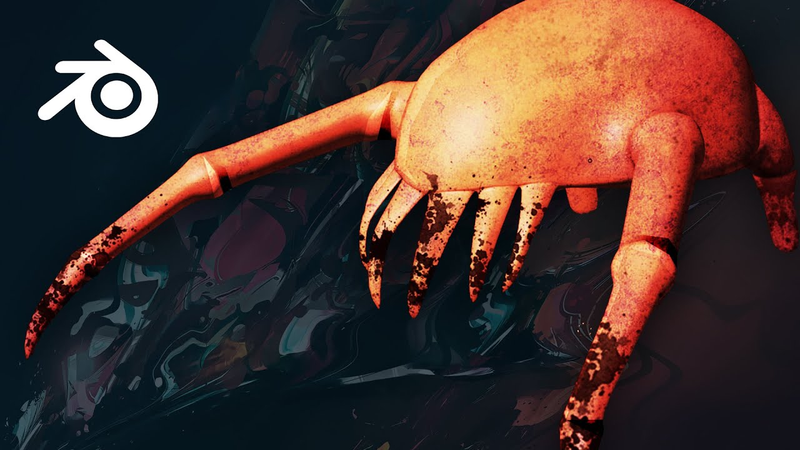
Blender Modeling Basics In 30 Mins (Let's design a headcrab)!
Key insights
6 takeaways- 01Symmetry and anatomical accuracy are achieved by utilizing mirror modifiers and proportional editing to shape biological contours and appendages.
- 02Effective organic character modeling relies on a systematic workflow that transforms basic geometric primitives like UV spheres into complex forms through iterative extruding, insetting, and vertex merging.
- 03Strategic beveling and scaling are essential for detailing complex areas, such as the underside of a creature, to simulate functional features like mouth structures.
- 04Structural integrity and realistic joint definition are maintained by using Loop Tools, specifically the flatten command, to manage edge loops.
- 05Maintaining a low polygon count during the initial modeling phase is critical for ensuring the mesh remains manageable for future animation and weight painting tasks.
- 06The subdivision surface modifier should be applied as a final step to procedurally smooth a low-poly base, resulting in a polished, professional aesthetic.
Ask AI about this video
Transcript
hey guys how's it going my name is Thomas brush and the creator of a game called pinstripe and I'm also working on a game called once upon a coma click the link in the description to wishlist that game and if you want a free copy of pinstripe you can support on patreon that would really mean a lot to me for the last three months I have been transitioning from 2d which is kind of my forte and moved into 3d and that's blender unity and a little bit of Photoshop now the thing is is that 3d is really challenging if you have no idea how it works but once I figured it out it kind of clicked and there were some basic core principles that I want to share with you so let's jump in to blender to start and I want to show you how it's done but first before we get started guys I want to thank this video sponsored Skillshare thank you so much Skillshare for sponsoring this video school she has an incredible website for you guys to learn about pretty much anything you want to learn about specifically if you want to learn about game design it's an incredible place whether it's audio design for your games or 2d illustration or animation or
unreal coding storytelling marketing business management whatever it is you need to learn about game development it's on Skillshare one of my favorite courses is by Rusty Smith and it just covers unity basics the coolest part about this ad read is hey get to three months of Skillshare by clicking the link in the description you really can't beat that guys give it a shot see what happens I love Skillshare it's a great way to learn about game development alright let's go ahead and get started I'm gonna do plenty in this tutorial that isn't you know perfectly industry standard but overall you can see that we can accomplish a lot just with some basic knowledge of blender so what we're gonna do is delete our headcrab and we're gonna start fresh what we want to do first is we want to add a mesh and you're gonna want to use a UV sphere because it's made of quads not tries and
quads are pretty much industry standard quad is basically these squares here as opposed to triangles so our mesh is made of made up of a bunch of those now we can choose down here how many segments we want how many rings we want usually you want your segments to be double your rings so that you get even clean squares or quads so that looks great we're just going to hit enter on that 28 here we're gonna just let it be we don't need to click enter okay let's move our sphere up and the first thing we want to do guys is let's get to front view so just hit one on your numpad and what we want to do is we want to go into modeling mode so click this tab here and this is gonna allow us to actually edit the faces and the edges so we're gonna select the vertex selection tool here and then we're gonna press X on the
keyboard and X is you're gonna use it so many times so I'm gonna make sure you guys know that hotkey so X is going to delete we can delete the vertices here and what that's gonna allow us to do is actually what we want to do go back in time here this is the wireframe mode so we're gonna select wireframe mode and we're just going to press X on our keyboard and delete the vertices and now you can see we have a half sphere now this is important because we want to put on mirror mode so let's go to our modifiers here it's this little wrench and we're gonna go to the modifiers and turn on here and as you can see now we have a perfect mirror here and so whatever edit we make on one side is going to be made on the other side so that is perfect let's go to our wireframe mode again and press 1 on the numpad and what we're gonna do is we're actually going to scale down all of these at the bottom because we want it to look like this so
half sphere and then the bottom is sort of flat so let's get a good reference image this one looks pretty good right here so it's sort of a half sphere so let's press s sorry let's press s on the keyboard here we're gonna scale down but we're only gonna scale in the Y direction or the Z direction I'm sorry so we're gonna scale down to squash it on the z and then scale bring it up pressing G there we go and only along the z axis of it it moves very smoothly along the vertical so we can move it up like that scale it down and then my favorite part of doing a headcrab is if you select one point here and you click this button here which is the proportional editing button if we click that what it means is that if we move it it's gonna move other stuff around it and you can see the sphere right here that sphere you can actually control with your mouse wheel and it tells you how much proportion of editing
is going to occur so I think something like this looks great and we want to make sure that we can move it right along the axis here now one way of doing that so that it doesn't cross over into the other side of the mirror is you can just press C on your keyboard and you're going to move it up the other way you can do that is go to clipping make sure clipping is selected on your modifier your mirror modifier and if I try and go over it's never gonna let me go over so that's one way of doing it so now we have this sort of mouth that we can use inside of our headcrab so that looks great and the last thing I want to do is go to side view mode and what I want to do is I want to scale down the front portion of his face so if I select something like this is where as teeth are gonna be I can actually press the s key and scale down his face move it up a little bit and again we're using the proportional editing so it's moving other things along with these faces
we've selected and what we want to do with the back is same thing but we're gonna scale it up and then move it over so we've gonna have this sort of squashed looking pointy face and if we go to press 7 on the numpad we're gonna go to top view so we can select these sort of bring it up a little bit just like that and then let's get these hind legs just a little bit more wide that looks great so overall I think our head crap looks awesome head crap headcrab looks awesome definitely nothing to complain about here but as you can see we're trying to keep things pretty even with our quads we want pretty evenly spaced quads I don't know what's going on there but we can actually turn off proportional editing and just make that move over just a little bit so you want everything to look smooth and that's called topology and I'm not an expert my subscribers will tell you I'm not an expert at topology but topology is
basically how you lay out your mesh so that it looks smooth and that the lines follow the contours of your shapes in your meshes so there is our headcrab overall I think he looks just fine the next thing we're going to do is the teeth now the teeth are my favorite part what we're going to do is we're actually going to take these faces here and there's I guess six teeth so we're gonna do is we're gonna take these faces and what I want to do is actually subdivide these faces here edge here and then go to subdivide and now what you can see is we have a lot more faces to work with and the reason why we want to do this and there's a lot of different ways to do this and I'm sure plenty of many of you in the audience have a better idea of how we're gonna do this but we're what I'm gonna do is I'm gonna select these faces here and all I'm gonna do is I'm gonna go to transform to sphere and what that does is it's slowly going to as I move my mouse further and further away it's gonna try and create a sphere out
of these faces here and you'll notice that this quad is now a little bit confused and that's definitely okay so what we're gonna do is press X delete that face don't worry what we're gonna do is just fill in that and this I think that's a reasonable use of a quad on a try so we're gonna do the same thing to the rest of these faces here now we want to do is we want to extrude out the teeth now you'll notice that if we try and extrude this mm and that tooth everything actually looks pretty good but the problem is let me show you we want to do is extrude this out and then scale it down but you'll see that these are actually connected and we don't want that so what we're gonna do we're just going to create an inset so press I and bring it in so that is that what that
will allow us to actually have an inset so that we can actually extrude out and have separate teeth that they're not connected now you'll notice we have sort of an extra edge here I'm not too worried about that actually because what you can actually deal with that is sort of bring in all of these faces if you wanted to bring it in so that it has a sort of caved in look which actually looks kind of cool I really like that it could do the same with this point here just like this it's overall that looks pretty cool so let's do the same thing with these teeth here so we're gonna select those we're gonna inset just a little bit here we go and then let's actually just move it in already and then extrude down same thing for these guys press pie and then inset it in or press G and move it in and then extrude out so
far so good and what I want to do is actually spear eyes just a little bit more so let's go to our mesh transform to sphere and create a little bit more of a sphere shape and again obviously it's not gonna be a perfect sphere because we don't have a ton of ton of vertices but I think overall oh it's pretty cool sweet alright so we have our teeth here and what I'm gonna do is select faces again and we can just select them all here and we can extrude them out one more time let's go to our side view here extrude those out press G and then we're going to do something here that is very interesting we're gonna first scale them down extrude out one more time press G here we go and those are a little bit long here let's go back in time G scale down press G or ye one more time G scale down here we go
and what we can do is actually merge all of these vertices together so you see all of these we can select them all and go to alt em alt em and merge them there at the center so it's gonna bring all of our lines down together very good so far looks pretty cool now a lot of you are probably wondering Thomas why do we want multiple faces or these vertices here well I want them so that I could get a little bit more control over the shape here and obviously there's a more professional way to do this but I think overall this is fine for our creature [Music] we can bring the teeth closer to the center see with these rotate a little bit yep just like that it looks pretty good here okay and then I want these
teeth on the side to be a little smaller it's almost like fingers right so just scale that down and there we go so now we have some very creepy looking teeth these front two teeth can't have buck teeth so we're gonna scale those down just a little bit go to front view here we go and rotate them a little bit towards each other so overall pretty creepy looking I think what we could do is bring down the size on the right so we can do is just go back to proportional editing scale down just a little and then bring them closer yeah just like that maybe the top as well let's do a scale along the z-axis and then bring it down here we go maybe bring these just a little bit closer scale
see how the shading looks here it looks pretty good it's not perfect but I think overall it definitely gets the point across we can bring these up just a little bit as well and maybe what we could do let's go to side view here wireframe mode and let's just bring these teeth a little bit scale them down turn off proportional editing scaling up there we go so far so good it's a weird-looking headcrab I like it and this is one of my favorite parts of doing characters or we're about to do here I'm actually going to create a joint or a sphere right here so what we're gonna do is actually select our faces here and we're going to do an inset by pressing I so we can inset here just like that and we can actually just delete or actually just merge all of
these faces together by pressing F now that's gonna merge all of our faces together but what I want to make sure I do is I actually flatten it so I can press f3 and then type in flatten and you'll see that I have a add-on called flatten and you can find this in your add-ons if you go to edit preferences you'll see we had an add-on right here called loop tools and that's going to allow us to flatten our mesh so that it's a bit more straight so you can see it's now flat now don't worry I know this is not a quad I know this is more than a quad which is called an end gone and you don't usually want to use an end gone like this don't worry we're actually gonna extrude it out and move it to a point so it won't actually be this but now what we want to do is go to mesh transform to spear and now we can create a sphere shape just like this and then move it out just a tad just like that
and I want to have things look a little bit more even here so we can just move these to be more of a sphere shape just like that so now we can create his arms let's scale it up just a little bit and move it out just a tad great it looks good what we're gonna do is first extrude out just a little piece here and rotate it towards the camera there we go and rotate it just like that and then we're gonna extrude it out and then just slowly start moving it forward and scaling down here we go and we'll fix this portion here it's a little too wide but overall if we go to side view mode here go to rotate I wanna make sure we're rotating along with these joints now again you'll notice that this is a little bit warped what you can do is again press f3 and then go to flatten and you'll see it now flattened our face
here which looks really good let's go to front view here and let's see here yeah let's rotate it a little bit like that now with your joints you want to make sure you have plenty of faces to work with so what I like to do is extrude out multiple times with a joint just like that and I'll show you what we're gonna do with that in a second and then we're just going to extrude out one more time scale it down press G and extrude extrude extrude give us plenty of room with our joints extrude out again scale down rotate and this front portion isn't actually going to rotate that much so all we're gonna do is extrude out a little more time what I mean by rotate is our armature isn't gonna Bend at this point so we don't really need to worry too much about this mesh having these amount of faces so let's scale it down actually what we'll do is just go to vertex merge vertices and Center and now we have his arms so far looks pretty good I think
this is a little weird right here so to select an edge loop again make sure you have your edge selection tool selected and then hold alt and then select and then just scale it down and then we're gonna rotate it just a tad and let's flatten this one as well so again flattening there we go looks pretty good let's see how could I move it out just a little bit just like that and let's see here what I want to do with these joints here is we're actually gonna select holding alt here here we go and we're just gonna scale it up just like that we'll select these as well hold on one sec there we go and we're gonna scale it in the let's see here just scale it down just a bit and move it closer actually what we can do is just select this line here press G and then I'll give it more of a seam look there we go move it towards there we go that looks great we'll scale this one down so now we have joints great that looks kind of
cool I like that and the same is true with this foot here we can just take that scale it up take that scale it up just a little bit more yeah scale up in these closer okay I think that joint looks pretty good let's do this actually let's select this one here and move it just like that give us a little bit more room so now we have our joints and I think we could actually scale this once I hear scale this up and I actually think we need more joints in this area so the way that we do this is press ctrl R that's going to allow us to create an edge loop where we can actually click and then drag and move it up here and we'll do one here as well this allows us to create those joints if we didn't already create them so let's select all of these edge loops here
rotate them let's actually rotate this one a little bit closer there scale it down move it down a little bit just slowly here we go alright scale that up a little bit scale this up just like this looks good should kind of like oh my god that looks pretty good to me and then this one we could probably scale up as well here we go just like that maybe we could actually rotate it here we go and what we can do is move this point up just a little bit there we go all right so we have our legs so if we go to our layout mode we can actually look at it let's put on shade smooth so if we right click on our model here and go to shade smooth it actually smoothes it out for us so I love how that we vet created some creases here on this teeth
that makes the teeth look like they're sort of embedded in his body so far that looks pretty good but if we look at our let's see where is our headcrab if we look at our headcrab here he sort of has these creepy looking nubs for feet this one is a really good model too so you can see they're just almost just like cylinders coming out of his body I think we need to actually do it about right here so let's select all of those you could probably even get away with doing it like that as well and what we're gonna do is inset there we go just like that fill them all in and we're gonna flatten and again you wouldn't want to do this if you were just filling in this spot but because we're gonna be extruding and then moving it down to a square we actually don't need to worry too much right now about this being a weird end gun so let's just flatten it and then we're gonna extrude it or press G bring it out rotate it out just a tad there we go just like that and we're gonna extrude it down slowly and we're gonna
slowly merge the vertices together as well well let's make it look more like a sphere so again we go to mesh transform to sphere there we go and try that one more time ere we can I like that okay so that bottom portion is a little bit weird so let's do this in fact guys I think it'll be a lot easier for my brain for me to just delete that face entirely because it's definitely looking a little bit weird but let's try and even out all of these vertices here always be thinking about the distance between vertices and the distance between faces and all that good stuff you don't want it to be too random and I'm guilty of that just like anybody I've been very haphazard with my layout of my vertices and the sizes of my faces but so don't worry too much but it's
good - it's good to make it look like that that looks pretty good and we can definitely bring these down to make it feel a little bit more like it's flesh there we go and bring these down as well that's pretty good okay so now we have this little nub here so let's extrude it down one more time rotate it and then do like this scale it it's looking good and then we're gonna extrude it like straight down then we gonna press G and remember guys you can flatten this so go to f3 flatten and now it's a perfectly smooth circle and we'll just need to rotate it along the Y yeah there we go and then a little bit along the X now it's flat square or square with the ground and then we're gonna go to scale and I think that looks pretty decent what we can do is we can create these little nubs here so we can
do is control our create an edge loop create another edge loop that scale it up just like that you could probably move it back just a tad to scale it down just a little bit and we're gonna scale this down and then bring it forward just a tad okay so we have his legs here let's select this edge loop and get to front view and actually scale it so that we can at least see it there we go and we also want to flatten that as well there we go and then flatten this as well see how that there's a little bit of an angle there I'd like to flatten that so f3 flatten I'm an f3 again remember f3 is how you search for a command ok something happened here I'm not sure what happened there but overall I'm not too worried ok so that looks pretty good we could probably move his legs back so let's go to wireframe mode select these points here and then we can select proportional
editing and press G scale it down here we go let's go to the side view here actually we'd like to rotate it a little bit and then turn off proportional editing and then rotate this back down there we go this but here is a little bit weird so we're just going to move that up rotate it just a tad just let's do proportional editing for that as well turn on proportional editing G and with proportional editing again if I use the scroll wheel I can get more specific and tighter there we go and just move that in just a tad there okay that looks pretty good I think those these hind legs are a little bit too thick so let's just scale them in the scale and the why here we go and then scale them in the X there we go okay cool so headcrab looks pretty cool
let's go to our layout mode just so we can look it in overall it looks pretty good we're gonna move those hind legs a little bit more to the back so let's just do that really quickly here proportional editing just like so press s and then scroll wheel up just a tad and here we go clicking them up a little bit and take that edge loop and scale that out there we go and I feel like we still need to be moving and back just a bit here there we go okay that looks pretty good just rotate around make sure everything looks good you'd probably could probably make these up just a tad there yeah so you sort of want it to the shape to slowly morph
into the the shape of the limb here so we're slowly moving around creating sort of a circle around here that looks pretty good so far so good it's not perfect that's a little bit weird but I think you get the point just move that in just a tad so one final thing I like to show you is if I actually want to create sort of a seam so that it looks like he's got an actual mouth underneath here or a whole what we can do is actually select this edge ring here what we can actually do is press control B here and create a bevel and there we go we could also press ctrl R and create a edge loop but I think that looks pretty good and then what I'm gonna do is actually
select this entire ring here and then I'm just gonna move it up just like that see that in fact what I want to do is select this one as well so I'll click hold shift I'll click all click so we're selecting all of those and we're gonna move them all up creating a sort of mouth right there that looks pretty cool and we don't want to forget about this little piece here as well so we're just gonna move that up it's pretty good something's going on right there let's move that out there we go and then finally we're gonna select this edge loop here and we're going to scale it down let's see here there we go scale it down into sort of a creepy mouth I love it and move that back along the y-axis there we go and we
could probably move these up just a bit too along the y-axis here we go and let's create a little bit more round shape so again control B bevel and then bevel it let's see here we can actually do is bevel and then do the scroll wheel and it can tell you how many iterations of that bevel would want so I think that's all we want to do right here and then if I select this you can scale it down just a little bit more and that gives us that lip look that kind of looks weird there so let's just select those you just move just a tad so far so good yeah let's try and select that up there there it is alright so there we go I think overall our head grab looks
pretty cool let's see here let's look for any missing pieces or vertices that are misaligned so this one here is he's acting a little bit funny isn't he let's delete him and then just fill in like so oops fill that in this will have to be a try which I'm flying with because it's underneath the belly you don't really get to see him anyway so there you go so let's actually go to our layout mode and take a look at our headcrab looks pretty cool what we're really missing is some seams so I want to cover really quickly how we can create some seams in the flesh a seam here would be really cool kind of like what we have going on here so what we do to get a seam is again just go to your modeling mode select your edge loop and in this case our edge loop kind of got lost and that's okay so we're gonna select this entire loop here
there we go and what we're gonna do is that bevel so we're gonna bevel here we go and we're gonna do two iterations of that bevel so just do the scroll wheel just like that there we go and now what we can do is scale this down like that see that so we're creating a sort of seam in the flesh it looks really cool we could do the same thing here if we wanted to select this edge loop press control B move it up and then only select this portion here and scale it down create a sort of seam which I think looks really cool and just move it up there we go now one final thing here that you want to be careful of and I know a lot of you have probably thinking this the entire time of modeling this if we want to do a any weight painting or any animation you
want to be sure that you're having sort of an even distribution of quads so you can see we have these really long quads here so let's just put press ctrl R and we can just create a few quads here in fact let's do one a little bit closer there we go what you could do is actually just press ctrl R and then do the scroll wheel and that's going to create some quads for us so we'll do the same thing here the same thing here whoops [Music] probably due to we could probably get away with to down here actually here we go and one down here so we have our quads evenly distributed down the leg and we could do the same here and same here very good even distribution of quads and probably around the teeth too so one there one there one there one
there and again I'm pressing ctrl R alright so I think we have a pretty even distribution of quads let's looks fine it's definitely not industry like professionally 3d made but I think if you're an indie dev these are the basics and this will definitely get you pretty far along when you're creating models it's my favorite part of modeling is adding the subdivision surface modifier right here and what that's gonna do is figure out where to add additional vertices and really smooth it out so now it looks you know something like a from a Pixar movie it's very smooth it looks great and I didn't have to do any work and again guys I don't know if I mentioned this before but you want to start with a pretty low poly count so that you can do things like this at the end you don't want to start with a high poly count so overall it looks like a
smooth headcrab we could probably fix this seam here a little bit but I'm not gonna do that in this video it looks like a spine that's what it is that's a little spine alright guys that's that's our headcrab if you liked this video or you have questions or whatever there's plenty of things you can do below this video leave a comment subscribe all those cool things and remember guys you can support on patreon if you want and get a free copy of my game pinstripe thanks guys talk you later bye [Music] [Music]
Summary
Creating organic 3D creatures in Blender relies on a structured workflow that prioritizes clean topology and efficient modeling techniques. By utilizing foundational elements such as UV spheres, mirror modifiers, and proportional editing, designers can maintain symmetry while shaping complex anatomical features. The process centers on iterative refinement, where extruding, insetting, and merging vertices transform basic geometric primitives into recognizable character forms. This approach demonstrates that high-quality, functional character models are achievable through the mastery of core tools rather than reliance on advanced, industry-specific software suites.
The development of organic appendages and intricate facial structures requires precise mesh manipulation. Tools such as Loop Tools, specifically the flatten command, are essential for defining realistic joints and maintaining structural integrity. By carefully managing edge loops and utilizing proportional editing, creators can sculpt organic contours that mimic biological forms. The underside of a creature, often the most complex area, is effectively detailed through strategic beveling and scaling, which provides the necessary depth to simulate functional features like mouth structures.
Finalizing a model involves balancing low-poly efficiency with high-fidelity aesthetics. Maintaining a low polygon count during the initial stages is critical, as it facilitates easier refinement and ensures the mesh remains manageable for future animation and weight painting. Once the base structure is established, adding edge bevels creates necessary seams, while loop cuts ensure an even distribution of quads. The application of a subdivision surface modifier serves as the final step, procedurally smoothing the low-poly base to achieve a polished, professional appearance. This systematic progression from primitive shapes to refined, animation-ready meshes provides a scalable framework for character design within the 3D industry.





















Comments