1 free read left. Create a free account for unlimited reading + AI research.
Create free account
What Can I Draw With JUST A MOUSE?
Key insights
6 takeaways- 01Artists can compensate for the lack of a stylus by using the Photoshop lasso tool to define foundational shapes and employing motion blurs to simulate atmospheric fog.
- 02Establishing scale early in the workflow using character silhouettes ensures a clear visual hierarchy and consistent proportions throughout the environment.
- 03Professional-grade concept art can be constructed by building scenes from basic shapes and color swatches, proving that technical constraints do not limit the quality of stylized visuals.
- 04Final scene unification is accomplished through a systematic process of applying texture overlays, color grading, and Gaussian blurs to harmonize the composition.
- 05Core design principles such as color gradation, layering, and atmospheric depth are more critical to professional game environment art than specialized hardware like pressure-sensitive styluses.
- 06Dimensionality and depth are achieved through the strategic application of inner shadows, blending modes, and layer masks rather than manual brush pressure.
Ask AI about this video
Transcript
hey guys how's it going my name is thomas brush and i make indie games for a living today we're gonna make an illustration for a creepy sort of haunted mansion uh just to be excited for halloween coming up it's my favorite holiday and so let's go into photoshop here we're going to start with a 3840 by 2160 canvas and that's 4k 4k is a good idea when you're making video games especially because you definitely want to make sure that you have a high res image and you can always res it down in unity which is the software i use to make video games so let's go ahead and jump into our 3840 by 2160 canvas and the first thing i'm going to do is start with some swatches so i like to have some kind of gradation between two colors that's the first thing i do when i'm doing an illustration so this is going to be our gradient so let me show you what i mean by gradient i'm going to merge all these layers together i'm going to duplicate them
and then i'm going to create a new layer press alt so that i can put a layer on top of this layer and i know that doesn't make sense but hold on hold your horses i'm going to create a new gradient here and i'm going to choose these three colors for all of our gradient points okay the opacity is going to be 100 on all of our colors in this gradient and finally this color here and i'm going to do an opacity of 100 there we go and i'm just going to fill in over top see that so now we have a gradient and then we have three swatches that we're going to use for our creepy haunted world and we're definitely going to need a black color as well so i like to put another black swatch about right here now i never use true black i like to have sort of a fade a faded sort of faint black so what i'm going to do is i'm going to take this orange and then i'm just going to drop it down very dark to about right here so here's our creepy
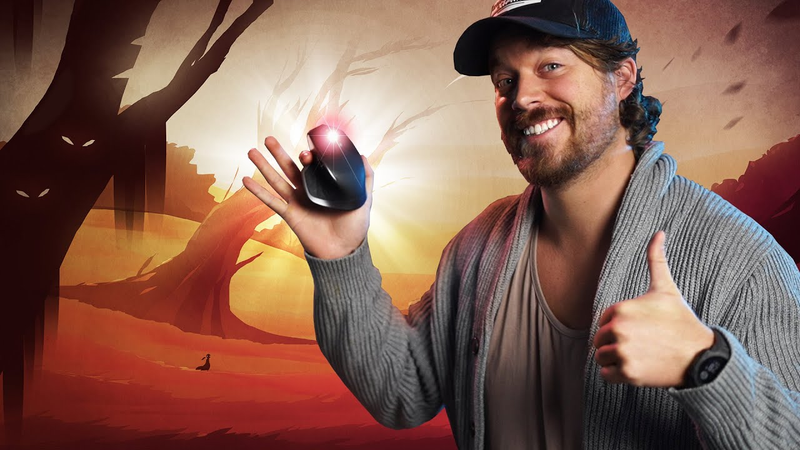
haunted scene that we're going to do here so i'm going to merge all of these colors together here into one sort of swatch palette and i can pick and choose from this this little swatch palette on the left side of my screen um while i'm doing my illustration i'm going to choose a simple color for my background that's going to be this foggy greenish weird color here oh it's already looks really pretty i like that a lot and then i'm going to go ahead and create a new layer and what i'm going to do is just go ahead and come forward from the background slowly with some mountains and some uh i guess creepy trees creepy scenery and i'm only using a mouse today i'm not going to be using my wacom pen tablet and a wacom pen tablet is what a lot of illustrators use for their video games i'm just going to use this simple mouse and i'm kind of doing that to show you guys that you don't need a lot of crazy equipment you can just use a mouse in photoshop and with the right principles you can
get a really beautiful scene all right so i'm just going to use this lasso tool here and i actually use the lasso tool a lot when i'm creating my video games and by the way guys i've created two video games never song and pinstripe and everything i've learned in those games everything everything i've learned in those games i've actually put into a comprehensive online course it's called fulltimegamedev.com and it teaches you everything you need to know from illustration to code to unity and even marketing your game putting it on kickstarter publishing it there's a whole ton of really cool things on that course if you guys want to take a look at it and it's in the link in the description but anyway let's go ahead and do our uh our mountains enough about my course so here we go let's just draw some mountains i'm not gonna be too specific here i'm just gonna do some kind of a shape here and what i'm gonna do is i'm gonna slowly go towards this color here okay so let me
show you how i'm going to do it i'm going to select this color there we go and that that's a vibrant green i'm going to do a color overlay and i'm going to pick the background color and then drop the opacity down to about this see that that looks cool and then i'm going to go ahead and create a new layer here and create some more mountains let's see here something like this i'm going to fill that in i'm gonna do the same thing fill in with the green here and we're gonna just duplicate this color overlay with alt and i'm gonna drop down the opacity like this very cool and do another layer let's see here oops there we go and same thing guys nice green here we're gonna do a color overlay and just drop down the opacity to about here there we go something like that all right and then
now we're going to go from that green towards the orange okay so we're getting a very subtle gradient and i'm gonna start thinking about let's see here where i'm gonna place my little haunted mansion i think that'd be cool to have a haunted mansion in our game you guys can put whatever you want in your game i'm gonna put a haunted mansion i really really like haunted mansions i also really really like the like button so if you guys could click the like button that would really mean a lot to me guys i'm trying to make this channel uh honestly a dream of mine is to have it blow up and hit a million subscribers having you guys click that like button is really going to help me you know get this video out there and hopefully get people learning about illustration and game development which would be really cool so if you could like and subscribe that would really mean a lot to me all right i'm going to go ahead and do a color overlay here and just blend in see that blend in some of that orange and i know what you guys are thinking
you know sometimes things look really really bad when i'm putting together uh the mountains here so if i for example fill in this mountain here or this hill here with just a vibrant orange it looks really cheap right but if you slowly do a gradient here there we go it starts to look more realistic and that's exactly what we want so we're starting with really basic shapes guys really really basic shapes we don't want to get too complicated here we don't want to start adding any grass or anything like that we just want the basic contours and shapes the goal for this first phase of illustration is to simply be able to look far away so if i zoom out i want it to look like a real photo because our eyes are blurry right we can't see that close and so if it looks like a real photo we
chose the right colors and we're following the right rules for gradation now i know what some of you are thinking some of you really want to see the jeb cam again is that true i do i definitely want to see the jeb cam so let's jump in he's really sleeping sorry i'm talking way too loud look at lou jebby look at him sleep man i love jeb jeb is such a sweet boy he's been with me for four years and he's been uh hanging out with me through thick and thin so i really really like jeb oh no he i i guess he's shy i guess he's shy guys let's see here i don't think he likes the camera but i'll try and be a little bit more quiet here [Music] all right so let's add in some more orange here it looks really vibrant doesn't it um and we're gonna fix that we're gonna do
a lot of black shadows and colors all over the foreground here to make it look a little bit more creepy um more like it's uh in the evening in the autumn okay let's see here keep filling this in and let's do a little bit of a color overlay here just blend that color a little bit there we go and let's keep making our way up all right so we can put some ground right here sometimes you can't draw perfectly with a mouse so you just kind of have to keep trying okay let's fill in to a perfect orange here this is gonna be the ground that our player can actually walk on okay and then i'm gonna go ahead and start filling in some foreground elements as well there we go awesome grab some
there we go okay let's do a color overlay and if you guys are hearing thunder during this video it's because i've added in some thunder effects just to get an idea of how i want this world to sound and how i want it to feel sometimes it's not perfect but that's okay sometimes it's just about discovering what you're working on a lot of times i don't really know what my world looks like until i filled in all the colors and then it slowly starts to make a lot more sense so there's our foreground i'm going to do a color overlay just blend a little bit there we go that looks awesome and one more down here it's going to be pretty dark and right now it kind of looks like a desert but it's going to be crazy seeing it slowly become more of a grassy world in the evening when we start adding some grass in the distance and also some
shade coming down from the bottom here so i'm going to go to this background and just to make this feel a little bit more like evening what i'm going to do is i'm actually going to grab this dark color here and drop it down whoops got to make sure we choose the right one there we go i'm gonna just pull it down like so [Music] a little bit more yeah there we go and then there we go so now it's looking a little bit darker right and i'm going to go ahead and rasterize all my layers currently they have color overlays on them i'm going to go ahead and rasterize the layers and just like you guys you're probably thinking not a huge fan of these colors and i would have to agree with you the color palette i chose is not perfect the benefit of being a digital artist is you can change whatever you want while you're working on it so i'm going to go ahead and rasterize all these layers and then i'm going to show you how we can tweak the colors
in the middle of working on this thing so it's okay if you choose the wrong colors what i'm going to do is go to color balance and i'm going to shift more towards the ah there we go more towards the red that's the colors i want and a little bit more towards let's see here that's not good how about blue no that looks good okay so we did a little bit of a color balance i'm going to drop the opacity a little bit awesome that looks great i really like how that looks and maybe we can drop down the saturation a little bit no i like the saturation maybe shift a little bit there we go that's what i wanted so look at the difference that's what i want okay so the way that we fix this is we actually just take these colors here apply them to each layer so you can hold alt duplicate them and just add them and apply them to every single layer here and then we're going to make our way all
the way back up the layers and i know you guys can't see the layers sorry about that there we go we're going to make our way all the way up the layers and just merge all the layers together [Music] every individual layer we're going to merge together guys the reason why we're doing it this way is because especially when you're working in 4k your file size can get really big so you want to make sure that you're keeping everything rasterized and if you have smart objects or you're using you know smart layers or any kind of effects they can slow things down significantly so i'm gonna merge them all together if that's okay with you guys all right let's merge the layers what's jeff doing oh he's tired he's been he's had a rough week he got a haircut last week and so he's been kind of a moody judy that's okay though gotta get haircuts jeb you gotta get a haircut right right
[Music] there guys is go to sleep jeffy all right so everything's merged together i'm not going to worry about laying my uh layering or naming my layers just yet i'm going to go ahead and add a character really quick to this world i want my character to be right on this layer here so what i'm going to do is just create a little girl she's going to be running through this world guys the reason why i create a character is so that i can get an idea of scale so she's going to be wearing i don't know a flowy cape or something there we go um and why not add a little ponytail like that it might feel kind of interesting having it sort of separated from my head and look a bit stylistic all right and i'm going to use the pencil tool to create some eyes and i'm not going to use a true white okay in our world
this is the color of white okay so i'm going to zoom in and just add these here awesome merge these layers together zoom out and now we have just this very subtle little girl in the distance who knows maybe this game is a very moody expansive game where you have a tiny little character and you walk around the scene that would be really cool okay so let's go ahead and add some detail so i think what i want to do for this landscape is let's start with the foreground details okay so i'm going to go ahead and jump to this one and again guys i'm just using this simple mouse and i'm going to try my best to draw some foreground grass okay
there we go make it look like the wind is sort of blowing the grass select that hold space shift so i can select more yeah there we go and then i'm going to go ahead and let's see here grab this color here and just fill in what we've got there we go so you can see adding those details makes things start to look a little bit more moody right let's go ahead and jump back to this layer here do the same sort of thing just add in some grass and it's going to be hard working with the mouse guys but i actually made the majority of my game never song which is out on nintendo switch and playstation xbox apple arcade steam i made the majority of that game uh just by using a mouse i'm a big fan of i guess illustrating from a graphic design perspective which means using a lot of simplistic shapes and really worrying about color
as opposed to making it feeling sketchy or whatever so i might move to a wacom tablet for these next illustration videos that i do just to show you i guess both worlds but this is uh this is great so all i really need right here is a mouse okay so now that we're looking at our little girl here you can see that um well first off we can probably put her behind so drag and drop behind there we go and we can probably um just reference her size here when we're creating our grass so that's a good reason to have a character in your scene and we might want to flip her around because the wind looks like it's blowing in the opposite direction of the grass and we don't want that so i'll do that in a bit here here we go there we go
it's okay to make a mistake like that just hold shift and fill it in all right we're just gonna keep drawing here there we go keep it on keep it on going here we go and just fill it in there we go press g to fill in you all right jabby he's just wiggling around while he sleeps all right so far it's looking pretty cool and i'm just going to jump back to the previous scene here of the previous layer here and there's a point where you need to stop adding details guys so i think this might be the layer where we're done doing grass so it's just going to be a sort of a wobble the human eye can't see all those details so
i think that it's okay to do something like this here there we go whoops and then this looks a little strange right there see that there we go and we'll add in just a little wiggle here and that's about all we need i'm going to grab that color fill it in zoom out and we could probably add a little bit of a wobble to this one as well just to add some kind of subtle details here nothing crazy here we go something like that i think that looks great okay all right yeah that looks perfect i really really like that a lot okay now let's go ahead and start adding some subtle fog to our scene to make it look like this world is almost a dreamscape so what i'm going to do is actually save this [Music] make sure you save your art i'd hate for this to be uh
destroyed because of a glitch right so i'm gonna go ahead and save it in my little youtube folder here i'm gonna do illustrations and i'm gonna save this and call this halloween landscape that looks great okay so fog would actually be really really helpful for particularly this layer here because there's a lot going on here that i don't really want to see so what i'm going to do with fog this is actually really cool i'm going to create a new layer press alt and grab the gradient tool and then pick the color behind it and that's going to be the color of our fog see that just a subtle pulse and then i can even grab some like right here and just delete it something like this right to make it feel like it's sort of rolling through our world and then i'm gonna do a blur a motion blur there we go and let's drop
it down just a tad and then maybe we could rotate it a little bit all right that looks awesome i really really like that fog let's go to the scene here and do the same thing and i'm just going to go ahead and draw out the fog and i'm going to grab the color behind it which is this not the fog but this and then do a gradient up and then motion blur awesome this one would benefit from some fog as well so i'm going to go ahead and just draw out some fog like this yeah there we go there we go and then a gradient up of the color in the background right which is this do a little bit of motion blur that's really pretty i like that a lot i'm going to select this layer here i'm going to add some fog on top of it so let's just go ahead and draw some zigzags
all right there we go and i'm gonna grab the color behind it which is this one right there and then do a little bit of motion blur as well hey let's just go ahead and add it to all of them i'm really liking the way it looks so i don't know sometimes i feel like you can't go overboard with fog it just makes your scene look so pretty all right i'm gonna grab this here and pulse up do a little bit of motion blur there we go save it out all right so let's go ahead and keep adding some fog here adding fog is probably one of my favorite uh parts of illustration because it just makes everything pop it really does and it also really helps separate this character from the background okay so i would say that you should really focus on the fog behind your player
okay you really want the player to separate and you can barely see the difference between these two colors here so it's really important to separate those out so i'm going to grab the color behind there we go there we go and then i'm going to do a motion blur okay let's go ahead and do the same with the ground here man i'm really really liking this i'll be honest guys when i started this video i was like uh oh this does not look good but it actually looks really cool i like it a lot are you guys curious how jeb is doing are you curious how jeb is doing okay i'll jump to the jeb cam in just a sec here let me let me get one more layer of fog there we go something like that and then we're going to grab the color behind there we go and do a motion blur awesome save our scene and let's see if
we can see how jaby's doing well there's his back he's just hiding from the camera today oh well there you go there's jeby all right the next thing on my list is actually adding some kind of bevel to our world making things smoothly transition into various gradients so what i'm going to do is actually just go ahead and add an inner glow to every single layer okay so i'm going to go ahead and merge all of our layers before we do that just so everything is nice and clean and concise i'm going to merge all those layers together there we go merge them together and then let's start with the background here and we're going to do an inner shadow or an inner we're going to do an inner shadow you could do an inner glow but i'm actually going to do an inner shadow
i misspoke earlier i'm going to do an inner shadow and i'm just going to choose this color here see that so now we're getting some three-dimensional look to that mountain in the background with let's make the size pretty large now you can see here we have some weirdness going on here so what i'm going to do is just go ahead and rasterize this layer and this is a little trick i'm going to do just for this mountain because it goes up so high i'm going to grab that color and i'm going to go ahead and do something like that see that now i'm adding some shadow to that mountain so we can see it distinctly okay i'm going to merge those layers together and then i'm going to go ahead and add an inner shadow to every single layer to make it look a little bit rounder the make the mountains look a little bit rounder something like that and you can be a little more particular with choosing your color you don't have to follow the rules exactly so i'm going to pick yeah that color looks pretty good there there we go i like that a lot that looks
awesome okay same with this one here we're gonna just actually just duplicate that effect onto each layer oh that looks really cool let's crank up the opacity i like that a lot okay same here nope a little too aggressive so i'm going to just choose this color here and that's a little too there we go there we go made it a little bit lighter it looks like we forgot about this layer here so i'm going to go backwards there we go that looks pretty good actually i don't think i need to do anything to that layer i'm going to save this out i'm going to do the same for this layer looking pretty good i think i could just drop down the opacity for that just so we see a subtle details do the same for this one okay oh that looks great this one here almost let's just drop down the opacity a little bit that looks so pretty and
this one we could probably change the color to this more red orange there we go and just crank up the opacity a little bit and these look a little too simplistic so i'm going to add some inner shadow to those there we go man i like that a lot that looks really cool i've never made a scene that looks like this before so i'm really actually pleased with how it's looking okay very good i like that a lot so now we can go ahead and start adding some trees to our world i'm gonna save this and i'm gonna start adding some creepy trees okay so i think adding some fluffy trees for now is great if you if there's too many dead trees the world can seem like a desert so i want to add a lot of fluffy trees with some highlights on them and then after that i can actually go in and add maybe one single dead tree that's more of the central focus of this world so i'm just going to go ahead and add some trees so i think i want to add a
tree behind this layer here so i'm going to create a new layer and i'm gonna just add this fluffy expanse of trees here okay stuff like that that's really pretty i like that a lot that's gonna look so cool and let's just come over here as well as i'm holding shift and i'm creating this world and or this tree i've been watching way too much bob ross he uses the word world a lot so i'm gonna pick this color here fill that in and that looks awesome i'm gonna use the gradient tool to go ahead and add just some highlights over here there we go maybe take that color and drop it down a little bit just like this that actually looks pretty cool i like that and drop down the opacity there we go okay i was worried there for a second i'm like what am i doing here okay and what we can do is actually just
use our paintbrush to fill in some fog so probably this right here and just add in some subtle pulses of fog like that there we go i'm just clicking clicking clicking there we go and hey why don't we go ahead and maybe increase the opacity a little bit and add some to here as well there we go that looks awesome cool okay now we're gonna do is add in some strokes to create some branches so a little point here little point here little point little point here a little point here a little point there there we go just creating some branches in the distance and i'm fine making them pretty dark so i'm going to pick the dark color of our little girl here and grab those drop down the opacity
like that and what i like to do is create a mask on them and then just sort of fade out the tips of them see that the tips in the bottoms of them i just fade out like this oh man that looks really pretty i really like that this one's a little too thick so i'm just going to go ahead and select some portions of it and delete save that and why don't we go ahead and just add a little bit more to about right here okay maybe a little bit more detail there all right there we go i like that okay and one here as well just a little bit and we're gonna just fill in with a darker color and then we're gonna do the same thing just blend between those two layers here oh man that looks really pretty i like
that same is true with the bottom just so it looks foggy okay here we go something like that and let's add in some tree branches and you know in order for us to see the tree branches we probably want to just have it a little bit more blended into the previous layer so that looks good that's much better okay and i'm gonna fade out this edge over here because it's a little here let's see here let's merge all these together here whoops merge all these layers together and do a subtle fade there we go that looks kind of cool i like that it's gonna subtly fade there we go okay i think that looks pretty good for our trees so i'm gonna go ahead and merge these together and then i'm
gonna create some more trees um i think one let's see here let's put them right behind here here we go we're just gonna go crazy high with some big forests right about there and have it sort of extend there we go i like that that's gonna look really cool okay and fill them in with a dark red see that that looks awesome i really really like that okay so let's go ahead and just create some gradients here you okay jeff oh he's sleeping hard he's sleeping really hard so let's go ahead and this color here and just sort of fade up like that oh man that looks so pretty really looks like a ton of fog let's go ahead and add some detailing to the fog here i really like the way that looks
we go and just cut some of this off and then do a motion blur that's so pretty wow i really like that let's blur it a little bit looks a little too detailed for something that far away so just do something like that that's awesome wow i really like that a lot and i think we could add a little bit of detail here okay i want to live in this world it's so creepy i love it for those of you who have been following me since the beginning of this channel you know that i love creepy stuff today i tried to get my daughter to watch a nightmare before christmas she's two and i think she's a little too young for that movie i remember that movie really creeped me out growing up so we watched coco instead um which coco is just incredible i love that movie it's creepy but not too scary let's save our scene here and let's go ahead and add in just a
subtle pulse of blended color around the tops of our trees like this see that oh man that looks awesome i like that a lot i'm going to save that and then guys let's just add in some tree branches okay so i'm just going to grab my lasso tool and just choose to draw some trees here some big chunks just like that okay wow i really like the way this looks sometimes you know i'll be honest sometimes i get a little bit impressed by my own artwork and then i look at it a day later and i'm like that sucks all right let's fade this out here oh man that's cool and i'm gonna go ahead and just like we did previously i'm gonna sort of
fade out the trunks a little bit like this see that we're just making it not so obvious that they're just i don't know little simple shapes i drew trying to make it look a little bit more detailed wow that is a really cool looking forest i like that a lot i'm going to create a new layer here and i'm just gonna add in a little bit more bushes and trees oh man that's gonna look cool and i'm gonna do that dark color here oh wow that's awesome and i kind of want it to be darker let's go to image adjustments hue saturation and i'm going to decrease and maybe crank up the saturation whoops here we go wow that's gonna be cool i like that a lot and why don't we go ahead and add in a couple big bushy trees sort of hanging out above right here just like that
yeah that that looks really cool maybe one right here as well that's awesome that's gonna be really cool and maybe a couple right here as well this uh past week i've been looking just for fun looking at land one day i'd like to buy some land like this and there was one piece that i looked at that looked a lot like this i live in south carolina and it's just an amazing feeling walking through a quiet world just listening to the breeze with no city noise no light pollution i'm starting to think that americans are missing out although i'll be honest a lot of americans are experiencing the outdoors maybe i'm just one of the exceptions to the rule maybe i need to get in on that that
action you know i'm gonna fill in here and all i'm gonna do is just add a new layer and apply it to the top and i'm just gonna blend in with the background just to create some light streaming through there we go something like that [Music] okay i'm going to merge these together now this one doesn't look perfect for me i like it but i think i'm going to need to just decrease the opacity whenever i feel weird about a scene or a layer i'll just decrease the opacity of it yeah something like that that's pretty cool i like that a lot okay so we got some trees there and i think what we could do is go ahead and add in some creepy tree um probably something like right here okay
so it's gonna be behind our player so let's see here i think putting it right here might be really cool so let's figure out the shape here that looks really weird i like that a lot that's super cool very cool i like that wow that's a weird looking tree maybe we can have it sort of smoothly come out of the scene here there we go something like that and then something like this that's cool i like that a lot we're gonna grab that red like that and let's see here that looks kind of weird so i'm to cut a little bit out there that's not really how trees work they always get thinner right and i'm going to get the shape down of this tree before i actually go ahead and
get the color correct make sure i save our scene and rotate it just a bit i want it to be smoothly sort of really pointy right there coming out that looks cool okay let's go ahead and let's thin this up a little bit like i said guys i'm just using a mouse here so it's kind of hard to draw stuff like that that looks kind of cool maybe cut out a little circle right here so it looks like a branch yeah that's pretty sweet and let's see let's just start adding some branches guys that looks weird oh there we go okay fill that whoops pressed f on accident there we go and fill that in there we go all right
all right i really really like this tree i also really like the like button if you guys could click the like button that would really mean a lot to me just click the like button and that'll help the youtube algorithm i'm trying to make this channel you know get a million subscribers that would be really cool if we got a million subscribers for this channel that would be so cool so i'm gonna just follow my instincts here and add weird circles and knots there that's kind of cool yeah the the like button helps the youtube algorithm so if you guys want to click it that would really mean a lot to me i kind of like those circles that's really strange um i'm not really following the logic of trees here i'm actually just following what my i guess my design sensibilities are telling me so i'm going to go ahead and just put a tree branch like right here that is a really big tree branch let's try again
there we go oh that's weird looking kind of looks like an upside down jellyfish i'm gonna cut that portion out whoa i'm gonna cut that right there there we go and fill that in and then do a little color overlay just a very subtle color overlay so that it sort of blends in there we go save and then let's do a couple more of those as well rasterize that layer and i'm just going to go ahead and add in let's see if we can make that work kind of looks like a i don't know like a medusa tree or something that's really cool okay let's grab this color here and do a subtle fade and we could probably shrink these down let's see here now i'm going to do this i'm going to go back in time i'm going to shrink that down whoops here's what i'm going to do i'm going to grab this
that probably looks a lot better okay so there is our general shape for our tree it kind of almost looks like it's a like a hand grabbing up from the background like you could fall into this section here which i love that i love when trees look like that so i'm gonna go ahead and grab those two merge all of this stuff together and i'm going to add in just a few more tree branches okay so something like this just some branches coming out of it there we go that looks really cool i like that let's subtract there there we go and maybe one coming up like this maybe a few down here maybe one right here like that uh maybe we could make some grass right there and i'm gonna fill those in whoops command d that is so weird
looking i love that and i think a tree can look really cool when you add more branches towards the top obviously than the bottom so let's try and make it a little bit more detailed at the top here that's awesome i'm going to fill in those colors there that is a weird looking tree i like that a lot it looks a little harsh so we're going to go in and change the lighting of it after we finish up all of the various uh shapes so we can probably do the same with this background piece here so something like this like that oh wow i like that a lot that's really cool okay fill that in that's really cool i like that a lot
merge the layers together all right we got ourselves our tree now so we can go ahead and add in just a few i think leaves would be cool so i'm actually going to use the pencil tool and i'm just going to create some dots there we go so something like this i want a dead tree i want a dead tree i'm changing my mind on you guys sorry let's merge those layers together and what i'm going to do is blend in with the background here just like so there we go that looks sweet and i think adding some darkness on the left side might make a lot of sense so i'm going to go ahead and get pretty dark here there we go something like that that looks pretty sweet and then when i add a little highlight just a subtle highlight coming down this branch here
and then maybe a tree trunk piece there just to add some dimension and i'm going to use the yellow color here and then the orange color here there we go fade it down like so merge those together got ourselves our tree and i'm just going to cut some pieces out i noticed this looks kind of weird cut that out cut that out and we could probably blend a little bit more let's do this oops let's use the brush there we go
notice how i tend to pick colors from the background that are closest to it so that we have a nice sort of blurry blend that looks awesome the way that we're going to make this really pop though guys is we're going to actually create another tree in the foreground that's sort of um another tree just hanging out so i can actually get rid of the swatches i don't need that anymore i'm going to save this out and i'm going to get another tree towards the foreground this is what i was talking about earlier when i said it looks super vibrant now but we're going to add foreground elements that really get dark and black and suck a lot of that light out so i'm just going to add one big tree coming from the corner here that's in the foreground make it pretty thick right like that remember tree branches get smaller as they go up you want to make sure you follow the laws of tree branches even though that
looks nothing like a a tree i've ever seen it still has i don't know a natural shape to it um so i think that's a cool looking tree i think we could probably get a little vine sort of coming there that looks cool and maybe get a little bit more branchy right here is that a word branchy and then finally we're gonna go pretty black here not not a true black but close to black so something like that okay and what we could do i really like doing stuff like this is grab the circle tool and you can create some moss so just create some circles here actually let's make it a little bit thinner and cut off the top portion here and then fade it i did a lot of this in never song which was my game i released on nintendo switch and playstation and xbox thanks to serenity forge my publisher i was able to release it on a ton of platforms which was just awesome that was really cool all right
so let's just keep adding some moss hanging from our trees here that's pretty cool looking i like that a lot and maybe put a few pieces here just to make it look more vignetted right save that out and honestly we could probably put a little bit more detailing here so i'm going to do some cuts into the tree there we go something like that i'm going to merge all that together why not and then finally maybe a few spindlier well no we could probably do a sort of gnarly tree right here a root or something that would be really cool i like that a lot and don't worry guys we'll make it look more lit right now they look very simplistic but uh we'll add some lighting to them in just a second [Music] that's sweet [Music] yeah something like that that's really cool oh yeah i like that a lot okay we're
gonna merge this together and then why don't we just go ahead and using the paint brush tool [Music] faintly add in some blending around using the colors behind the object we're going to add some blending that looks pretty cool i like that maybe some orange here that's cool for some reason this one this uh tree to the left here is bothering me right about here it's sort of cutting into this tree so i'm gonna remove it there we go that looks a lot better okay and because it's halloween guys let's just add some creepy eyes so we're gonna just take some eyes here or create some eyes here and grab the white don't worry they'll look orange in a second and i'm gonna rotate and duplicate these eyes hanging on the trees
okay that will look orange in just a second right now they just look white the way that we make them look orange there's a little bit too many there there we go the way we look make them look orange we merge them all together and we add a glow here we go let's do that vibrant orange that's scary that's a creepy looking tree i like that a lot um let's go ahead and [Music] i think we can commit to what we've got here got is that a word no that is that is that proper english i'm trying to think let's commit to what we've got here yeah that's oh man yeah sometimes my english is really bad and that's the only language i speak that's okay um so i'm gonna go ahead and create that haunted house that we were talking about okay it's gonna be really really easy to do watch this i'm gonna just do a simple thin tall shape in the distance here right maybe add a chimney
like that cut out some pieces here we're going to fill that in with that yellow and we're going to go pretty tall here that's great okay we're not done yet hold on we're gonna add in some fog right and then we're gonna add in some fog at the top here that's so creepy i love that part of me feels like it should be sort of skewed following the contour of the land that is awesome okay now what we're going to do is just go ahead and we're going to add in a few windows so it looks like an actual house so something like this something like this maybe a big one like that and right there and we're just going to add that white color here we go we're going to fade from the bottom of the window to the top of the window [Music] makes it look like the light is coming from the ceiling like that
awesome [Music] we could probably make this a little bit smaller so apparently i just pasted in an old image i was working on that was weird so i think that yeah that looks pretty cool i like that that's pretty sweet all right guys the last thing before we go into texturing is just add in some trees or some leaves blowing in the wind [Music] just like that if you guys are curious what jeb looks like he's just chilling he's just chilling his body is turned away from the camera all right so let's go ahead and add in some leaves what you want to do with leaves is get some varying sizes um you know nothing crazy here there's a little too many right there and a little too many right there there
we go okay and i'm just gonna do a subtle gradient for these so something like that okay and add a motion blur so this is just a reference for our particles um in the actual game once we you know bring this into unity that's just a reference for us to see what it looks like i'm going to save that out and now that we've got everything looking beautiful i think we can go ahead and you know let's just merge everything together let's commit to something here we're going to merge all of this together i'm going to crop it out and save it got to commit right guys and then don't trash it create a new layer and all i'm going to do is create some highlights this is my favorite part so i'm going to assume that the light is coming actually from the top left okay so we're going to just start adding in some highlights i'm just going to draw various uh selections here
for bits of this world and this is more of a concept art piece guys you definitely wouldn't want to merge all your layers together um for your actual game right but for me this is more of a concept art piece and so i think that's okay that we're going to merge all this stuff together there we go once you get the concept art piece created then you can certainly go in and make everything more modular just creating some highlights here nothing crazy and this will make sense once you guys see it okay so first things first we're going to do the highlights here so let's grab a highlight from there as well uh maybe one right here okay and i think we could probably put a highlight where the player players walking just some subtle shines of highlight okay maybe a few right here things get
more detailed when they come towards the foreground guys okay so i'm going to go ahead and just add in a white highlight here and then i'm going to do an overlay see that so that overlay is causing things to shine a little bit more obviously it's very aggressive right now so i'm going to use the paintbrush tool to sort of fade a lot of these highlights out yeah there we go the highlights just add a little bit of detail make it look like there's a little bit more intention to your world so nothing crazy just very subtle highlights just guess and check through your painting of these highlights okay that looks good and now we're going to add some shadows guys man the light is coming from the top left so we're going to get some crazy shadows like this
there's our tree shadow something like this right we have a little shadow for our player maybe we can program that in i don't know and then a shadow here there we go remember we don't want to have the shadow appear over this tree so i'm going to remove that there we go and hmm probably some shadows back here now obviously you can do this after you or before you merge your layers together that's probably a mistake on my part okay i'm going to go ahead and add some black here and then i'm going to do an overlay fade it out do a motion blur to in that direction so motion blur to the right there we go you still want it to look like a shadow right so you want some some sort of cleanliness to it there we go see that
and then i'm gonna just go ahead and fix any of the glitches not the glitches it's not in unity yet um fix some of the uh overlapping of the shadows all right that looks great i'm gonna merge this together guys and then i'm going to add a little bit of a vignette so this is again concept art so we're going to just sort of vignette it this is something you can do in unity though that's awesome not so intense why don't we add a little bit of a bright flare right here of just white that looks awesome maybe make it an overlay though drop down the opacity whoops there it is make it an overlay a soft light would work you know you can't go wrong with a moon actually so let's go ahead and just create a moon so something like this would actually look really cool and it'll be
only the outline of it like this okay and then why don't we go ahead and just make it a crescent moon something like that there we go got ourselves a really pretty moon it looks like i drew it on the wrong layer looks like it's all together with the vignette but that's okay all right got ourselves a moon here and one final step guys and i'm just going to paste this over top create some texture overlay that is beautiful that is really beautiful and what are we going to call this scene and then one final thing guys i love to do a hue shift over top so i'm going to go to colorize saturation or not colorize i'm going to shift to yeah pinkish red and then i'm gonna go like this and now we have this beautiful subtle overlay and then one final step guys i love this
pink color so i'm gonna go ahead and do a fill and then i'm gonna add in there we go the lighten effect and drop it down here we go a little too saturated for my taste drop down the saturation a little bit that looks so good and then merge all of our layers together duplicate add a gaussian blur and then i'm going to mask away all of it and just have this white to blur some aspects of the foreground just like so and maybe some aspects of the background here and some of that and just drop down the opacity of that so now we have this beautiful scene here and i'm going to sign my piece it's okay jeffy are you okay buddy
you all right it's all right okay i'm gonna just sign my piece so there's my concept art right all right we could even name this game what do we want to name this game guys how about autumn's eve that looks great and then just oh that's that's a cool font autumn's eve that's called streamster and then we're gonna just drop down the letter spacing there we go autumn's ever [Music] i like to make sound effects so i get an idea of how it's going to look all right let's go ahead and give you guys a nice full screen can we do that
i think we can i don't know if we can actually 200 nope we can't do a full screen but guys that is how we're going to do illustration for a beautiful halloween scene if you guys like this video please like and subscribe and click the notification bell do all that cool stuff and if you guys are interested in learning more about illustrating for your games selling your games launching your game coding your game pretty much everything you want to do with games guys i've been doing it for a decade and i actually created an online course called fulltimegamedev.com if you want to click the link in the description that would really mean a lot to me for you guys to check it out there's also some free resources available if you don't want to purchase the course all right guys thanks for listening well what am i trying to say thanks for listening to me ramble i'll talk to you later bye
Summary
High-quality game environment art is achievable using only a mouse by prioritizing fundamental design principles over specialized hardware. By focusing on color gradation, layering, and atmospheric depth, artists can construct professional-grade concept art suitable for game development. The workflow centers on building scenes from basic shapes and color swatches, which are then refined through iterative adjustments to lighting, shadow, and composition. This approach demonstrates that technical constraints do not preclude the creation of polished, stylized visuals.
The technical process relies on specific digital tools within Photoshop to compensate for the lack of a pressure-sensitive stylus. Artists utilize the lasso tool to create foundational shapes, while motion blurs and gradient blending are employed to simulate atmospheric fog and depth. Dimensionality is further enhanced through the strategic application of inner shadows, blending modes, and masks. By establishing scale early with character silhouettes and maintaining a clear visual hierarchy, complex environments—such as haunted forests—can be rendered with significant detail and mood.
Final compositions are achieved through a systematic refinement process that includes texture overlays, color grading, and Gaussian blurs to unify the scene. This methodology emphasizes that atmospheric storytelling and effective lighting are the primary drivers of professional aesthetics in game design. Beyond the technical execution of individual assets, these practices serve as a foundational skill set for aspiring developers, highlighting that mastery of core design concepts remains the most critical factor in producing industry-standard game art.











Comments