1 free read left. Create a free account for unlimited reading + AI research.
Create free account
Make A Level With Just A Few Textures (Blender + Unity Tutorial)
Key insights
6 takeaways- 01High-quality, stylized environments can be achieved by using a single master texture mapped across modular geometry rather than relying on large libraries of unique assets.
- 02Mathematical precision is essential for seamless connectivity, requiring vertices to be snapped to consistent grid sizes, such as 3x3 or 5-meter increments.
- 03Efficient UV unwrapping and the use of loop cuts allow developers to isolate specific areas of a texture for different mesh faces, maximizing the utility of minimal texture sets.
- 04Structural integrity in game engines is maintained by creating back-faces for modular meshes, which prevents common lighting artifacts.
- 05Modular design relies on 'Lego-style' construction, where developers create diverse architectural elements like walls, floors, and arches from repeating mesh patterns.
- 06Environmental storytelling and visual variety are achieved by combining basic structural modules with props, particle effects, and character assets to maintain a consistent aesthetic.
Ask AI about this video
Transcript
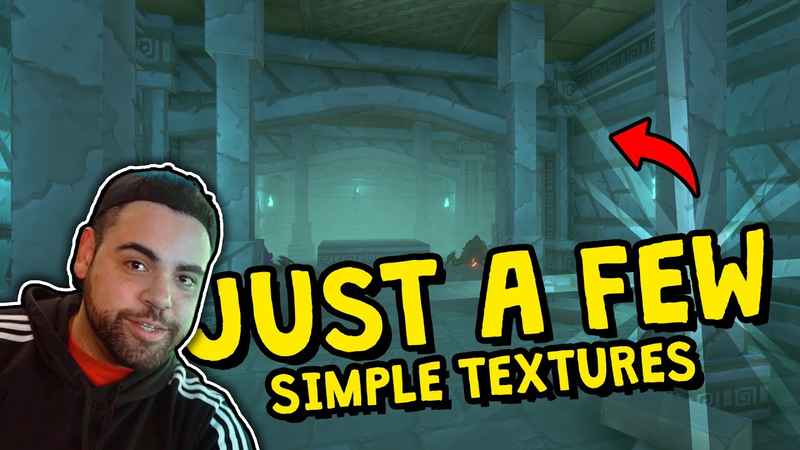
[Music] Hey guys, my name is Felipe and I am the 3D artist at Thomas Studio. So this week we're going to retire the Unity Primitive Cube and actually jump into Blender where I'm going to be sharing some techniques with you on how I approach making modular 3D environments using very simple modeling and effective UV unwrapping techniques. For today's tutorial, I'm going to be using Blender, which is a free 3D software for all the modeling work and a few textures from this asset package created by the folks over Bit Jam who create amazing art available at the Unity store. So, I was scratching my head for a little while thinking about what can I make with only a few textures. And I figured that maybe something between World of Warcraft and the classic Zelda games because the truth is what these games have in common is exceptional hand painted textures and
very simple but effective modeling. I open Blender and usually I like to start with the floor piece as everything will be built on top of them. For that, I'm going to be using a plane and I choose 3x3 m as our size. Then I created a material for this plane and added one of the texture files that I chose from the package. I switched the viewport shading options to display the textures in real time. And now we have our floor ready to go. Because the texture is seamless, meaning it's going to connect perfectly in any direction, I can just repeat the same mesh over and over and it will always look good and correct. Now, we need some walls for this dungeon. For that, I made another plane and sticking with our 3 m size, I snapped the vertices of that plane to match with our floor piece just to give us a good reference point. I made it a little bit taller as well using 5 m. And just like before, I made a new material. And this time, we're going to select this really
cool ornamental texture. The cool thing about this is that this is going to be our master texture. We can probably build almost everything in this level with just this one. In fact, I will prove it to you. Before we get there, we need to fix a few things. That's something that we can easily do inside Blender's UV editing section. I'm going to select the face. I'm going to press U and choose unwrap. And now the texture is oriented in the way I wanted it to be. Because this wall isn't a square piece, there's a little bit of a stretching going on with the texture. Despite the fact that it actually looks all right, I want to show a few tricks that we can do. First, I'm going to select the bottom vertices in the UV area, and I will drag them further down outside the actual square texture. And what the 3D software will do is actually just repeat the existing texture on all directions infinitely. And we can make use of that if we want. Now, I like the swirl pattern here. Maybe this was the
signature style of this ancient civilization that lived in this abandoned place. The thing is though, I don't want it to repeat on our wall here because I feel that it's going to lose its value if we keep reusing it too often in the same mesh. One way we can achieve that is by adding loop cuts to our wall plane here, which is a very basic modeling operation. So by cutting this particular area in the model, we can now actually move it inside our UV space and repurpose it with a different pattern that we like. So let's say this one here. Nice. It worked just fine. Now another thing that we can do to add a little bit more dimension to our flat surface here is taking advantage of the texture that we have and add some extra geometry to it. So, for example, we can select this bottom face and extrude it to add this sort of baseboard to our wall. We can also do something like that here on the top by adding a few more loop cuts and
by extruding these faces. Now, there is a little bit of a problem when we do things this way, which are these new faces that we just created. Because they exist in a three-dimensional space, we need to ensure that they're also unwrapped in the bit dimensional realm of a flat texture. And that's actually very easy. We can select each of them, unwrap, and then try to find areas in the texture that work well for them. There we go. Now we have a very nice modular wall piece that just like the floor can be repeated to create your environment. Obviously, we need a ceiling as well. And for that, we can just use another plane with a different texture. And we'll come back to them later. With what you just quickly learned from this wall, we can apply the same principles when making other structural pieces for this environment. Since we already have the three basics, which are the floors, walls, and ceiling pieces. The next one for me will be some sort of beam or pillar. For this one, I'm going to use a
cube. And we're going to set the height to be 5 m to fit nicely into our existing wall size. I'm also going to add a few cuts here and there. And using the transform window on the right side, we can actually type the exact values so we can keep everything easier to track and plan. For this middle part, I'm going to extrude it along normals to create a little bit of variation in thickness. And we can probably do the same thing with the bottom just to follow along what we did in the wall. So we can see that it's actually a very crude shape, but once we work with our texture, it will look really nice. I can just select these two pieces and link materials between them. And now our pillar will have the same texture as our wall. The challenge now is trying to fit our UV with our texture. And this is where you also can get creative with your own design and have some fun. Unless you have a particular texture for everything
or some concept art to follow along, any person can make hundreds, if not thousands of different versions of this mesh just by choosing different spots in our texture. And that's really the beauty that comes with making quick environments that are modular and easy friendly. You can now start thinking about all sorts of different surfaces that we can make using this method, such as a little platform, which will probably need some stairs or some sort of ramp. Another thing that I actually forgot to mention is that Unity requires that we add back faces to our structural meshes. Otherwise, the directional light in the scene will cut through them. All right, so now that we have our Lego blocks ready, it's time to have even more fun, which is building our world inside Unity. I brought all the models that I exported individually from the Blender scene, and then I started setting up their materials as well as their colliders and prefabs. Like I was saying earlier, my idea is to create
this sort of abandoned dungeon. How we want to go about that is really about the creativity but also dependent on the types of meshes that we want to make. If we want this to be a more traditional architecture in the sense that things are built a bit more straight and predictable, we can do that. But you can also create all sorts of interesting shapes like a diagonal corridor or a spherical chamber. That's really up to you. To make things easier and mathematically precise, I'm going to be using Unity snapping options to make sure that I'm not leaving any visible gaps that could be a problem later. I'm also going to troll some fake light to test. And we're going to go back to our modeling in a little bit. At this stage, I also like to set up things like fog as well as testing post-processing just to feel the flavor that we're going for in our scene. We could also make L-shaped walls for the corners as well, which is actually an ideal piece to have, but for the sake of the video here, I'm going to choose the pillar approach. So, I want
to make something that is a little bit different from the one that we made earlier that will only be used where two walls meet in different angles. And then we're going to place it in our scene. Another thing that I want to make now that I see where this is going is a nice arch. So in order to do that, I've placed the four pieces and the corner pillars inside Blender to use as a reference for the measurement. And then I started building this sort of wavy arch. Maybe because these people came from the ocean, hence why everything has this blue theme as well as the swirl patterns. I also want to make a shorter version of that platform just to give the player a bit more options for verticality and make things more interesting. To make that, I'm just going to repurpose the existing platform and we'll just cut it at the indicated seam in the texture for extra detail. Using the floor tile texture, we can make these individual bricks that we can scatter around to make this level a little bit more lived in.
What good adventure game doesn't have some sort of box or crate, right? So, for that, let me use something a little bit different like this metal sheet texture from the same package. Finally, we need to make some sort of torch just to make the lights on the wall make a little bit more sense. You're going to see that even if you use a cylinder, it's really about unwrapping things correctly and making the best use of the texture, even if it's a little bit less intuitive at first. Now, I'm going to add some particle effects, modifying them a little bit to match our concept here. And I also found these neat low poly monsters that I feel that would work well. And I'm also going to add this tuni hero character that I found in the store with a few animations. All right, so let's take a look at our final result.
[Music] So, if you thought that we did a good job, leave a like on the video and subscribe to the channel for more content like this. And I'll see you guys in the next one.
Summary
This tutorial outlines a workflow for creating modular 3D dungeon environments using minimal texture assets and basic modeling techniques in Blender, followed by assembly in the Unity game engine. The primary thesis is that high-quality, stylized environments can be achieved through efficient UV unwrapping and modular geometry rather than relying on a large library of unique textures. By leveraging seamless textures and repeating mesh patterns, developers can create diverse architectural elements—such as floors, walls, pillars, and arches—from a single master texture.
The methodology focuses on "Lego-style" modularity. Key techniques include using loop cuts to isolate specific areas of a texture for different mesh faces, extruding geometry to add depth to flat surfaces, and utilizing UV editing to map textures precisely across varied shapes. The process emphasizes mathematical precision, such as snapping vertices to specific grid sizes (e.g., 3x3 or 5-meter increments) to ensure seamless connectivity between modular pieces. The workflow also highlights the importance of creating back-faces for structural meshes to prevent lighting artifacts in the game engine.
The scope of the project covers the end-to-end creation of a stylized, abandoned dungeon environment. Beyond structural modeling, the process incorporates environmental storytelling through the addition of props like crates, torches, and particle effects, as well as the integration of character assets and monsters. The final output demonstrates that by repurposing a limited set of textures through creative UV mapping and geometry manipulation, developers can generate complex, varied levels that maintain a consistent visual aesthetic reminiscent of classic adventure games.


















Comments