1 free read left. Create a free account for unlimited reading + AI research.
Create free account
From 2D to 3D in a SNAP! (Unity Snaps Tutorial)
Key insights
6 takeaways- 01The combination of Snaps, ProGrids, and ProBuilder provides a streamlined pathway for indie developers to master 3D environment design while lowering the technical barrier to entry.
- 02Integrating ProGrids with Snaps assets ensures precise alignment, which eliminates common technical issues like mesh clipping and spatial misalignment.
- 03Unity Snaps modular asset packs enable rapid 3D level construction through a drag-and-drop workflow, significantly accelerating the transition from 2D to 3D development.
- 04Prioritizing gameplay feel and spatial layout during the low-poly prototyping stage is more effective for development than focusing on immediate high-fidelity visuals.
- 05Custom architectural features created via ProBuilder can be saved as reusable prefabs, allowing for the creation of unique structures while maintaining a consistent world-scale.
- 06ProBuilder allows developers to perform in-engine mesh manipulation—such as face extrusion and geometry subdivision—without requiring external 3D modeling software like Blender.
Ask AI about this video
Transcript
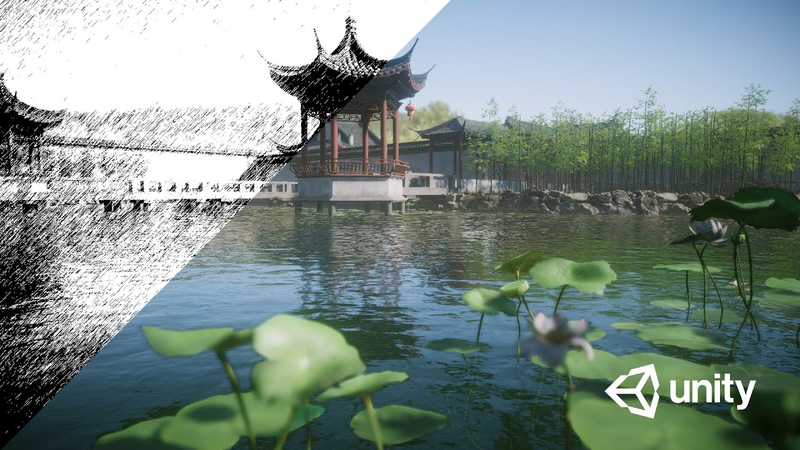
hey now this video is brought to you by unity hey guys my name is Thomas brush and the creator of a game called pinstripe I'm also working on a game called once upon a coma if you guys want to take a look at those games in the links in the description feel free that would really mean a lot to me I've been making games for 10 years specifically 2d games I've kind of mastered 2d I know that sounds a little bit proud but it's been 10 years I feel like I've done a pretty good job getting to know 2d and now I want to take the leap into 3d surprise surprise there's a ton of variables that you just didn't expect moving into 3d but that's okay because unity they know this they've actually created something called snaps in the unity asset store these are great assets that you can use to bridge the gap between 2d and 3d and I want to jump into unity and show you how easy it is to install snaps and get started now the really cool thing with snaps is that it actually works out of the box with pro grids and also pro builder for those of you who don't know pro builder is
basically a distilled version of blender inside of unity now this is amazing because you can manipulate meshes change the materials and create your own 3d models from scratch or if you want to manipulate the snaps models inside of unity oh snap I almost forgot the most important part of this video you can get 50% off your snaps pack using the promo code snaps 50 off be careful though this ends November 2nd 2019 so click the link in the description to go ahead and get your promo code used up now okay alright let's get started [Music] all right so we're gonna go ahead and create a new 3d project and I've just put a giant quad on the floor and I'm positioned it at zero and the first thing we want to do is just make sure that we have the right tools installed so make sure you go to window package
manager and check to see that pro builder is currently installed if it's not click on pro builder and then just go ahead and click install you want to click on advanced click on show preview packages and you will see Pro grids show up so click on that and just make sure you install that as well once those are installed if you click on tools you'll see Pro grids show up here and also Pro builder so let's open up our pro builder window and we're gonna be using this later in this tutorial we're gonna make it a little bit smaller there and then we're gonna also click on programs and then show the pro grades window I'm not gonna do a huge detailed tutorial on programs just know that when Pro grids is on it helps us lay out our snaps assets a lot easier everything snaps into place there's no clipping there's no struggle with understanding the exact position of certain assets you can just simply drag and drop and they snap into place first thing we're going to do is just position this quad at negative two and you can
see that it's perfectly aligned with our grid and we can move it up and down left and right you can see that it's slowly snapping into place to better demonstrate this let's go ahead and install a snaps asset pack from the assets store to show how we can drag-and-drop and snap these into place so let's go to our asset store tab that's a window asset store and it's gonna connect to the asset store and we can click on search for assets and we're gonna type in apps not snazz snaps click on that and you'll see a ton of different snaps asset packs available to us and if you're not sure which ones were made by unity just look for the unity logo in the thumbnail and you'll see we have snaps prototypes that are free we have a sci-fi one we have office one and we have some that aren't free they're ten bucks Asian residential construction and the list goes on and on those are prototype ones there's also art ones that are more industry standard
commercial game and then also you have HD art which is obviously high-definition much more detailed kind of like a triple-a type game we're gonna go ahead and import my favorite one the snaps prototype european village one and for the purposes of this tutorial I've already imported it like what you're gonna want to do is click this giant pink button here and click import and you're just going to want to import every single portion of that asset pack so we've already installed that so we're gonna go to our scene view here and I'm gonna show you what was imported into our scene so we're gonna collapse asset store originals then we're gonna collapse snaps prototyping assets and you're going to see Valencia village folder right here don't worry about this about folder where the scripts folder right now what we're gonna look at is the Valencia village folder here and right off the bat you can see we have three folders props snaps no HD which these are our buildings and then we have structures which is all the different parts of buildings so that you could create walls
and doors and windows the list is just massive so instead of just showing each one of these one by one I'm actually gonna open up the sample scenes here I'm gonna show you really quickly the valencia village prefab scene so let's save our current scene here and open up the prefab scene just so we can get an idea of all the prefabs that were just installed in our scene this is pretty amazing how many assets and models were given to us in this one little pack so this allows us to quickly lay out a prototype or it doesn't necessarily have to be a prototype it could be an actual there are plenty of commercially released games that have actually used the snaps asset packs so you can see that the assets here are actually pretty low poly very generic very simplistic but believe it or not for indie game devs low poly is kind of popular it's kind of the thing so I wouldn't worry too much about making your game look too detail and I think these assets look
great so there's just a ton of things here to sort through and pick out to create your scene so now let's jump back into the scene I was just in and we're calling that at the village level it's just a basic quad here and right off the bat I want to show you how we can just simply drag and drop buildings into our scene so as you could see it it's quickly snapping into place so we can just snap it all the way down to here so that the door is aligned with the ground we could do it again and again and again and have all kinds of different buildings and so you can see why it's important to have the grid helping us out here because we can actually just drag and everything is aligned properly along the same grid line just right along there so it keeps things clean it keeps prototyping really quick and easy and there's more than just buildings guys obviously there's plenty of other things that you can drag and drop into your scene what we're gonna do is we're
just gonna create a simple row of buildings here and then end it with this giant Church so we have this Church we have these buildings and finally what I want to do is let's just throw in a first person controller the first person controller is actually available with standard assets on the asset store so you can just jump on the asset store and install these standard assets pack and it's gonna give you a first-person controller so I'm gonna drag this here I'm going to delete the camera that was given to us by default because the first-person controller actually already has a camera in it and we're gonna hit play here we are so as you can see we've already created pretty much the very first few buildings of our European village very cool and I want to stress the importance of prototyping here guys instead of creating a highly detailed world and really focusing on how things look you really should care about how things feel from a gameplay perspective first
so that's why these prototyping assets are so important it allows us to prototype out a level and maybe pass it on to different team members or maybe in my case just you know test it for myself before I start actually solidifying the artwork so those are the prefabs available and models available to us in the asset pack now obviously there's other kinds of villages that you can do as well there's Asian villages there's their sci-fi there's offices there's construction packs there's all sorts of different prefabs available to us on the asset store so let me show you what it can really look like so there's some sample scenes available to us in the Valencia village folder here and we can double click on the sample layout let's go ahead and save our village level and let's jump into the sample layout that was given to us by unity so this is what it looks like this is what you can do with it let's hit play and see how it feels so ultimately you know with a
couple hours of work maybe maybe three hours who knows you could put together really quickly a prototype scene for your village you have a restaurant you can have all these different umbrellas and you'll notice that everything has colliders attached to it so I can't like walk through the walls or anything you'll notice that the scale of everything looks normal it doesn't some things aren't too big or too small everything feels like a real-world scale and I think that's a really important part about snaps everything is built to scale everything looks good relative to one another that's also what's really cool about pro grids as programs this allows us to move everything around and snap everything in place relative to the location and size of everything else so everything is uniform everything is clean and organized that's pretty cool now you can also change the color of the prefabs so if I wanted to I could change this red umbrella to a green umbrella and then this to this green umbrella to a purple
umbrella but a better way to do it instead of changing this green material to purple that's kind of confusing what you can do is simply just drag and drop materials that have been provided to you in this Valencia village materials folder to the prefab so where this red is here let's actually just swap it out with teal or actually let's do this let's just swap it out with the green and for this one maybe when we want to make it blue so let's just swap it out with the blue so as you can see we're able to change the colors by simply dragging and dropping these materials I like to think of these materials simply as swatches global swatches that you can use over and over in your scene so we have our buildings here but what if I wanted to make these buildings look a little bit different like for example what if I wanted a chimney coming out of this roof well believe it or not we can actually edit these models inside of unity one of the most daunting things to
a 2d developer is realizing that if they want to move to 3d they have to learn a whole new tool like blender or other 3d software's now this is really cool because we actually have something called Pro builder to show the pro builder tab you just have to go to tools Pro builder pro builder window and this is gonna give us all of the tools we need to make edits to pretty much anything in any model within the snaps pack that you download now these tools up here are related to pro builder you can click this and that's going to select an object this is your vertices selection so I can select certain vertices and scale them up like this and make a really pointy building if we wanted to so as you can see we've totally ruined our model but that's totally fine because we're having fun in this tutorial and again with this tutorial guys I'm not going to get into the nitty-gritty specifics of pro builder but they're just a few quick tricks you can do here you can
screwed by holding shift and then pulling and you can see that we're actually extruding out new faces this is a common practice and inside of tools like blender so we can just build out a ridiculously weird-looking shape but I think you get the idea of how this is incredibly valuable I could do an extrusion coming out of here and up up through there you can do all sorts of cool stuff and that's just what the extrusion tool now in all seriousness we could actually make a chimney and we can do all sorts of different edits that are reasonable to this building here so let's first off let's actually just create I don't know an additional roof piece on top of this one so if we wanted to do that all we would do is select this face here and I like to turn off my unity Pro grids snapping while I do edits to my models but I could select this face here and
then we could scale it down holding shift and we're gonna sort of inset it a little bit and then I can hold shift again bring it up and hold shift scale it out hold shift again and as you can see we sort of extended the roof up we could create a second story if we wanted to obviously there's plenty of different ways to do this I'm just sort of showing you how we can do it really quickly again how we did this is we just hold shift scale down to even set it a little bit hold shift to scale up we can create a whole big Tower here and hold shift to scale out and hold shift and scale up again so you can see we have extensions of the buildings here and if we wanted to create a chimney we could certainly edit the actual mesh of this roof by using subdividing sort of subdividing out a square and then extruding out but
I definitely would prefer to use a new shape instead so let's do a new shape let's click the plus icon here and we're just gonna create a new cube so here's our cube and we're gonna just scale it down just a little bit and then make it taller so using that same line of logic using extrusion all we're gonna do is select this face here hold shift drag out just a little bit and then something cool you can do is actually select this face here and we're gonna use something called select face ring here so we're just gonna select the face ring and all that does is select all the faces in the horizontal direction and what we're gonna do is we're actually gonna scale it holding shift out just like that now all we got to do is select this inside face here and let's just sort of loop it up just a little bit make it flat and then hold shift and drop it down now we have a pretty cool chimney so what we can do is grab this chimney here let's call it chimney and we're going to literally
just drag it into our prefabs folder and also let's change the color to brown so now we have this chimney here we could just drag and drop this chimney all so as you can see you can edit the models themselves or you can create your own models and sort of attach them to the buildings believe it or not these kinds of tools are pretty much all I use when creating 3d games in blender being able to change colors apply different textures and materials extruding maybe subdividing beveling those kinds of things are for my low poly art style and a lot of indie game low poly art styles especially developers who go from 2d to 3d these tools are pretty much all you need now obviously there are some things that might you might need that you might need to look up and use in blender but I think for the most part pro builder along with snaps is a great way for you to transition from 2d into 3d now once
you're done prototyping your level you can certainly head on over to the asset store again and take a look at the snaps art and also the art HD packs these are basically commercially ready triple-a type models now obviously you don't have to go this route you can make it look low poly if you want or you can look really high-definition whatever you want for your game is totally fine so what did you guys think about snaps I think it's the perfect bridge going from 2d to 3d if you found it valuable click the link in the description and get started with snaps if you guys found this video valuable please leave a comment subscribe hit the notification bell leave a like do all those cool things and remember you can get a free copy of my game pinstripe which was featured by Time magazine hooha you can get a free copy of that by supporting on patreon that really mean a lot to me thanks guys
talk to you later bye bye bye lovie [Music] [Music] [Music] [Music]
[Music] you
Summary
This analysis examines the utility of Unity’s Snaps asset ecosystem as a bridge for developers transitioning from 2D to 3D game design. The primary thesis is that by utilizing modular asset packs in conjunction with ProBuilder and ProGrids, developers can significantly accelerate the prototyping phase, maintain consistent world-scale, and perform mesh manipulation without needing external 3D modeling software like Blender.
The methodology focuses on a practical workflow within the Unity engine. Key findings indicate that Snaps assets—which include various themes such as European villages, sci-fi, and office environments—are designed to be modular, allowing for rapid drag-and-drop level construction. The integration of ProGrids ensures that these assets align precisely, eliminating common issues like clipping and misalignment. Furthermore, the use of ProBuilder allows for in-engine mesh editing, such as extruding faces, subdividing geometry, and creating custom architectural features like chimneys, which can then be saved as reusable prefabs.
The scope of this approach covers the transition from initial low-poly prototyping to the potential integration of high-definition, commercially ready assets. The analysis emphasizes that prioritizing gameplay feel and spatial layout during the prototyping stage is more critical than immediate visual fidelity. By leveraging these tools, developers can maintain a uniform aesthetic and functional scale across their projects. The findings conclude that this integrated toolset provides a streamlined, accessible pathway for indie developers to master 3D environments, effectively reducing the technical barrier to entry for those previously focused exclusively on 2D development.




















Comments