1 free read left. Create a free account for unlimited reading + AI research.
Create free account
YOUR ART redrawn by PROFESSIONAL GAME ARTIST
Key insights
6 takeaways- 01High-quality game art is primarily driven by methodical layering, iterative refinement, and disciplined composition rather than expensive hardware or innate talent.
- 02Visual depth and scale are achieved by applying motion blurs to atmospheric elements like clouds and reflections while incorporating foreground details such as vines or grass.
- 03Establishing a consistent light source, such as a moon or lantern, is the foundational step for logically placing shadows and highlights to unify a composition.
- 04Strategic use of ambient lighting effects, including sun shafts or glowing lanterns, is essential for directing the viewer’s eye to specific focal points within the landscape.
- 05A professional aesthetic is finalized through iterative color correction and the application of a unifying texture overlay, such as paper, to harmonize disparate digital elements.
- 06Technical proficiency in managing layer organization and color blending ensures smooth, professional transitions between foreground and background elements.
Ask AI about this video
Transcript
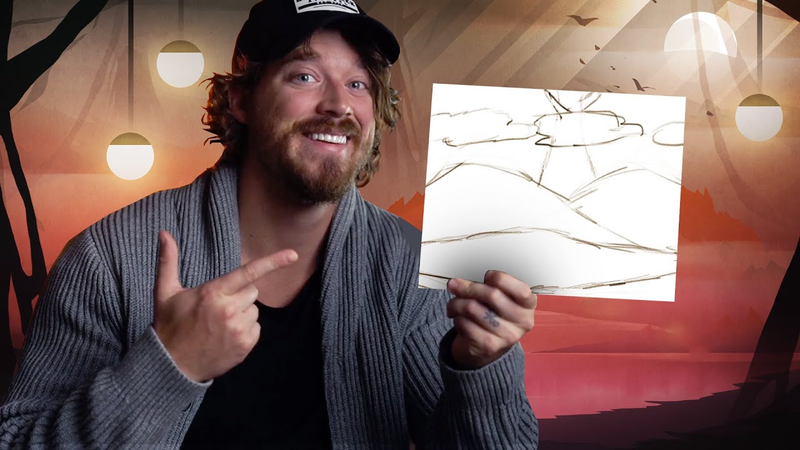
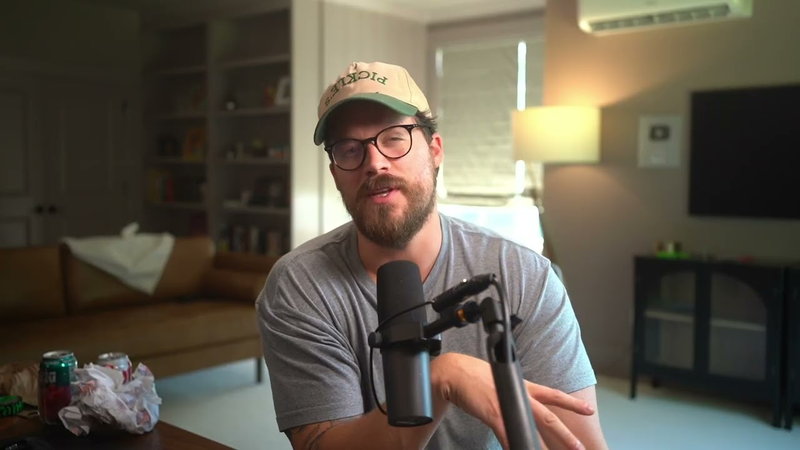
hey guys my name is thomas brush and i make indie games for a living uh today is i mean honestly a video i've been really excited about because i had several of you send me just random sketches of landscapes that you want to put in your 2d games and so i'm going to take those really simplistic sketches and i'm going to turn those into beautiful landscapes that you could use in your 2d game and guys this is just to prove to you that you don't need to be super talented or a genius to be able to make a sketch look beautiful for your 2d game so let's go ahead and jump into photoshop and get started so this is basically what we've got here um very simple sketch um and you can see that the individual who sent this to me via email uh said this is a tree lol thanks for the i don't know what that says thanks for share i'm not sure what that says and then uh thanks for choosing as well at the
bottom there so i've got my color palette here i put together this color palette really quickly um probably five minutes before the video so nothing crazy here so that's my color palette um and so what we're going to do is just start blocking in all of these colors first thing i want to do is drag up our little illustration here and we're going to set it to let's see here i believe multiply yep what multiply is going to do is it's going to allow us to paint underneath it so let's start with a background sky color of gray and let's just come forward so let's do this let's go to our mountains here and try and stay as true to this sketch as possible here and by the way guys to prove even more that it doesn't take a genius or some amazing equipment to make this happen to make it beautiful this is all i'm using guys
it's just a simple mouse okay that's all i'm using i'm not using a you know what will come pen tablet or anything like that so let's just go ahead and start filling in our color so i'm going to pick a color along this gradient here as the colors move down here that's the colors that are going to be used as we move towards the foreground so i think i like this color for the mountain okay and then let's do this color here or this mountain here let's do a little bit grayer um color for this mountain and i'm trying to stay as true to this illustration as possible so that looks kind of cool let's go ahead and put something behind it because it looks like the illustrator here was trying to maybe create some kind of depth or something here so let's do this let's uh do an illustration of a mountain right there
pop it down just a little bit and then hold i on the keyboard and just select that color there sweet that looks great okay so it looks like we have some kind of tree here with like i don't know thorns or branches coming out of it so let's see what we can do with that i'm just using the lasso tool here to select an area here to fill in and i'm just gonna hold shift and drag a little bit more grab that one and then grab this one here as well okay awesome and i'm gonna just get a very subtle orangish gray here do something like that okay so there's our there's our tree i'm not gonna worry about the clouds just yet let's come forward and this will be i don't know it kind of looks like a lake doesn't it
so let's go ahead and make this a lake so that's kind of convenient because that means we have this blue here that we can use uh to make our lake so let's just choose this bluish green color oh that looks great there we go and keep coming forward um let's see here so this looks like it's one layer about like that that's going to be this color here okay and then we have one more here just make it look maybe like grass or something like that so we could probably just select some of these pieces here for grass there we go awesome okay all right so let's just choose a color that's a little bit darker than that blue to the left of the screen okay so something like honestly it needs to
be pretty much a foreground color so something like that so it's pretty dark and then we're going to come forward one more layer and use this little piece here as i guess some instruction about perhaps some foreground elements here okay and let's just grab that darkest blue okay there we go all right so how do we make that green look like a lake well that's going to be done with a reflection and we're going to do that in just a bit but let's go ahead and make sure that those clouds are replicated as much as possible i'm not a huge fan of these clouds but we're gonna try and stick to the shape and form that we've been given all right so let's do it about right here on this layer okay all right so let's grab this one here this one here and just slowly fill in the shapes here
and i'm okay using white for now i might change it later but i think that's fine okay all right and by the way guys i'm not like super skilled at mouse illustration uh today because i got a new mac and so my mouse settings are totally different on a mac for some reason it's not as precise as it was with a pc and so i guess that's just further proof that you don't have to be a pro with a mouse you just have to be patient and sort of have a plan um about how you're going to do your illustration okay something like that all right so we have this very uh it almost looks like um like childish kind of it like it's sort of crayon uh so maybe we could lean into that uh
kind of yoshi's island on if any of you have played yoshi's island but we're going to lean into that sort of childish crafty look so i think i can shrink down our color palette here where is it yeah there it is okay let's shrink that down just a little bit here i'm gonna zoom in and let's see here what does it look like if i remove those sketch pieces okay not bad really that's not bad um what did i say sketch pieces the the sketch the the actual sketch let's remove the sketch what am i talking i'm not even i'm not making sense today anyway what we're going to do is we're actually going to go ahead and add in some gradients to this illustration okay to make it look like there's fog and mist you guys know i love fog and mist so the first thing i want to do is take these clouds here
and let's have them have a gradient let's see here one sec go to our basic gradients here and we're going to choose this black one and just sort of subtly do something like this okay and then we're going to duplicate this and we're going to add a motion blur [Music] there we go something like that and then duplicate it again oops duplicate it again and then shrink it down like that so we just have these clouds hanging out over top and i think they're a little too vibrant so what we're gonna do is try and let's see here that looks about what i want very foggy that looks awesome and we're going to add just a subtle detail to the background here um something like this of just a very subtle
landscape in the background something like that okay and drop down the opacity good now let's add some fog to this here and remember guys if you've seen any of my previous videos you know that i like to add some fog just using the color in the background okay so if i take this color here and then do a pulse or gradient up like that makes it look like fog and then i just cut in some pieces here okay something like this okay delete that and then do a motion blur yep and same for this one here we're going to take this color right here and then do a pulse upward like that there we go and then just cut some pieces there we go and then do a motion blur to the right
just like that so now you can see we have this sort of foggy beautiful landscape and guys we're getting the generic forum down here we're not trying to make it look super specific yet we just want to get an idea of what this landscape looks like what the colors look like and then we're going to start adding detail to it all right so this this was a lake right and so what i'm going to do is i'm actually going to take everything in the background just for now okay we're going to change this later but i'm going to take everything everything in the background for now i'm going to copy it and i'm going to paste the reflection onto this okay now the reason why we're doing this even though we haven't actually finished up you know the detailing here because you would expect i finished the detailing and then i put the reflection in the reason i'm doing this now is to just remind myself that this is a lake okay so i'm gonna do a motion blur now bob ross will tell you do a motion blur down
it's gonna make it look like a reflection he does that all the time so that is exactly what i wanted to look like so there's our reflection okay let's maybe shrink the size a little bit so you can really tell that there's a reflection there and i wonder if i could crank up the contrast because i can't fully see the details that'll do it for now just for now and then i'm going to just slowly erase there so it looks like it's sort of faintly moving in okay so that's going to be our lake just for now it's not perfect yet but it's just for now and then we have this here this is our grass so i want to remind myself that it's grass the way i remind myself is make it look like grass what am i talking about uh what am i trying to say i don't even know what i'm trying to say i'm gonna make it look like grass all right so let's do this really quick let's just sketch some grass and do something like
this then we're gonna fill it in okay and you know i don't think we need to add we could probably add some fog to this here but i don't see any point adding fog anywhere else so let's just add this some bluish fog here and really get some details so it looks like there's a whole layer of fog right here okay let's do a motion blur to the right okay so zero good there's our fog and let's see here now i think we're ready to start adding some detailing okay so i'm gonna add some trees to the mountains they don't really look like mountains do they so i think what we could do is just start adding trees to these mountains so let's go ahead and we're gonna use
our lasso tool here just do something like this okay and you know i always end up not liking the colors that i've chosen and that's okay um so we're gonna end up probably tweaking these colors significantly um whoops that's okay hold alt or option if you're on a mac just to erase and i'm just gonna add some trees here okay there we go oh and looks like it's time for me to tell you guys about this video sponsor which is squarespace believe it or not i've been wanting squarespace as a sponsor for so long mainly because squarespace is awesome i've been using squarespace for i think six years um both my websites thomasbrush.com and atmosgames.com where i host my games in my portfolio my
resume all that cool stuff is hosted on squarespace it was created with squarespace squarespace is cool because you can look amazing you can have custom designs and pretty much do anything you need to do for your business or your own personal brand all with squarespace and you don't have to know how to code so if you guys are interested in creating a website with squarespace click the link below squarespace.com thomasbrush and use the promo code thomasbrush for 10 off yay yay i love squarespace i really do [Music] all right so we have these beautiful trees sort of hanging out here uh pointing into the sky i like it i like it a lot cool and watch this guys this is this is what's really cool
you can easily just do something like this okay just select um let's see something like that okay and then all you got to do is just take a color that's just a little bit darker than this orange okay so something like that and then just do something like this see that so now we have drop the opacity down significantly so now we have these trees and i can even duplicate them and then flip them and now we have this really cool looking tree line here maybe one down here as well okay merge those together just drop down the opacity significantly just so you get a subtle hint that there's some trees there [Music] okay all right so one of the ways that we can make this look uh more like a lake is we can actually
take this color here okay this one right here and i can start adding in inlets it doesn't really make sense does it so let me try and explain with my mouse right let's bring in an inlet here like that and it'll have trees on it like that and i think we could do another inland right here and this is gonna have trees on it as well okay something like that and then just fill in the coloring here um that looks pretty good yeah it looks a lot better this probably needs to be something like a little bit more distinct so something like this [Music] yeah there we go you know what's fun is when i'm doing illustrations it's almost like an emotional rollercoaster because i'm looking at this right now and i'm like i'm gonna
have to do a new video because this looks like junk but i know i've been doing this for so long that i know i know that at the end of this video i'm actually going to like what i see so you kind of just have to i guess trust in yourself a little bit and know that it's gonna be okay right so don't panic just keep going all right so let's go ahead and cut flat what makes things look like water is having it do a nice cut that makes it flat okay something like that stretch this over just a little bit like that yeah we're getting there we're getting there and then we'll do one over here as well just a little inlet so something like something like that okay and then just draw some trees going up the inlet there okay there we go awesome okay the other portion of this that doesn't look
exactly like a lake is i think yeah it's this piece right here so i would i would say that it probably needs to cut flat like that yep that looks a lot better now it looks more like a lake and eve you could even draw like a little island here so something like this a little island let's see here now let's just add a boat a boat will inform the reader not the reader the viewer that this is indeed this is a lake right so let's just go ahead and grab something a little bit darker than that blue something like that there we go shrink it down and hey let's do two boats transform flip horizontal and then like that and then maybe one bar back here
and lower the opacity okay so there are our boats it doesn't look half bad it does it really does look half bad but just trust me it's gonna look good all right let's go ahead and add some trees to this here here we go so just do what we did with the other layer of trees something like this okay there we go awesome and we're going to do something like that that looks great okay merge those layers together and let's see here i think what we could probably do is duplicate these clouds and why not just bring them and they should probably be flipped honestly yeah that's what i thought flipped the
clouds flipped these as well and then we're gonna do a big motion blur for these down here just make it look like fog there we go there we go that looks a lot better just to add some depth here and let's do one behind these trees here sweet i like that and then duplicate it up here and i'm going to flip them to about right here stretch them out scale them up a little bit there we go something like that oh i love that and i'm going to go ahead and actually just decrease like i'm pretty dark yep and do one motion blur here i love it okay and then this tree here you know it's not you know visible enough so one of the things we need to do is probably bring it above the clouds here one sec
let's do this i'm just gonna bring it to there and then i'm gonna fade out the bottom of it there we go and then i'm gonna add a dark gradient on the top there we go and then do one more that sort of got a shadow at the top i think we could probably go a little bit more like this there we go that's what i thought and then do that vibrant blue and honestly not as vibrant so something like this just a very subtle vibrant blue and then a full one up here let's see okay there we go drop down the opacity okay so far so good one of the problems we have here is there's a a very quick layering um that occurs you have very vibrant and then it just goes straight to gray
and that's a big no-no that kind of confuses the brain so this layer back here needs to be a little bit more vibrant you can barely even see it so we're going to drop up the opacity here and let's go ahead and just add a layer on top of it [Music] all right let's see here and we're going to add that orange that vibrant orange on top there we go and honestly i'm going to cut away some of this so something like this and then one like this okay and then cut cut cut cut cut [Music] oh that looks a lot better and honestly i'm just gonna here's what i'm gonna do i'm gonna delete this layer back here i don't like it there we go okay so we have this layer here i don't know what that is remove that um and what i'm gonna do is take some of this gray on the right side like this just do that
yeah the real problem was on the left side so i feel a lot better now um also this is a inverse uh inverted rule here things should get lighter as they go back so we should we should sort of uh let's see here take this and just subtly fade it out like that there we go and let's do some dark mountains in the background about right here okay awesome something like this and by the way i'm on the screen on the right um what i'm looking at right now i'm not looking at my mac i'm looking at another screen it's a much smaller image and so it helps me get an idea of the composition and obviously you know the composition is pretty much set by the artist who did the sketch um but i could try and make the composition work in my favor with some tweaks here
all right oh that looks awesome i like that a lot actually that's really creepy and drop this down to about right here what i mean by drop down is fade it out a little bit i'm going to take this uh these white clouds here and i'm going to add some darkness to the tops i don't know why but that's just my gut the bottom maybe yeah there we go okay let's add some detail to this tree here all right i'm going to merge all of the layers for the tree together and what i'm going to do is add some let's see here just gradients subtle gradients to make it look like there's bark okay so let me show you how i do that there we go something like that and i'm just going to do a dark
pulse from the left to the right here there we go drop down that okay okay we're getting there and then let's just assume our light is coming from where's the light coming from our illustrator let us know what did he say ah there's a sun over here okay so we need to add a moon or a sun over there we're going to use the elliptical tool and i can go ahead and get rid of my color palette we already have plenty of colors to pick from now on our screen so i'm not gonna have that and let's just go ahead and put the sun or the moon right here i'm gonna just because i'm insanely particular i want it to be right here okay i'm gonna cheat let's do a white there we go all right and let's see here [Music] let's copy that really quick let's just move it here because i'm i'm going to cheat and i'm going to make it look like it's behind this cloud here
i'm going to take this and just do that and do a subtle fade out see that so now we have this sun or i think moon is probably a better uh probably a better way to go about this so the way we're gonna do that is just do a subtle pulse i like it bright already a little bit brighter and then we're going to do a nice bright glow here okay just like that awesome all right we have our moon therefore the light is coming from the left side not the right i usually put my light on the right side so this is a welcome change so we're gonna have a glow of let's see here white coming from over here very subtle honestly we don't need that what we need is darkness right so we're going to do something like that
okay there we go and what does that mean it means there's also going to be some highlights on the left side of the tree something like this and we can also try and fake some highlights what i mean by fake is just very lazily draw some highlights on this tree nothing too crazy the tree is in the background so i don't really you know focus on details in the background as much as i would the foreground so it's going to be very simplistic so there are our details and that just makes me want to add a shadow or a low light right about here okay take some black and do it like that and then just pop pop it away don't make it look so vibrant okay so we have our tree well now we
have this tree right and it's got lighting on it but nothing else in the scene has lighting on it so let's go ahead and add some lighting to the scene okay now again colors not my favorite that's okay so we're gonna tweak the colors in a bit but right now i just want to get the lighting down so this tree i want it to be casting a huge shadow like this there we go like that that's awesome whoopsie oh whoopsie whoops there we go so we have this beautiful shadow being cast across this giant here we go there we go nice shadow what's going on here that's kind of weird well now we know where the light's coming from we can actually just go ahead and take this color here and just start adding some darkness there we go that looks awesome okay yeah so once you get an idea of where the
lighting's come from coming from you you can really start working with your colors and tweaking it to make it work for you i know that doesn't make any sense but anyway i'm going to save this scene out and guys i just want to let you know by the way i have an online course that teaches everything you need to know about game development and it's called full-time game dev and so if you guys want to take a look at that that would really mean a lot to me there's a link in the description and if you guys just you want to get some free goodies that's fine uh you can get a free 2d game kit and that game kit's going to allow you to take illustrations like this and put it into a video game so feel free to click the link below um that would really mean a lot to me and i have a feeling you're gonna at least get some some use out of it so feel free to click below all right so now we gotta figure out you know i think we let's see here i think we should probably just create some trees that are pretty dark right here because now we know where the
the light is coming from so i'm gonna put some trees right here okay give me like a blue shadow something like this with the motion blur uh yeah that's fine so now we know where the light is coming from so we can there we go there we go do the same for this one here okay i'm going to merge these layers together all right and just do a shadow here as well okay and like i said guys we're going to be doing a lot with the reflection in just a second um but for now i just want to get the detailing and the lighting done for everything else okay all right so the boats here
we'll probably scale those up just a bit there we go and drop this one down there wasn't enough change in scale um and i think that honestly the composition isn't great so i think we could probably do something like yeah that's a lot better there we go take this one and uh just delete it okay and then just faintly there we go make that fade into the background a little bit better and also just go a little bit more dark so let's take that color there and do something like that oh that looks a lot better okay this color here is kind of driving me nuts so we're going to darken a little bit do something like yep there we go and then this color here we're going to take this really dark foreground color oh man it's starting to look
good i told you i told you it would there we go just gotta trust your your experience you know if you do this long enough you start to learn that you'll be okay you'll make it work you'll figure it out all right i'm going to cut into this shape here and create some cool looking vines anything that looks like that's not really the shape of a tree that's not a natural shape of a tree i'm gonna use vines as an excuse for the shape see that so now we have these vines sort of coming down this tree [Music] and it makes the tree look like it has a little bit more of a natural shape let's see here yeah i think that looks pretty good and this could be more of a root right here something like that see maybe cut a little piece in right here okay and this branch here
could probably be cut something like that with a little hole right here there we go hey why don't we go ahead and add some details here so something like this there we go we have some vines sort of chilling out here on this beautiful beautiful tree [Music] awesome drop down the opacity and then just do some fading right here there we go so now we have these beautiful vines coming out of this tree and you know to make this composition make a little bit more sense to me um what i'm going to do is i'm going to merge all these together copy it copy this little tree here and i'm going to paste it and do one more
back here let's see where where does it better make sense i think it makes sense about right there and i'm going to flip it i know this doesn't make sense from a lighting perspective because now the light's coming from the right side of this tree that's okay though so i'm just going to drop down the opacity significantly i'm going to make it look like it's sort of flying into or reaching into those clouds there there we go and one there and now we have this tree [Music] chilling back in the background like that now you'll notice that it doesn't kind of work so what i'm going to do is there we go [Music] okay you'll probably let's see here i think putting it right there is probably a better idea and i'm going to just increase the opacity just a tad there we go let's add a flock of birds [Music] i don't know why but my beard is wet anyway
let's add a flock of birds okay so just little dots so i'm just gonna simply drag some circles with my lasso tool maybe some bigger ones here there we go i'm going to take this dark color here there we go [Music] okay and then just to make sure everyone knows it's a block of birds i'm going to make it look just a few of them make them look like they're actually birds or bats or something there we go something like that and then you can notice that you can't really see the ones at the top there so i'm going to use the gradient tool to make it a little bit dark there that looks awesome hey let's go ahead and merge a lot of these layers together you'll notice things are getting a little bit complicated in my layering and i'm not a huge fan of the colors i'm going to try and blend them together a little bit more there's a lot
of changes in color that are very uh what's the word a little bit too quick so i want to blend them into the background a little bit more so i'm going to take these colors here or take these layers here i'm just going to merge everything together um i'm a huge okay so my natural predisposition is to like work work work work work not focus on any of the you know on being clean and precise and organized that's not my personality but just because it's not my personality doesn't mean that i don't work on it um so it goes against my my predisposition to clean up the layers here and get organized and maybe that's true for a lot of you guys as well but what i recommend is even if it goes against your personality just go ahead and clean up get organized don't rush because you're going to need all of these layers to be a lot cleaner especially when you go in and start
cleaning up the coloring okay so first off you know this one here that's a little too distinct there's a it's too quick for me so what i'm going to do is i'm going to create a layer on top of it i'm going to try and blend in those colors just a little bit see that so the blend is a little bit more natural um that's fine we're going to lock that layer i want to touch our touch let's see here yeah that's good okay i'm going to grab this layer here and i'm going to try and blend a little bit in the background as well whoops let's try and figure out which layer that is not that one there it is so let's just add a layer on top of it and do a subtle faint fade okay and then just remove there we go that looks good and then that one as
well over here is a little bit too quick for me the change so i'm going to just do something like this okay there we go and i hope i'm making sense when i say the change the change in coloring needs to be a little bit more smooth um so that looks good this cloud is kind of bothering me here i knew that when i started this illustration the one thing that was going to bother me was the clouds um so i think oh man i might just cheat and do something like this yeah okay that's a lot better all right that looks good um ah thomas whatever i'm gonna just take that out i might revisit the clouds the clouds were the main problem that i was having about five minutes ago that's why i was feeling a little bit insecure um was it was just the way that the clouds look and so i'm gonna remove those clouds for now and also this looks a little bit weird as well there's a
very quick shift in color so i'm gonna blend a little bit better here so like this yeah that looks better maybe pop it up above there we go and drop down the opacity just a little bit okay that looks a lot better um there is let's see here this is a little too quick as well in terms of the shift of color so i'm going to just blend a little bit better here so blend like this [Music] like that and then maybe blend over here to make it look like there's a little bit more shadow okay and then you can see that we have this weird coloring here i don't need that layer we're just gonna actually let's put it in the background just move it back here and then we're going to do a color overlay and do it very similar to the color here and then drop down the opacity significantly there we go something like that maybe uh [Music]
that looks good that looks good okay and i don't know let's just cut out a few little pieces here just to add some details yeah there we go okay that looks good save that out and let's see here what am i ah the reflection that's what was bothering me okay so now that we have this lake here i'm gonna go ahead and start adding reflections instead of just you know copying these trees here and flipping them i'm just gonna draw them in i'm not gonna be too precise here like that and i'm gonna take this color here do something like that maybe take some of that orange we go drop down the opacity whoops and then maybe do
let's see here there we go that looks a lot better something bob ross always does when he's doing this is he actually adds a subtle just a white line to indicate that there's some kind of shore there um so let's see if that works i think it does let's do a motion blur and it's going to be at zero there we go and then do an overlay there we go what did i tell you what did i tell ya all right save that out and we're going to do a reflection for this as well um so just take that like so and do a pretty dark color like this there we go i just kind of want it to
look like a reflection here let's see if we can make this work reflections motion blurs always go down so 90 degrees there we go drop down the opacity like so see that ah yes that looks good save that out and then we're going to do a shoreline for this as well so you just take and your shoreline should sort of always move to the right so i add little pieces like this to make it look like it's flat see that all right so there is our shoreline let's grab the white from the moon pop it in do a motion blur to the right zero there we go and then you just do an overlay okay there we go something like that save it out this color needs to be a little bit more yellow towards the bottom
to match that shoreline there we go whoops let's see here hmm let's try and figure this out [Music] yeah it's a little a little weird looking i'm fine with it it's okay all right save that out and then we're gonna add one more reflection or two more reflections here uh the left island and then the right island so i'm just going to take this and just add a little reflection here okay there we go let's add a little bit of darkness to it there we go that looks great all right motion blur down 90 degrees and then finally just a little bit of a shoreline
and i can't wait to actually do some color shifting here because it's really going to make this whole image just pop right now the colors aren't perfect and that's okay motion blur to the right right and we'll do a zero there we go and then overlay drop down the opacity there we go [Music] and i think i could add some darkness to indicate more of a shoreline here so let's take this color here and then just pop it up just like that there we go save that out and we need to do reflections for the boats as well here and let's just do a cut to indicate that they are actually sitting in the water um so let's take this boat here copy it paste transform flip for uh vertical now horizontal vertical do a
motion blur down right at 90 degrees and then let's see here could probably shrink it down here we go so there's that one like that and then let's see here one sec there we go and then do it you could probably shrink it down and do it like this here okay and flip that one transform flip horizontal right good merge these layers together and we'll decrease the opacity of the one on the right here like that save that out and we're gonna do just a white subtle water here see that same here as well [Music] and just we're going to add some glistening
water here there we go do a motion blur what is it to the right so zero and then do an overlay do that so now we have a pond or a lake looks pretty good i don't mind it um let's add a little bit of a shoreline over here too a short line here we don't i don't think we really need a reflection so we're just going to add a little bit of a shoreline over here nothing crazy right there we go and then do a motion blur save that honestly this looks weird to me um so i'm going to go ahead let's see if i can fix this i think i can um do something like
uh something like that maybe add a little bit more details for these trees okay yeah it's just it something's not right about it so i'm just gonna try and fix it with just some subtle detailing here shrink down the size like that maybe yeah and then just okay okay i think i got it come on thomas there we go there we go some of you might be wondering about the jeb cam um i don't have enough usb ports on my new mac surprise surprise so i need to get an extension for it so that i can actually use my jet cam for jab my dog but he's sleeping he's sleeping over on the bed behind me um so he's here he's here with us i'm gonna duplicate that one more time and just try and make it look
just like i don't know some shadows or something yeah when in doubt just put some shadows around that looks kind of cool save it out and let's see here i want to go ahead and add a foreground element okay watch this i'm gonna take this tree and i'm gonna bring it to the foreground and i'm gonna sort of wrap my scene there we go in some darkness you know i like doing that so let's go ahead and add whoa add some darkness here there we go so something like this and one more over here okay save that out and i'm going to add a little bit of grass [Music]
that here good save that out and i think what i want to do here i want to do some color correction so what i'm going to do is actually go to my very top layer here add on a color balance filter here and let's see if we can shift some of the coloring kind of like that greenish color um i love shifting towards warmer colors that's always what i do it's just i don't know something that kind of looks cool i like that yeah and then we'll do a color correction or a colorized filter increase the saturation and do a pulse that kind of looks cool hey i like that
[Music] that's really cool drop down the opacity for that one like that that looks cool and drop down the opacity for this one as well okay let's see here let's zoom out [Music] not so sure here [Music] wonder what would happen if i just removed some of that color shifting from the lake this is just a test to figure out what's going on what's bob something's bothering me about it and i'm not sure what it is let's go into our lake here and increase the make it
a little bit brighter okay so i'm going to do is i'm going to put a white layer on it [Music] and then do an overlay okay something like that and then now put those colors on there it looks a little bit better it's a little bit better and the background here um let's see here okay i'm going to remove these really quick the background here i think what we could do is we could add a pulse of orange just going up from the bottom so something like this yeah just to add a little bit more blending okay something like that good good good good and then a pulse of blue across the
entire thing just to blend that blue in just a little bit better something like this good okay there we go all right that looks a lot better i like that that's cool the let's see here i think the last thing i want to do i think i'm comfortable merging all of these layers together to be honest um so i'm going to go ahead and merge everything together i know you know what's crazy is the colors have completely changed since the beginning of this video like completely changed and guys that's okay that's totally fine um that's just what happens i think i want to choose let's see here a color that's the opposite of that pink or that purple um to sort of fade from the top so let's just do this let's do something like this let's see here there we go and then crank up the saturation
and we're going to do something like oh we're so close guys that there we go whoa what just happened we are so close hold on one sec guys i love that red though so what i'm gonna do is there we go i think something like that no thomas what are you doing man okay i like that better yeah i like that better okay that looks great then you know the final touches that i like to do um i
like to go to my browser i go to pexels.com i find the paper texture and i just plop it on in and this is a way to make it look amazing just with a very simple texture right let's see here there we go so okay so we have our texture we have some tweaks and color and changes to the original palette and that's okay now that we've got all that in what i'm going to do is drop down the opacity of that texture i'm going to merge everything together and now now we're going to go ahead and add in some detailing okay specifically i think some detailing for these trees here so maybe some little vines here
this right just some very subtle vines the foreground should really be more detailed than the background and so you really want to be careful if you ever if you're ever confused like something's something seems off it doesn't feel detailed enough it's probably because your foreground is not detailed enough [Music] okay so we're just going to add in some vines just some weird shapes here and there um take this color there we go drop down the opacity see that notice how it just changed everything all right and then why not add in some stones here or maybe just some grass in the foreground
there we go and when in doubt guys hey add some sun shafts when in doubt add some sunshafts right it always makes things look just a little bit prettier so there's one there do an overlay like that like this right and then just duplicate them and move them all over the place i like to add like a triple overlay there see that oh man that looks good oh thomas that looks great when in doubt add sunshine let's drag that one up just like that am i going overboard on the sun what am
i trying to say am i going overboard on the sun shafts i think i am let's delete a few [Music] hey now that looks great merge these layers together do an overlay there we go and then hey why not do one that's not an overlay but has some color to it so colorize saturation drop down and let's do that yellow looks cool but i think that orange is probably what we want to do and then just whoops drop so let's do this see what kind of blend mode looks good that looks pretty sweet kind of like that one let's add some depth just really quickly to this right here okay so the way i'm going to do that is just add in just a few trees
like so so we're gonna do one here and this is just gonna be some highlighted tree tips tree tips right invert the selection and just do a just a pump just a very subtle pump of shadow right here okay and then fade out the bottom there just like so let me drag it a little bit like this and then decrease the opacity there we go and one here as well okay maybe we can move one over here oh let's see drop down that opacity sweet look notice how i'm just adding detail just by duplicating that layer i like it maybe one right here as well
okay that's fine and then remove some of that there we go save that out now i think there's one problem here there needs to be some kind of subtle mountain in the background just something's driving me nuts here so let's go ahead and some kind of mountain right here [Music] something like that okay just very very subtle drop down the opacity like that i think that's it i think that's the one and then decrease here something like that hey now you're an all-star look at that that looks great hey let's add another one
hey we forgot about one thing this guys this is where things get exciting okay are you ready you know i'm looking at the clock i'm like this i'm already an hour over or i'm already at an hour i wanted to do this in 30 minutes but one of the things that i love to do is i love to add spotlights little little lights coming from various locations to make it look like there's like lamp posts and stuff so the first thing i do is i just add dots okay watch this so we're going to add a dot to maybe maybe the shoreline okay [Music] like there's i don't know buildings or windows or something and then maybe one to our little boats here that looks great
you know what i'm going to do watch this i'm going to use the pencil tool and i'm just going to create some lights in the background using the pencil tool let's grab the color of our moon it's just a very subtle yellow and i'm just going to create like a shoreline of lights okay like that do have some up here a little bit bigger that no you know i'm trying to figure out where it would come from if it was on a boat something like that okay and don't worry we'll we'll specify we'll make it more specific as to like what these are um but i think for now all we want to do is do a outer glow now
that we go when in doubt add a glow there we go it's gonna have that yellow glow oh i love it that looks awesome and then why don't we just add one more just to sort of show okay what am i looking at you know what are these things we could probably do how about a hanging hanging lantern so something like this oh my goodness i haven't saved this let's save it that would suck if it crashed okay so um hanging lantern like so and it's gonna have like i don't know some kind of top on it and then you select that paste it we're going to paste a lot of them so it's fully opaque and then we just make it
white okay and invert the color there we go and then add an outer glow by just duplicating and then make a big glow right really big glow um let's see here that looks fine to me now this is the funnest part are you ready this is what i love to do what you do is you drop down the brightness and the contrast significantly like this see that or just the brightness drop the brightness down so it's really dark and then you remove that darkness from certain areas that you want in focus okay so i think we don't want to get too crazy
okay that looks good this this little light here is kind of weird to me so i'm going to remove that one and that one okay and then hey why not why don't we just add just some very subtle make it look like there's buildings or something that's what this is the little buildings in the background like this nothing too crazy guys just a subtle hint that that's what these lights are do one here as well okay and that's just going to be a simple black there we go drop it there we go and then just fade out the bottom of all of those buildings again just using a mouse here
okay save that out and then what did i say i forgot to yeah add in our paper texture drop down the opacity of that paper texture make sure it's an overlay filter and what's the last thing we gotta do we gotta sign this bad boy let's do it [Music] thomas brush there we go hey what did i do what did i do here hold on let's just add one more of these up here come on there we go that that's a wrap
thanks guys so much for listening to me ramble and guys be sure if you liked this video if you want to learn more about illustration and game development click the link in the description get some free resources at fulltimegamedev.com and i'll talk to you later cheers [Music]
Summary
High-quality digital game art is achievable through methodical layering and fundamental design principles rather than reliance on expensive hardware or innate artistic talent. By utilizing basic tools like a standard mouse and Photoshop, creators can transform rudimentary sketches into professional-grade landscapes. The core thesis posits that patience, iterative refinement, and a structured workflow are the primary drivers of visual quality in game development.
The creative process centers on establishing a cohesive environment through consistent lighting and atmospheric depth. By defining a clear light source, such as a moon or lantern, artists can logically place shadows and highlights to unify a composition. Techniques such as applying motion blurs to clouds and reflections, adjusting color vibrancy, and incorporating subtle foreground details like vines and grass create a sense of scale and realism. These elements are further enhanced by managing layer organization and color blending, which ensure smooth transitions between the foreground and background.
Finalizing a professional aesthetic requires iterative color correction and the application of unifying textures. Adding ambient lighting effects, such as sun shafts or glowing lanterns, draws the viewer’s eye to specific focal points, while a paper texture overlay serves to harmonize the various digital elements into a singular, cohesive piece. Ultimately, the transition from a simple sketch to a polished landscape demonstrates that technical proficiency in digital layering and a disciplined approach to composition are the most critical factors in producing effective game art.









Comments