1 free read left. Create a free account for unlimited reading + AI research.
Create free account
How To Create Breathtaking 2D Art For Dummies
Key insights
6 takeaways- 01Establish visual cohesion by extracting a primary, secondary, and shadow color palette directly from high-quality reference sources like Elden Ring screenshots.
- 02Implement atmospheric perspective by ensuring foreground elements are highly saturated and dark, while distant objects gradually blend into the sky through atmospheric fog.
- 03Construct scenes using a layered approach that builds from the background forward to maintain depth and environmental scale.
- 04Add visual interest and highlights to 2D assets by applying layer styles like inner shadows and incorporating secondary accent colors to complement the primary palette.
- 05Maintain technical flexibility and workflow efficiency by utilizing smart objects for non-destructive editing and silhouette plugins for complex structural design.
- 06Enhance realism and depth by applying gradients to simulate light shifts, using motion blur on fog elements, and utilizing custom brushes for environmental details.
Ask AI about this video
Transcript
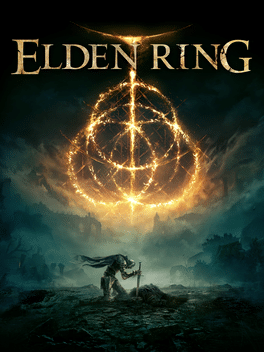
Hello, hello, hello. Let's jump inside of Photoshop and learn how to do 2D art with Elden Ring as the inspiration. It's totally fine to Google search a image from a game you really like, a screenshot from a game that you really like, and take those colors and use them as inspiration. So, here's a challenge for you. What I'd like you to do is find a image you really, really like. Or maybe you could take this image here and find the primary colors that are being used. These are the colors that are most often used. Okay. So, I would say this sort of purplish blue. And then I'm also going to grab this green color here. It's sort of a muted forest green. That looks good. Okay. So, we've got our two complimentary colors. These are the colors that are used most often in this image. Now, what are some dark shadowy colors, more saturated shadowy colors that are being used? Well, that's the
dark green here. I think this darkish green here is being used often, especially close to the camera. That's important. Colors tend to get more saturated and dark when they get closer to the camera. And this is especially effective when creating 2D art. It's a good rule to follow. So, as we come closer to the camera, things become more saturated and dark. As they go further and further away from the camera, they tend to shift colors and shift and blend all the way into the sky just because of atmospheric fog. Okay, so these are the colors that we're going to use. I'm going to merge these colors together here and I'm going to duplicate them and I'm going to create a gradient out of these three colors. So, I'm just going to use my gradient tool and we'll start with this blue and then we'll add this green in here like this. Good. And then this green in here. Okay. Now, the reason I'm doing this is so that I could pick from all these different colors here. I don't really
like using the swatches palette in Photoshop to be completely honest. I'd rather just have it right at the top left and my corner left hand corner so I can just press I and grab the color that I want. Now, here's the thing. We're basically just trying to create a very abstract form of what this image actually looks like as it comes what what what happens to the colors as they come towards the camera. I could go even more specific if I wanted to. I could grab this white color here. Put it there. That's sort of my horizon where the sun maybe is setting. Okay. So, I could do that. Then I could maybe go a little bit darker blue. Maybe like this. Right. There we go. Oh, and then I could shift towards this green color. See that? This is interesting because now suddenly it's starting to look kind of like a actual horizon. Let me show you what I mean. If I scale this up, check it out. It's almost like it's a horizon, especially if I zoom out.
Kind of looks like maybe Kansas, right? A really stormy day in Kansas. So, your color choices are the most important aspect of your 2D illustration for your game. Everything else is built on that foundation. And if that color palette isn't perfect, your illustration isn't going to look good. But I know right now because of this color palette, I know that my image will generally have this vibe as long as I follow these rules. Okay. So, what what are these rules? Well, the rules are as I come towards closer to the camera, the colors shift from this light blue all the way to this deep green. Okay? You can use these color principles that I just showed you. You can use them with any screenshot you find with a video game. And if you want to, if you want to make it look a little bit different than the video game, you could just do a little bit of a shift, right? We could shift it to purple or maybe this greenish color, right? We could go all the way to this brown color. You can do all sorts of hue
shifts but still follow these principles. Okay? But I'm going to try and make it look as much like Elder Ring as I can. And so what I'm going to do here is we're going to start with just like Bob Ross. We're going to start with the background and come forward. Okay. So what I'm going to do is grab the top color here. This is my sky. Very good. Let's go ahead and grab this color here, which is our horizon. Okay. Let's pick our horizon point. Something like right here, maybe. Okay. And let's come forward, grab another color here. And let's just go ahead and create some very sort of sharp mountains just using the polygon lasso tool. Okay. So, I'm going to fill it in there. Okay, good. We could probably add something behind that to be completely honest, just to create more depth. Okay. And so, I'm not a genius, guys. I just understand how to grab colors. I
understand how to find a good color palette and follow rules. That's basically all I have to do here. Okay. So, let's go ahead and grab maybe this color here and see if that's a little bit better. Oh, good. Awesome. So, let's keep going backwards. One more layer behind this. Maybe like this. Right. That's kind of cool. I think we could probably get rid of that sharpness. H maybe something like that. That's good. Okay. So, let's go ahead and just grab that very subtle shift from the background sky. So, notice how we're blending slowly in to the sky. I could probably put it behind. No. Yeah, that looks pretty good. I think we could probably grab just a a little bit closer here to the white. Got to be very specific here. There we go. Good, good, good. I could drop down the opacity just a tad. There we go. Awesome. Okay, so we have some detailing there, right? Let's keep making our way
forward. Layers are your best friend, guys. Layers are your best friend. The more layers you can create, um, generally the better it's going to look, the more realistic it's going to look. And we just need to follow our color palette. That's all we need to do. So, let's keep coming forward. Could we add some storm clouds in the background to make this look a little bit more um eerie? I think we could. So, let's go ahead and start adding detailing and starting with the clouds, but we're going to start coming forward and adding detailing to every single
layer. Okay. So, let's go ahead and just take our pencil tool here and I'm going to grab this light color here and in front of the sky, we're going to create these poofs of color, poofs of clouds. Isn't that cool? Super simple. That's all we really need to do there. Okay. Okay. Let's start adding some detailing here to the background elements. Okay. I think what we could probably do is start adding just some subtle fog in between each layer. So, I'm going to go ahead and grab this faint bluish white color and just create some fog. So, I'm going to just pulse up with my gradient. Then, I'm going to grab my lasso tool, and I'm just going to create this weird these weird cuts here. And this isn't the polygon lasso tool.
This is the free form lasso tool. Then, I'm going to do a motion blur like this. We don't want to get too detailed here, so that's why we're blurring things. Could probably blur it a little bit like this. We could probably just do it at a zero angle and then we'll just do a regular gshian blur. Awesome. So, we're slowly adding detail. I'm going to shrink it vertically just a tad. Very good. And as I go up, look, I can start adding these clouds. Um, let's go ahead and this sky here, I'm just going to add a very subtle darkness at the top. And the reason why is because this is basically slowly going up to space. Okay? So, things get darker and darker and darker as they go up. All right.
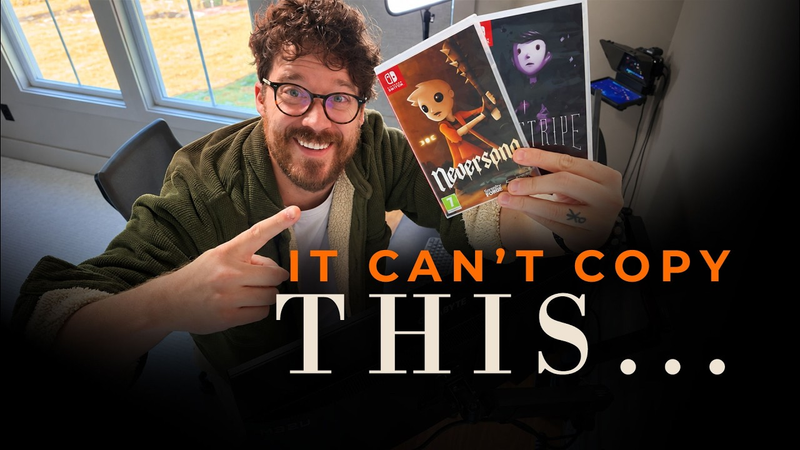
Very, very good. Now, certain layers are it's okay to delete if they're just not working. It's okay to make a change. In this case, I really don't like this layer here. So, I'm just going to delete it. All right. Now, to create separation between this layer and the background, we sometimes have to break one rule. And I do this I did this in Never Song, which is one of my my 2D games. Um, I'll take the dark color of the foreground and I'll create stones or bushes or hey, these could be trees, right? So, that's totally fine. I really, really like that. I wonder if we could add a little bit of a color overlay effect to it, which is that purple color. Make it a little bit darker and sort of blend the two. That looks great. I really, really like that. that. So, I'm going to rasterize that layer style. Okay.
Okay. So, we can go ahead and disable our color palette now because we've got all the colors we need. Um, let's go ahead and start adding detailing to the background. Um, specifically the mountains. We've added detailing with the fog and the clouds, but I think we can start adding some trees. So, all I'm going to do is take my brush and I'm going to go to my brushes here. And these are custom brushes that I've created. And if you want to get these brushes, you can join the courses. Um, but honestly, they're pretty easy to create as well. But these are included um in the in the Ultimate Game Artist program. Um, I really want to take these pine trees here and just create some subtle pine trees. Okay. So, instead of drawing each one from scratch, I'm going to take this layer here, and I'm just going to throw in some pine trees.
Now, you notice it's kind of an odd color scheme as it blends and goes upward. So when we start intersecting and going up towards the sky and this green starts intersecting with that blue, sometimes you have to add a gradient to make uh some shadows so that it doesn't look like it's just sort of muddy. It's really muddy right here. So we're going to fix that with some gradients. We could use the gradient tool or we could use a very soft brush and I can take the color of let's say this dark blue here and we could slowly add a gradient here. to mimic a shadow. That's awesome. There we go. Very good. All right. Now, as we come forward, what other details could we add? Well, this looks like stone, and it's not stone. It's grass.
So, let's use our brush to create some grass. There we go. Awesome. Okay, if we zoom out, you can see it's really working for us. So now what we're going to do is just add in some pops of color. Okay, if you go to the Elden Ring illustration here, you can see we have pops of color, right? very small um pops of color. They're just they're they're really secondary colors. They're meant to just complement the primary color palette. So, we have this orange here. So, I'm going to grab that and I'm going to grab a flower from my brush pack. Let's go to this brush pack here.
And oh yeah, we have flowers right here. So, this cool little flower shape here. So, that can work. Let's add that onto our grass here. Now, I'm going to go ahead and clean up all these layers by just merging them all together. I'm not going to merge the clouds or the fog into any layers, but if there's any instance where there's grass that was added on a separate layer, I just want to make sure I double check that. Okay, I'm going to merge that down. Okay, now this is this is where the fun begins. So if we take the the clouds here and add an inner shadow, we can add a little subtle highlight to this. Okay, look at that. Now we can also add another soft highlight. Okay, this is all just a layer style. Okay. And what we're doing here is we're creating a reusable effect that
we can apply to every single layer. Okay. I'm going to do overlay. There we go. We'll make that really soft. There we go. I'm going to copy this layer style. I think the the light is a little bright. There we go. I'm going to copy this layer style and we're going to see what happens when we apply it to every single layer. And I think now we can go ahead and start adding in our lighting. Okay. So, what I'm going to do is convert the all of these different layers to smart objects. And the reason I'm doing that is because I want all these layer styles to be rasterized so that we can add effects over top of them, but I want to be able to change them if I need to. And I can just double click on the smart object to do that. Okay. So, I like to start actually with
the ground that the player can walk on. Okay. When I'm adding lighting and shadows, I really focus on the ground that the player's walking on so that it feels like it pops. And when you add vibrancy and shadows to things, it makes it pop. Okay. So, here's what I'm going to do. The first thing is I'm going to take this white color here. And I'm going to use a simple brush. I'm just going to add an overlay to it. See that? But what we're going to do is cut out shadows from that overlay. And suddenly this will all make sense here. Okay, I'm going to mask that out. Invert that mask. And now you can see we have these beautiful shadows. I'm going to add a little bit of a motion blur to them though. There we go. Almost
motion blur to the actual close. Let's do it again. Let's do it again here. Good. And I'm going to change this color of this white to be a little bit more orange. There we go. Just adding in that orang-ish color to add in some light. Okay, good. Good. Good. Now let's add in some detailing to these rocks. Okay, something I can do is just add a inverted circle. So what I mean is take this selection say here inverse and then grab a dark color here. Maybe uh something like this black here. And if I take my brush, I can just create a shadow there. Okay,
let's scale it down a tad. just matching the size of that pencil tool. And I'm going to fade out the bottom here. And now I'm just going to add this all over. Okay. Now, let's add in a castle in the background. All right. So, we have all this room here. This is our final touch here. Then, maybe we'll throw in some trees as well in the foreground. But, we have this final touch here. What I'm going to do is go to Noun Project and I'm going to type in Castle. Okay, this is a plugin from Noun Project. You can just get all these cool different silhouettes here. And let's see if we can find a castle that's going to fit in
our world here. I think we could probably use this one as at least a base. Okay. So, let's think of about the scale here. Elden ring. Everything's huge, right? All right. There's our reference. And we're just going to use the polygon lasso tool here. Sorry, I'm focused here. and create our castle.
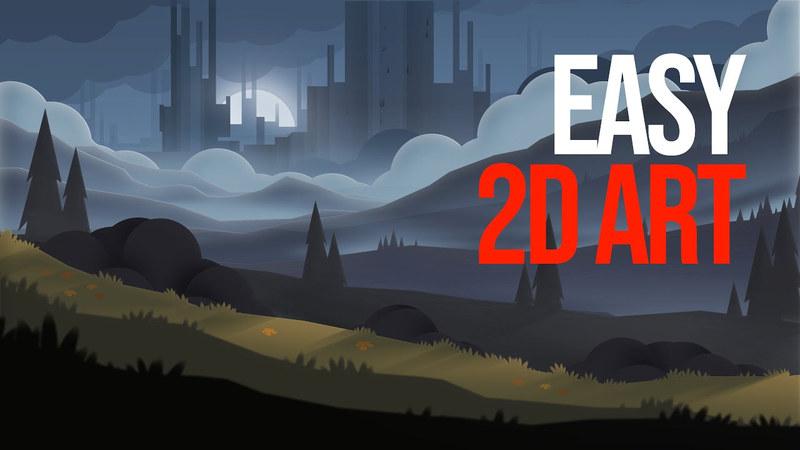
There we go. That is our Elden Ring illustration. And that's just using the colors from Elder Ring to create a 2D
world for our 2D
Summary
The creation of professional 2D game art relies on a structured approach to color theory, atmospheric perspective, and layered composition. The primary thesis is that a well-defined color palette, derived from high-quality visual references, serves as the essential foundation for any illustration. By extracting primary, secondary, and shadow colors from an existing source—such as a screenshot from a game like Elden Ring—an artist can establish a consistent visual mood and ensure environmental cohesion.
The methodology emphasizes the importance of atmospheric perspective, where colors shift in saturation and darkness based on their proximity to the camera. Elements closer to the viewer should be more saturated and dark, while distant objects should blend into the sky through atmospheric fog. The process involves building the scene in layers, starting from the background and moving forward. Techniques such as using gradients to mimic light shifts, applying motion blur to fog elements, and utilizing custom brushes for environmental details like trees and grass help create depth and realism.
Key technical practices include using smart objects to maintain flexibility, applying layer styles like inner shadows to add highlights, and incorporating secondary "pops" of color to complement the primary palette. The workflow also suggests using external resources, such as silhouette plugins, to build complex structures like castles while maintaining the established color rules. Ultimately, the success of a 2D illustration is determined by the artist's ability to adhere to these foundational color principles while layering details to create a sense of scale and atmosphere. By systematically applying these rules, artists can produce professional-grade assets that feel grounded and visually immersive.
















Comments