1 free read left. Create a free account for unlimited reading + AI research.
Create free account
2D Game Art Tutorial In 10 Minutes
Key insights
6 takeaways- 01High-quality 2D environmental design relies on the disciplined application of a pre-defined, harmonious color palette rather than complex manual drawing techniques.
- 02Visual cohesion and three-dimensional depth are achieved by layering primary, secondary, and neutral tones, even if individual elements appear washed out in isolation.
- 03The composition process begins by establishing a horizon line using gradients to provide a consistent color context for all subsequent environmental elements.
- 04Atmospheric perspective is created by adjusting layer opacity and applying gradients to simulate light sources and shadows.
- 05Technical execution utilizes the polygon lasso tool for geometric shapes and the pencil tool for organic detailing to build depth through systematic layering.
- 06Professional-looking textures, such as grass or foliage, can be generated by applying custom brush packs to basic silhouettes.
Ask AI about this video
Transcript
Hello there. How's everybody doing today? So, we're going to jump inside of Photoshop and we're going to make a beautiful piece of art pretty much that anybody can do, no matter your skill level. And we're going to basically take Tears of the Kingdom. We're going to take the color palette. We're going to make it look beautiful. Best part here is we're going to be using a mouse. That's all we've got to use. Okay. So, let's really quick jump into Photoshop here and talk really quickly about the most important aspect of creating 2D art, and that is your color palette. So, what I'm going to do here is I'm just going to create some squares at the corner just so I know what colors are available to use here. So, I'm going to distill down Tears of the Kingdom to its most basic form. And that is the color palette. Okay. So, I'm thinking probably this this vibrant sort of yellow color here. But we also have I'm going to make some smaller squares here. This will make uh make sense in just a second, but I'm going to make some smaller squares of these more vibrant tones here. Okay. So that greenish color um kind of like an emerald color and also this orange.
I'm going to take those colors and we also have some neutrals. It's important to remember that neutrals are going to help make your image look not so intense. It's okay that every color in your illustration is not vibrant. In fact, that's what m that's what's going to make it look good. Okay, so we have our very generic color scheme here. So, I'm going to go ahead and just hide this image. And what I'm going to do is now create a gradient. Okay, the gradient is going to basically show us what the horizon is going to look like. Okay, this is going to make sense, I promise. So, I have this color here. Okay, so I'm going to gradient down like this. And then I'm going to have this color here. I'm going to gradient up like this. So, this is our horizon. But also just remember that we have a little bit of a light tone here. So I'm gonna take that light tone. Okay, that looks good. Yeah. Yeah. Yeah. And then this yellow here. There we go. So that's really what the
horizon of our world is going to look like. You'll notice I took the blue sky color, the yellow grass color, and we're going to fade towards that as we get closer and closer to the camera. If this doesn't make sense to you, it's going to make sense by the end of this video. Okay, so these are the colors that we're going to use. So, I'm going to merge all these layers together. I'm going to scale it down just a little bit. The reason I like to keep my colors up here is so that I can quickly use the eyropper tool and select the various colors I want. The reason I've created them in different scales is to remind myself that these are the prominent colors. These are the minor colors, okay? are our secondary colors that we're going to use. Okay, now let's go ahead and use our polygon lasso tool to talk about our mountains. Okay, if we're going to make some mountains, we can just simply click like this. Okay,
something like that. And again, I'm just using a mouse. Now, I'm going to take the let's see here, maybe this yellow color here. And you'll notice that the yellow color looks kind of strange, right? You have to trust the color palette. Okay, we're going to trust the color palette. So, you got to keep moving forward. So, again, the sky is this blue. Okay, we have our mountains here. But the thing is, we want to make sure that we add some more mountains here that are a little bit closer to this blue color. Okay, so maybe something like this. Okay, let's add another mountain here. And it's going to slowly start making sense. Okay, let's go ahead and create our foreground. Okay, so this is the ground that the player is actually going to walk on in our 2D game. Okay, I'm going to go pretty dark that we have a lot more um neutrality added to this image here.
Um let's go ahead and keep going forward. And then actually now that we've got our generic layers laid out, we can actually grab this color here, this white bluish color, and just do a gradient up. See that? Just like that. A very quick way to make clouds. This is my favorite thing to do is to use the pencil tool. And we're going to go to the sky here. And we're going to scale up our pencil tool, just the circle. And we're going to use some white here. And we're going to create our clouds. Look at that. We're just doing simple spheres. Put some over here as well. We can create a new layer. And well, actually, let's go ahead and just create more clouds in the background. But in this case, watch this. And drop down the opacity. Look at that. Beautiful. I really, really like that.
And again, I'm I'm I've like to harp on the fact that you need to trust the color palette. Trust the color palette. It's going to feel washed out, but as you bring in those secondary colors, everything starts to pop. Okay. So, let's create some stones here. Well, why don't I put a stone, maybe a circular stone right here? Just a very simple stone. Look at that. We do in here as well. And maybe some here as well. So, let's go ahead and add maybe some orange flowers. Okay. So, I'm going to use my brush pack here. Um, and again, this brush pack is available if you join the course below. U, but the brush pack isn't super complicated. It's pretty easy to make. U, but I have some flowers here. So, I'm going to take this orange and I'm going to throw in some flowers. Now we have our generic color palette.
Okay, we're going to start using gradients to create shadows. And those shadows are again going to create separation and make everything not look so washed out. Okay, so let's start with this ground layer here. And I'm going to go ahead and add this color here and create some shadows. So I'm going to just pull up just like this. And already you can see how the sun is sort of pouring over these hills. Okay, it makes it look a little bit more 3D. Okay, very good. This same thing. Okay, I'm holding alt and I just have to click this layer here, grab my gradient tool, select this color here, and pull a gradient up. Just like that. Okay, it's making it look like the hill is 3D. Okay. All right, let's go ahead and add some shading to these rocks. Okay, they're kind of driving me nuts. Okay, they still don't look like rocks,
and that's because we need to add some detailing to these rocks. So, what I'm going to do is again hold alt and click this new layer over top of our rocks. And I'm just going to create a very subtle selection here. Something like that. I'm going to click select inverse. And I'm going to use a very faint generic brush here. This soft round brush. And I'm going to just use a pop like this. Okay. Drop it down in its opacity. And then just right here. Okay. And I'm going to duplicate this over and over. See that? Look at that. We can scroll down in my brushes here
and you can see I've created a little brush. Again, this is in my brush pack in the course, but you can again create your own brushes. I'm going to go ahead and find our grass block in brush here. I'm going to select that yellow color and I'm just going to paint in this grass. Okay. I'm gonna make sure that if I go to my brush settings that there's no color dynamics. I don't want that. I'm cool with the brush the shape dynamics. I just don't want the color to change. Okay. So, what I'm going to do is I'm going to select this grass here. And all I need to do is basically just select maybe how the shadows would look if these stones were casting long evening shadows. I'm sure the art director said showed them how much green they wanted to use, how much orange they wanted to use. It's mainly blue and mainly yellow with these pops of or emerald and orange. Okay, so
there is our Zelda image. Let me know what you guys thought about this. If you found it helpful,
Summary
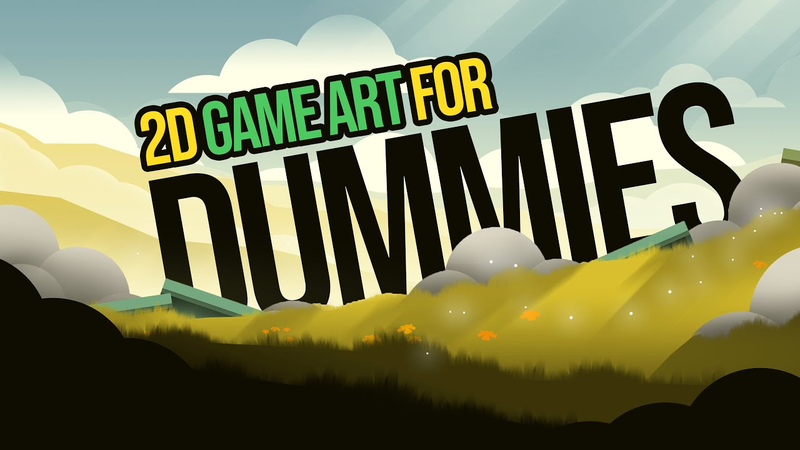
The primary objective of this guide is to demonstrate that high-quality 2D game art is accessible to creators of all skill levels, even when limited to basic hardware like a computer mouse. The central thesis posits that successful environmental design relies less on complex drawing techniques and more on the disciplined application of a pre-defined, harmonious color palette. By distilling professional inspirations—such as the aesthetic of Tears of the Kingdom—into a structured set of primary, secondary, and neutral tones, artists can create depth and visual interest without advanced technical proficiency.
The methodology emphasizes a layered approach to composition, beginning with the establishment of a horizon line through gradients. This foundational step provides the necessary color context for subsequent elements, including mountains, foreground terrain, and atmospheric effects like clouds. The process relies on the strategic use of the polygon lasso tool for geometric shapes and the pencil tool for organic detailing. A critical finding is the importance of "trusting the palette," even when individual elements appear washed out in isolation; the final visual cohesion emerges only when secondary colors and shadows are introduced to provide contrast and three-dimensional depth.
Key technical practices include using the eyedropper tool to maintain color consistency, adjusting layer opacity to create atmospheric perspective, and applying gradients to simulate light sources and shadows. By layering simple shapes and utilizing custom brush packs for textures like grass or foliage, creators can transform basic silhouettes into detailed, professional-looking game environments. The approach underscores that effective 2D art is a product of intentional color management and systematic layering rather than intricate manual illustration.

















Comments